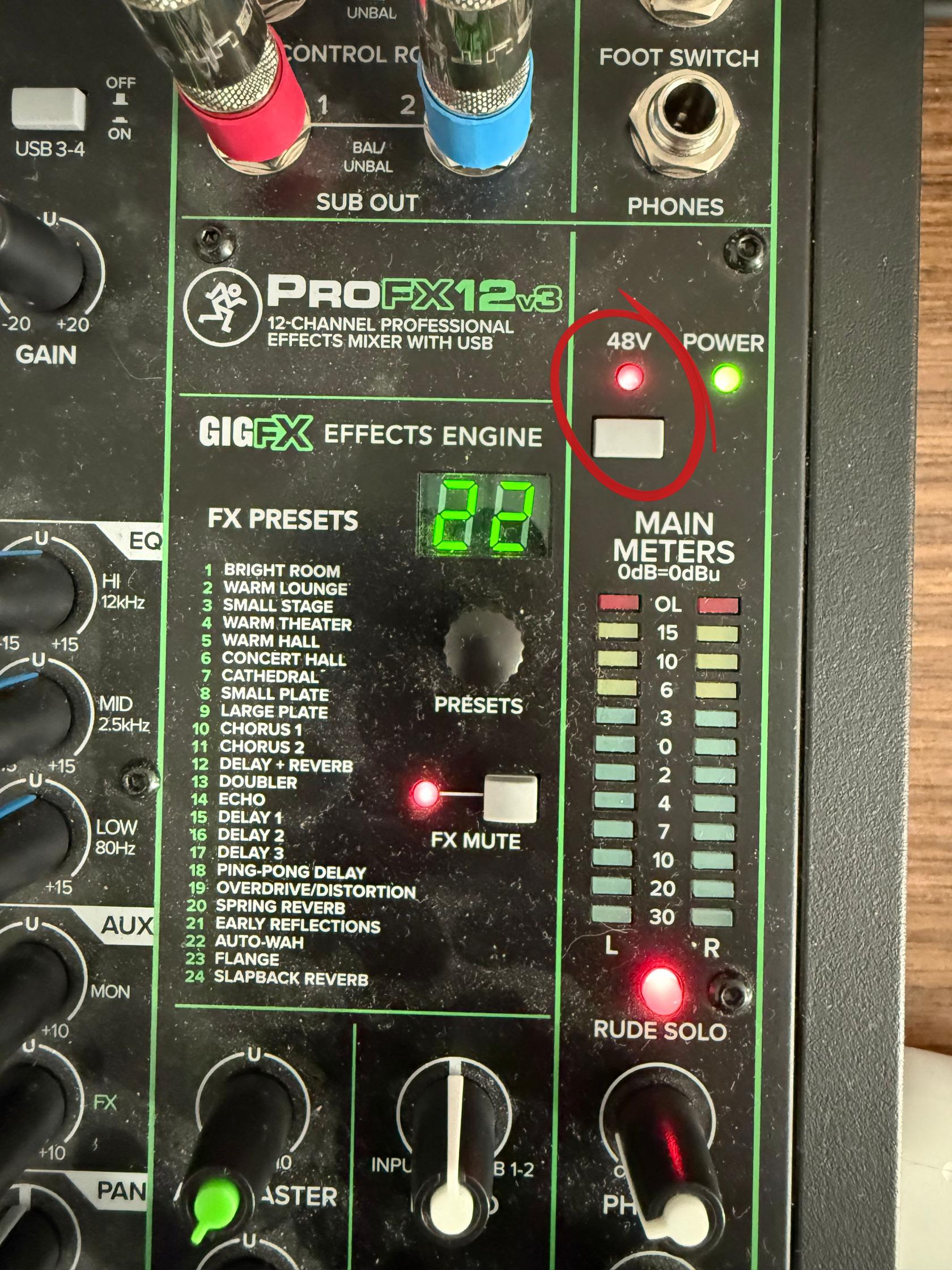
MAKE SURE THAT EVERYTHING IS PLUGGED IN AND SPEAKERS ARE MUTED BEFORE PRESSING 48V. TURN THE SPEAKERS ALL THE WAY DOWN BEFORE PRESSING 48V THEN TURN THEM BACK UP
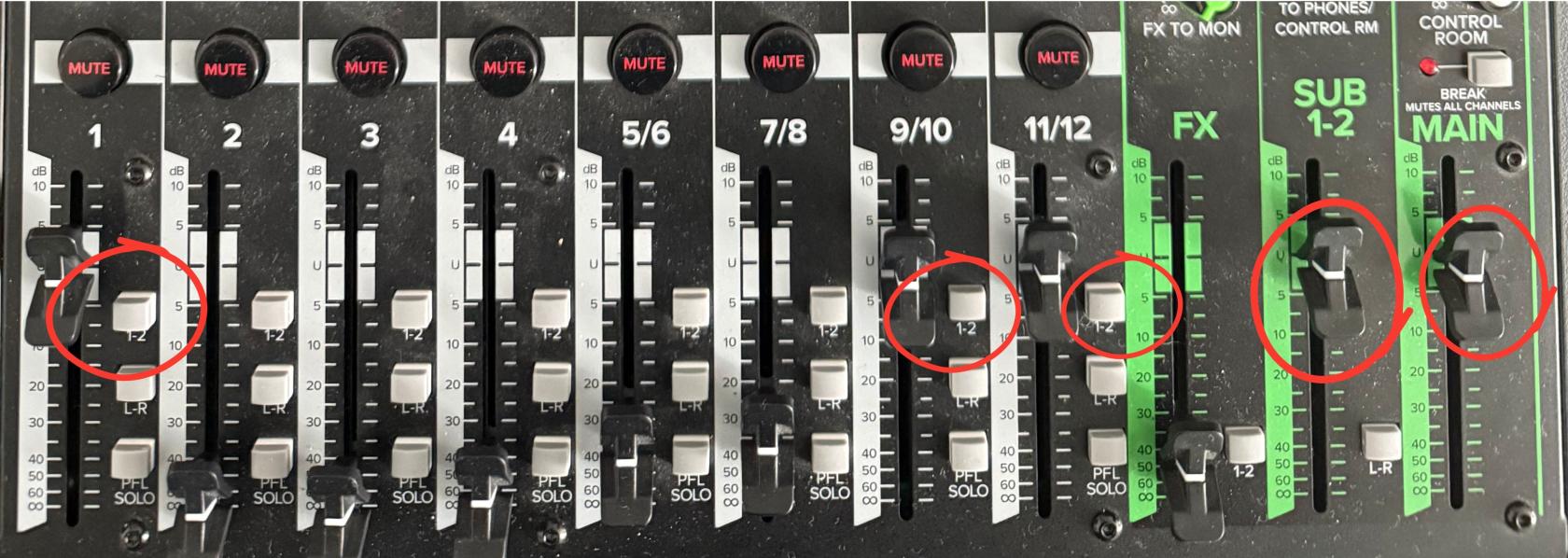
[](https://scil-wiki.su.edu/uploads/images/gallery/2026-09/phantom-power.jpg) 11\. Press the L-R button next to the fader on Channel 1. [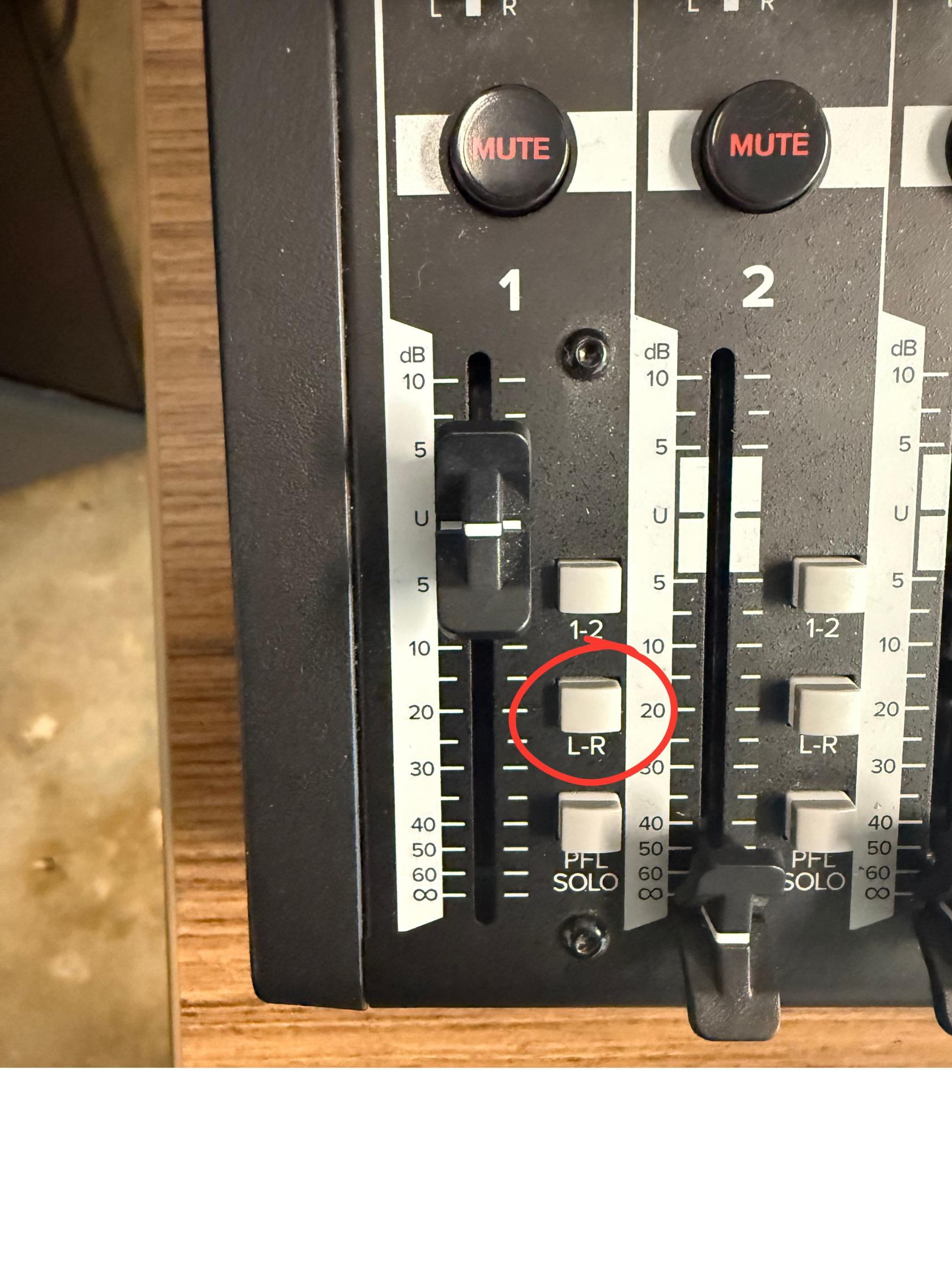](https://scil-wiki.su.edu/uploads/images/gallery/2026-09/l-r-button.jpg) 12\. Pull the Main, SUB 1-2, Channel 1, Channel 9/10, and Channel 11/12 up to U and Press 1-2 button on Channel's 1, 9/10, 11/12The 1-2 button allows for the person in the recording booth to hear the channel 1-2 is pressed on.
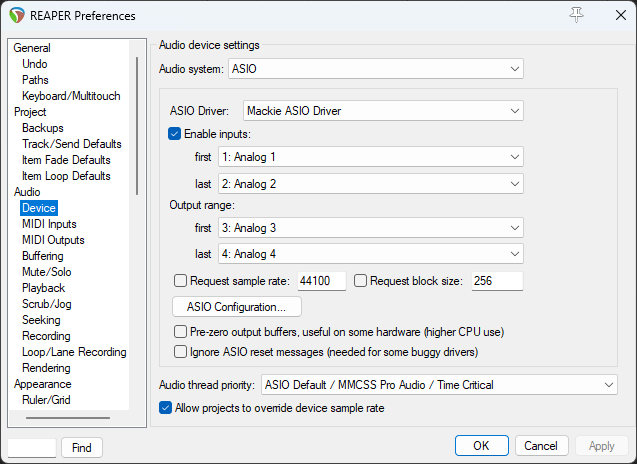
[](https://scil-wiki.su.edu/uploads/images/gallery/2026-09/faders-to-u-new.jpg) 13\. Press the PFL SOLO button on channel 11/12 [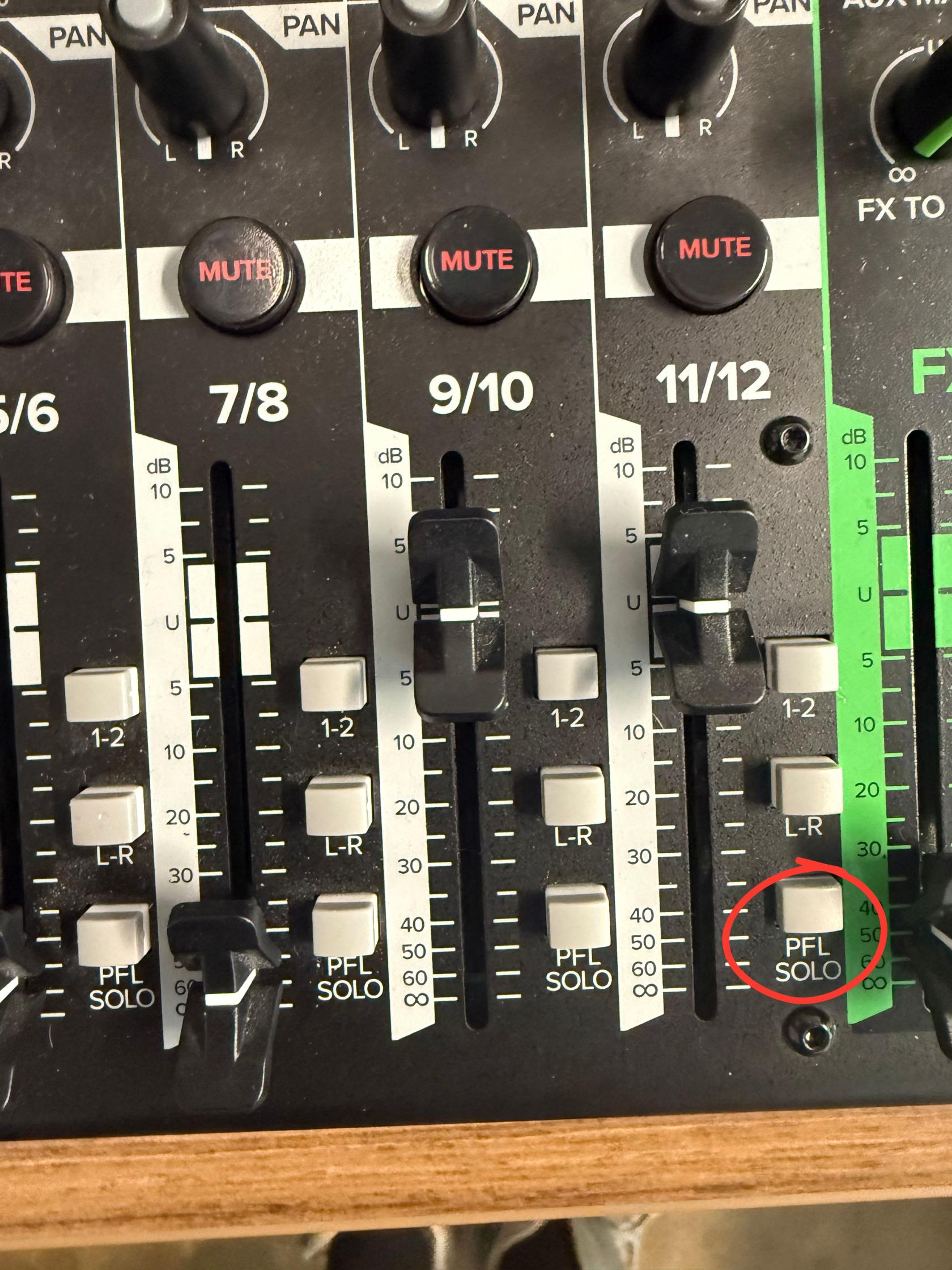](https://scil-wiki.su.edu/uploads/images/gallery/2026-09/pfl-solo.jpg) 14\. Press the dial on the speaker until the light is green [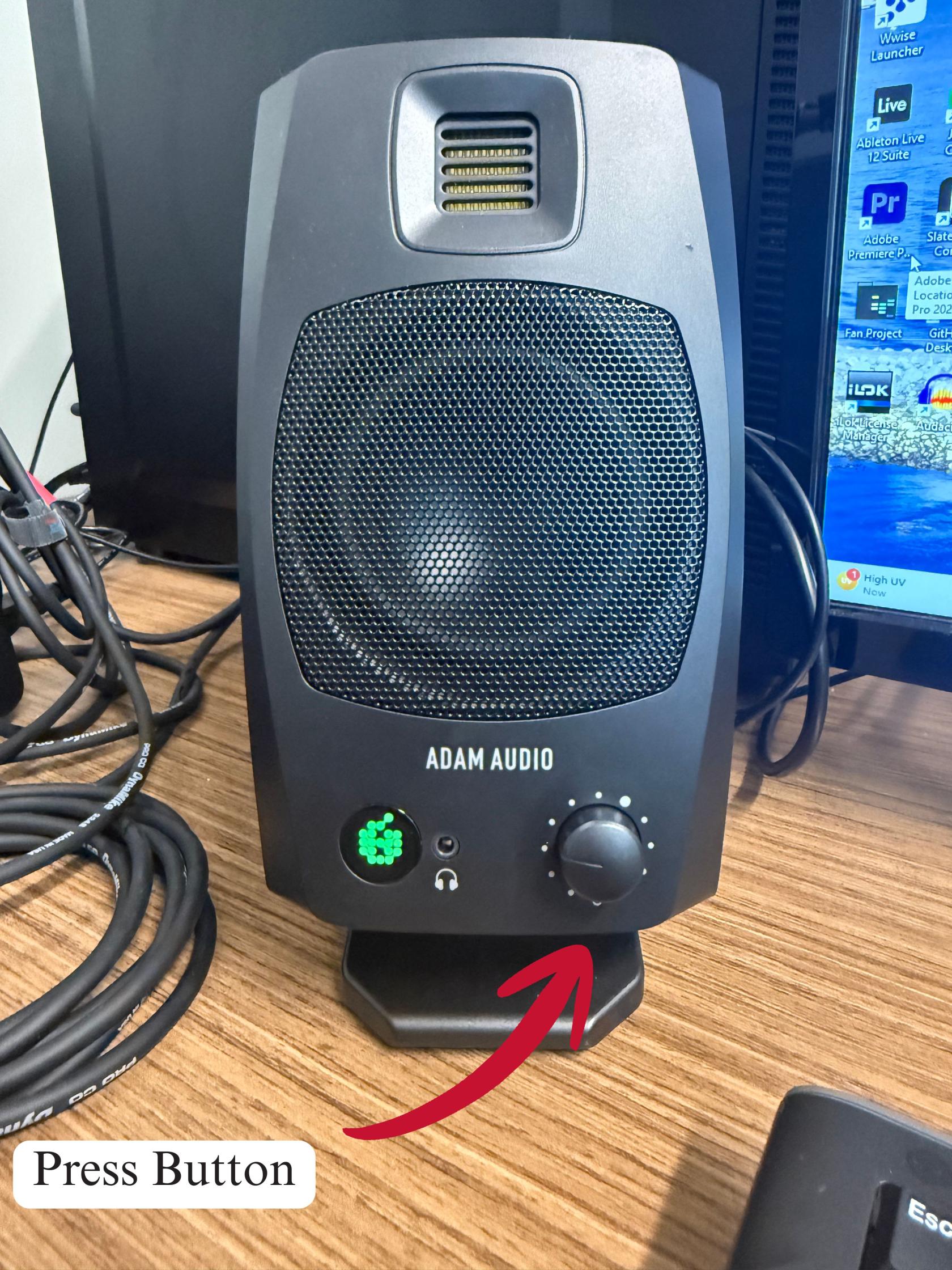](https://scil-wiki.su.edu/uploads/images/gallery/2026-09/press.jpg) #### **Reaper Setup** 1\. Open Reaper on the Computer [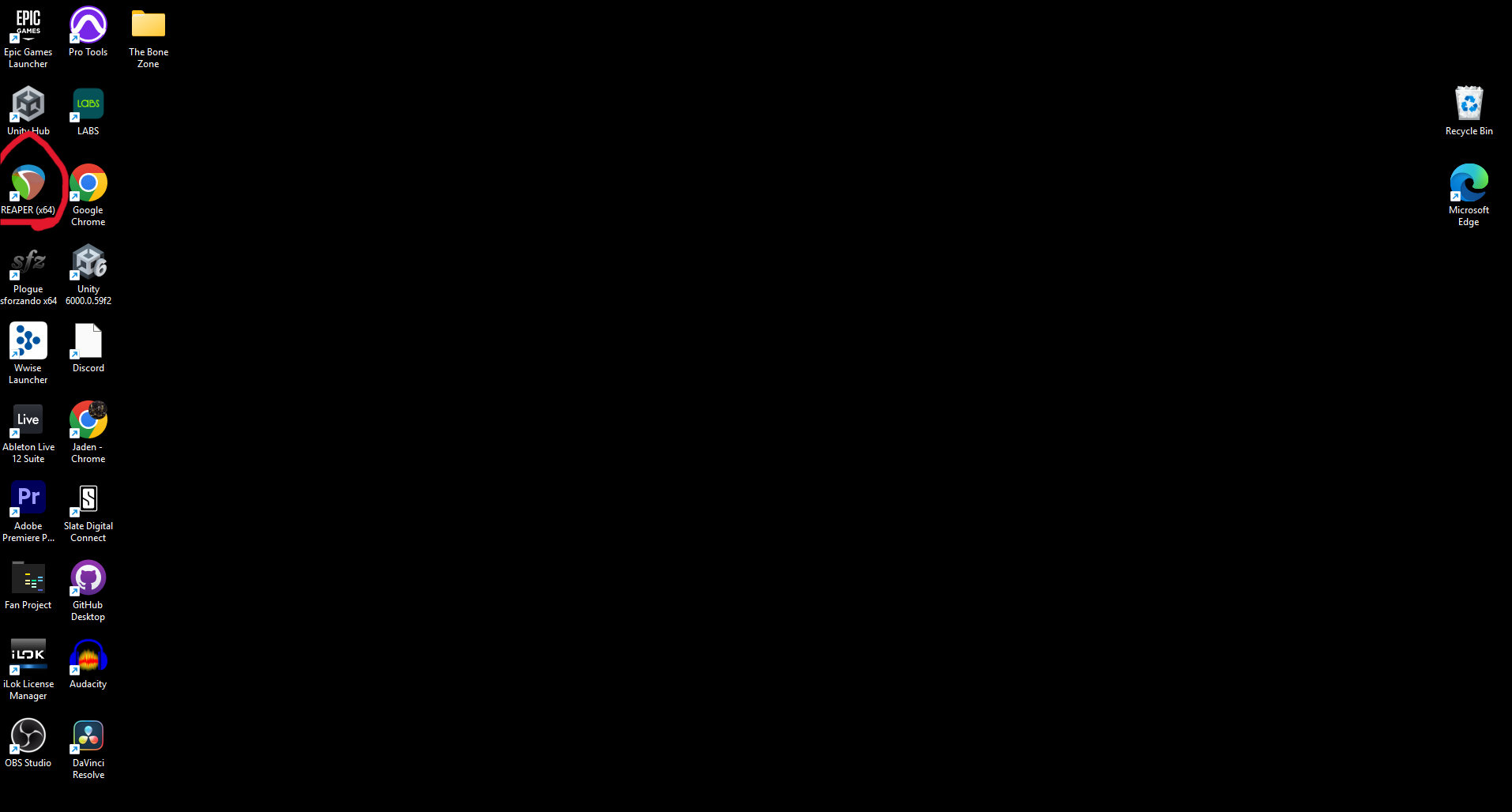](https://scil-wiki.su.edu/uploads/images/gallery/2026-09/screenshot-2026-09-02-100359.png) 2\. In Reaper go to the Options menu and press Preferences [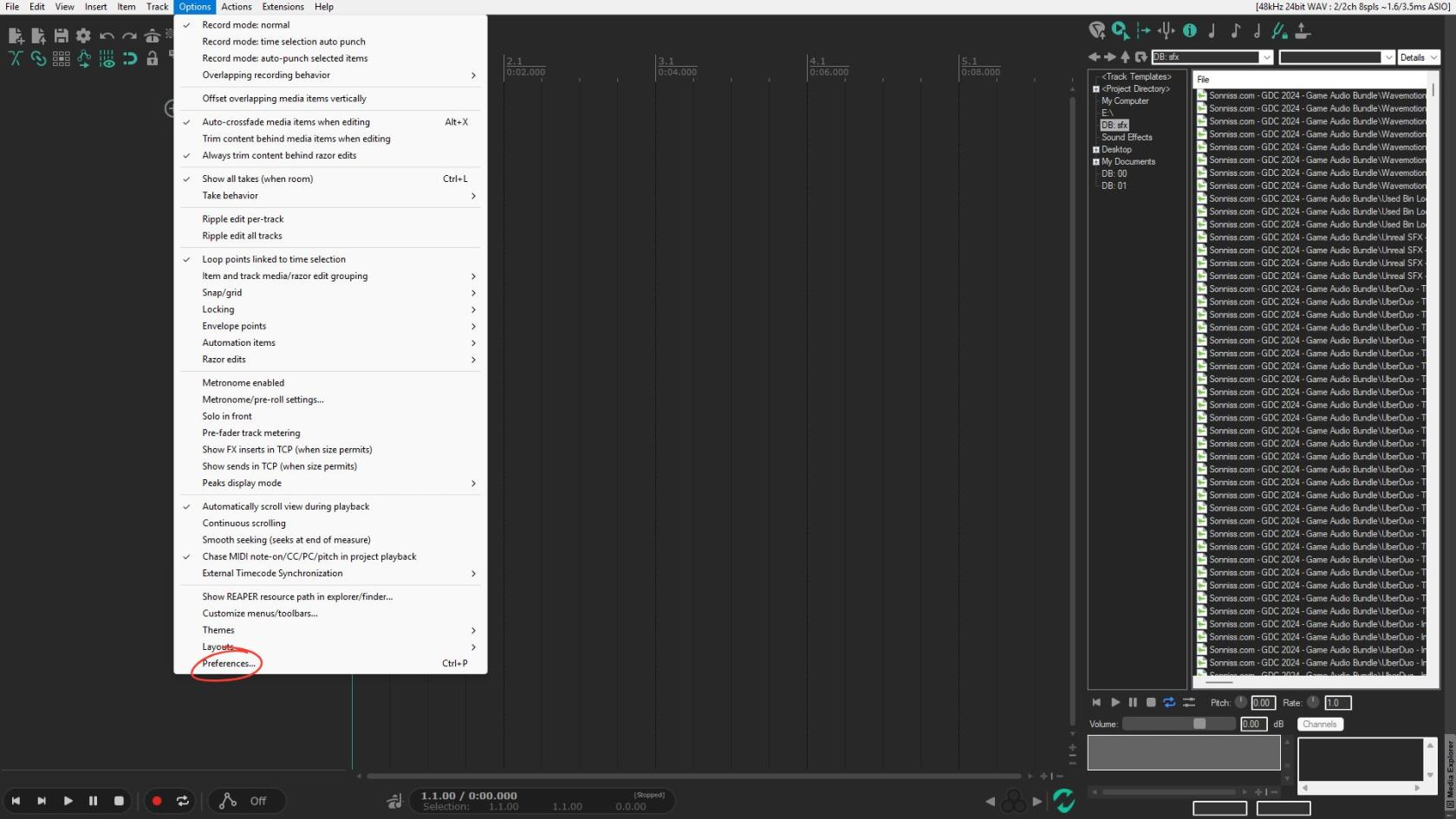](https://scil-wiki.su.edu/uploads/images/gallery/2026-09/preferences.jpg) 3\. Scroll until you see Device and click it 4\. Set Audio System to ASIO 5\. Set ASIO Driver to Mackie ASIO Driver 6\. Set Inputs to Analog 1 for first and Analog 2 for last 7\. Set Outputs to Analog 3 for first and Analog 4 for last 8\. Press Apply in that menu then press OK to close the menuGraphic below is what it should look like
[](https://scil-wiki.su.edu/uploads/images/gallery/2026-09/screenshot-2026-09-02-100853.png) 9\. Press the Plus to make a track [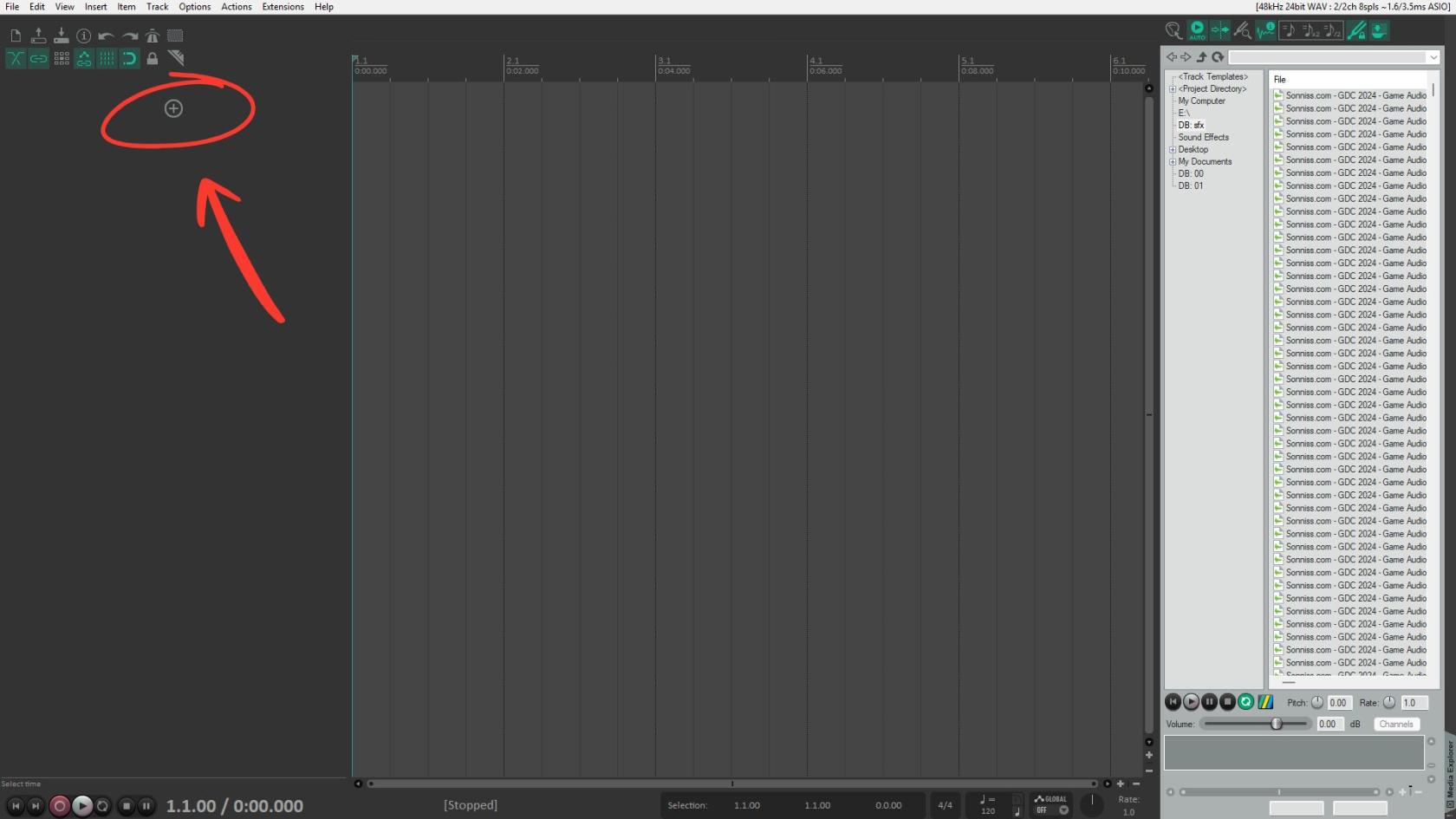](https://scil-wiki.su.edu/uploads/images/gallery/2026-09/add-track.jpg) 10\. Press the red record button on the track [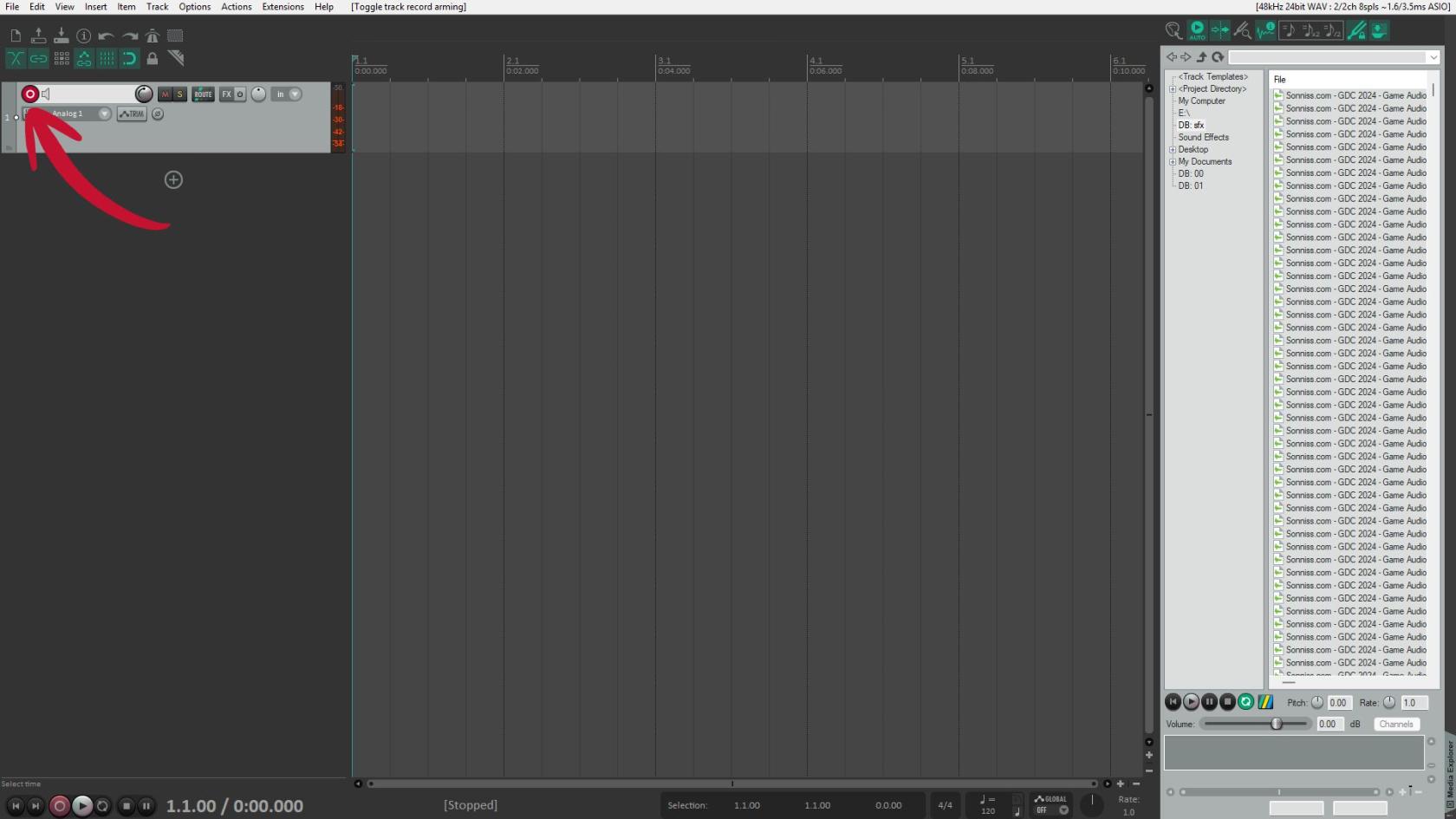](https://scil-wiki.su.edu/uploads/images/gallery/2026-09/arm-the-channel.jpg) 11\. Use the GAIN knob on channel 1 to set the gain to a level that is before peaking [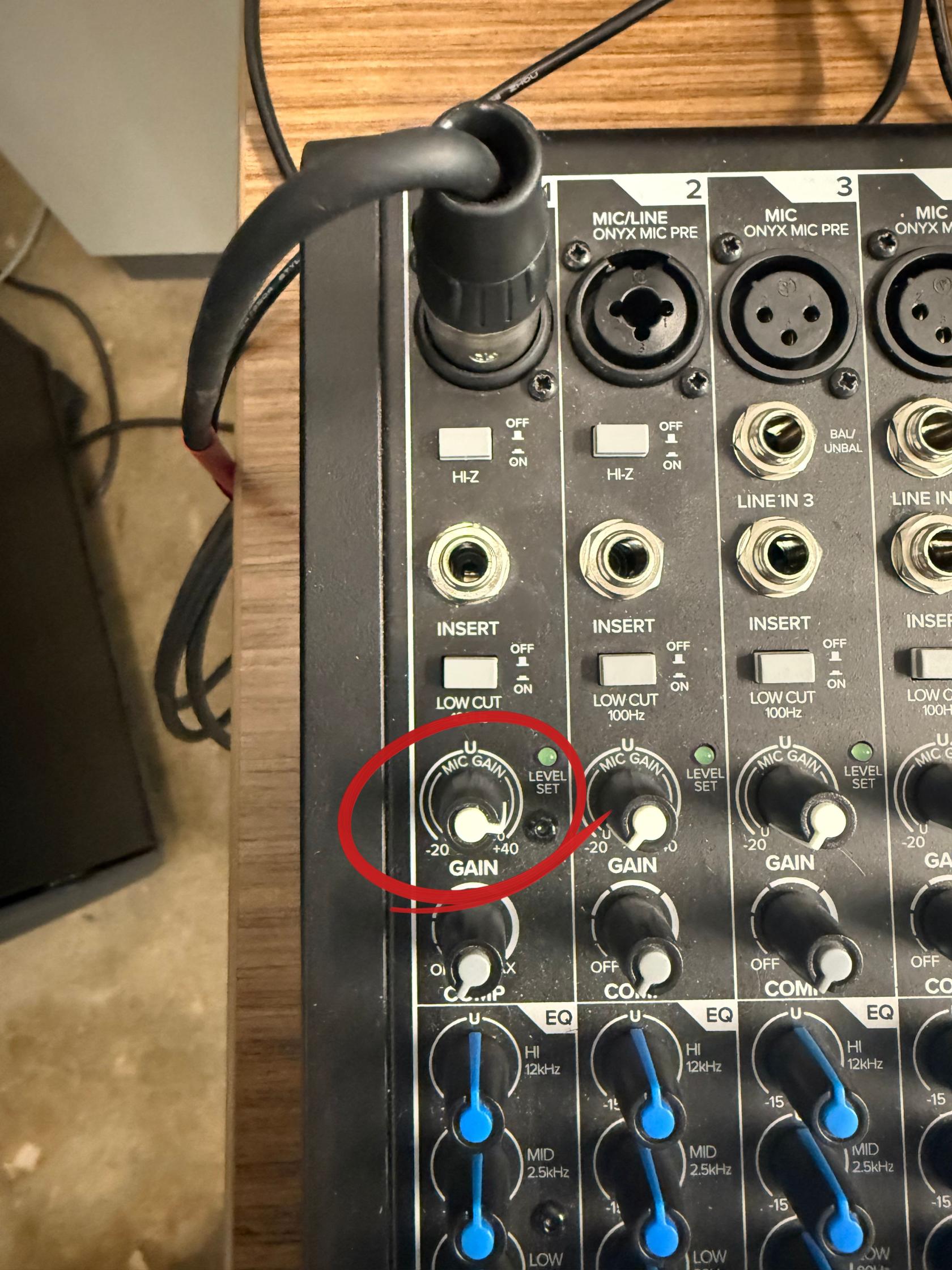](https://scil-wiki.su.edu/uploads/images/gallery/2026-09/set-the-gain.jpg)In Reaper, looking at the orange bar will show your audio level. If at the top of the bar is red that means your audio is distorting
[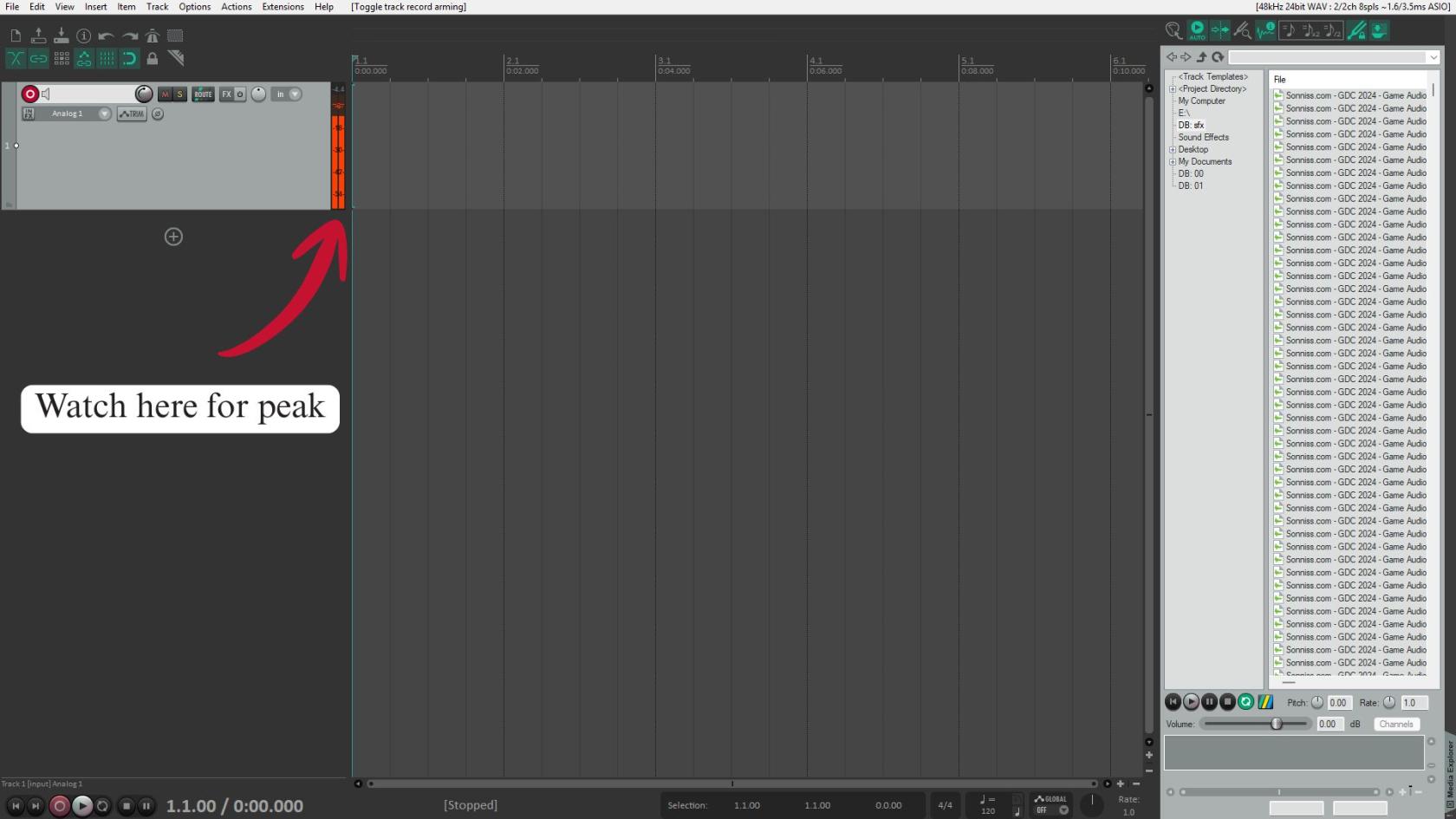](https://scil-wiki.su.edu/uploads/images/gallery/2026-09/watch-here-for-peak.jpg) 12\. Once ready press red record button at the bottom of the screen [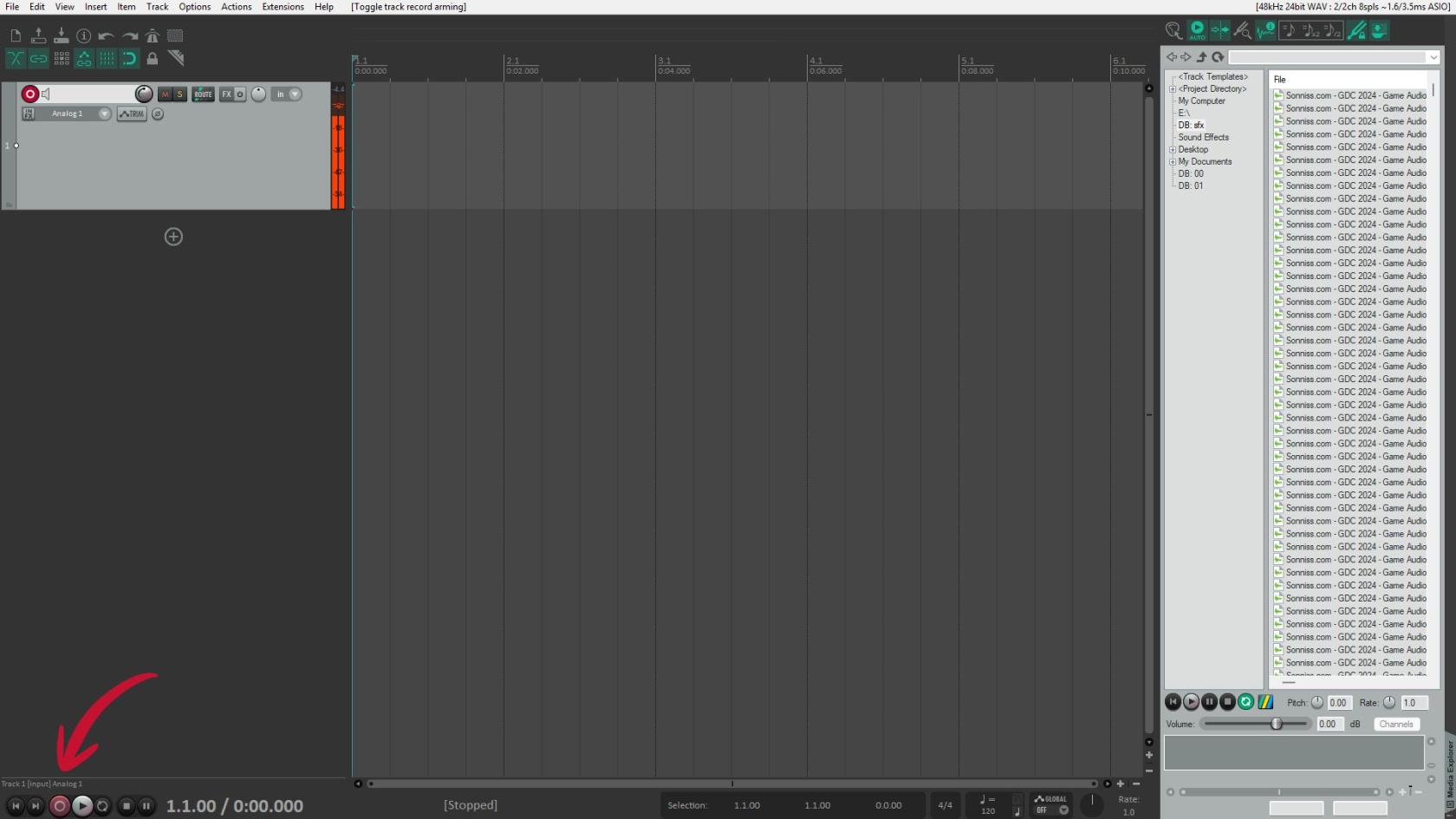](https://scil-wiki.su.edu/uploads/images/gallery/2026-09/untitled-design-1.jpg) 13\. Once finished recording press the red record button at the bottom of the screen again 14\. Click on the top of the timeline and drag the full amount of the clip [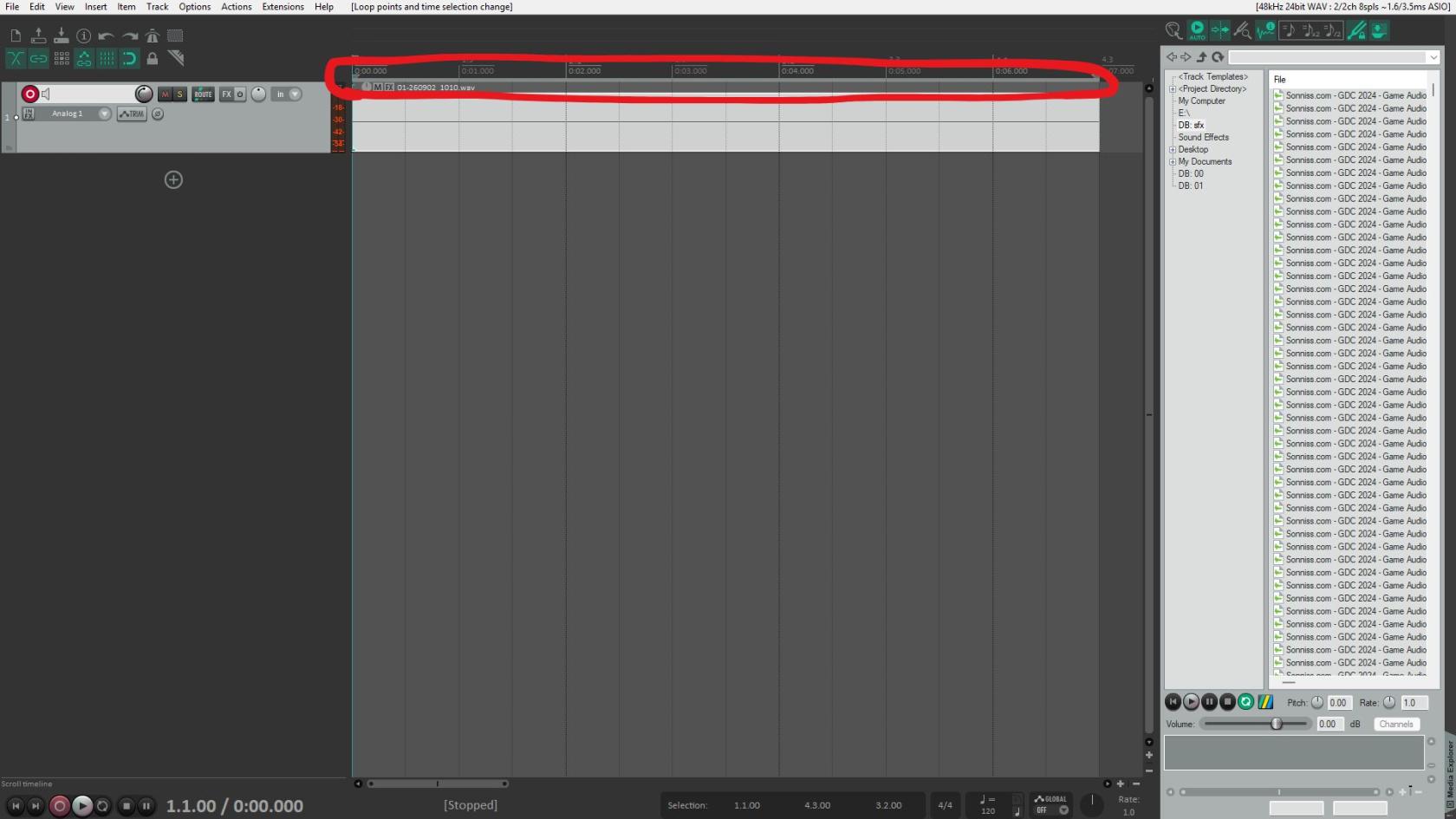](https://scil-wiki.su.edu/uploads/images/gallery/2026-09/untitled-design-2.jpg) 15\. Select the Channel in Reaper and press file then Render [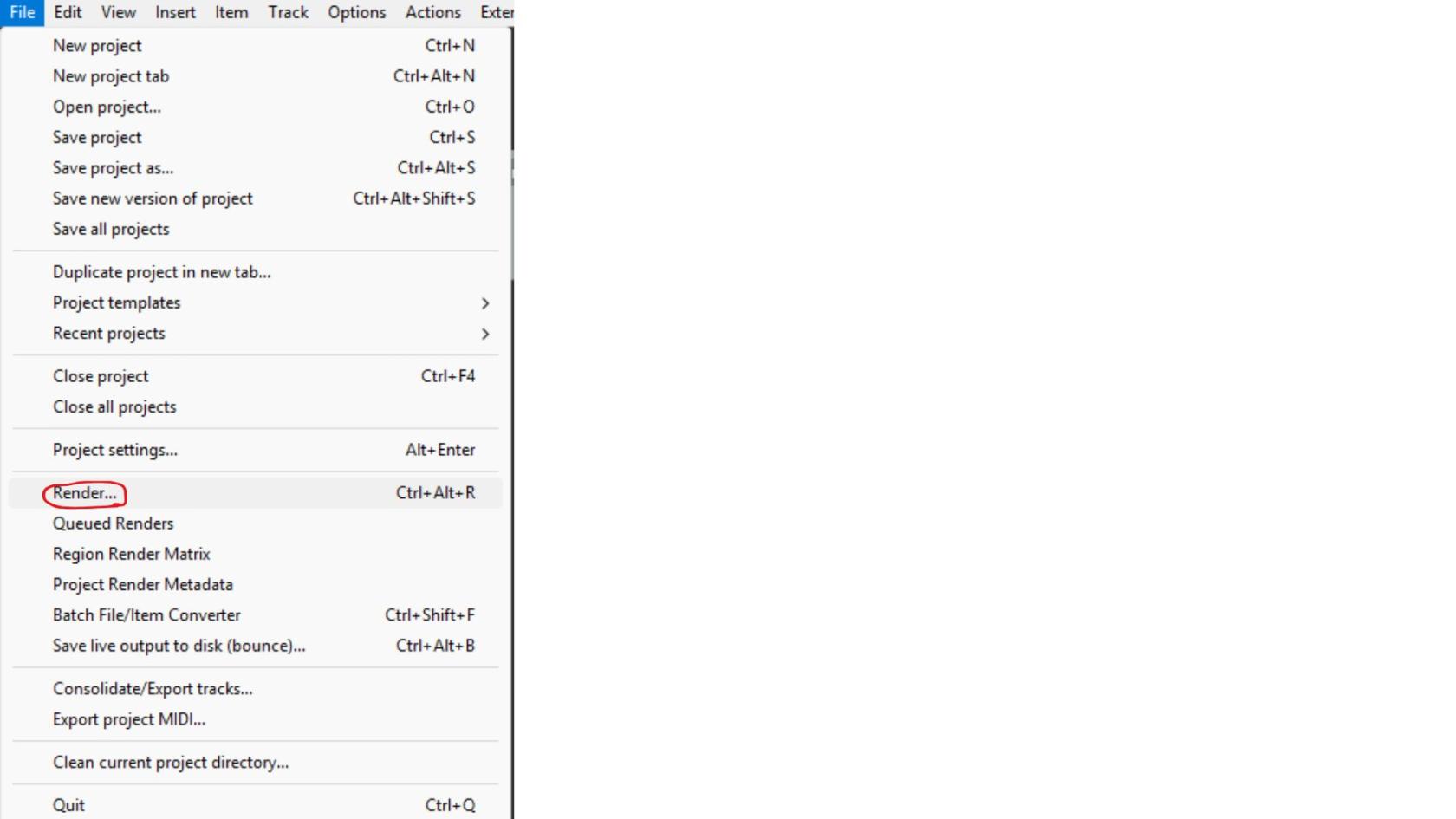](https://scil-wiki.su.edu/uploads/images/gallery/2026-09/untitled-design-3.jpg) 16\. Name your file in "File Name" and click Browse then Browse for Directory to pick where it will be stored [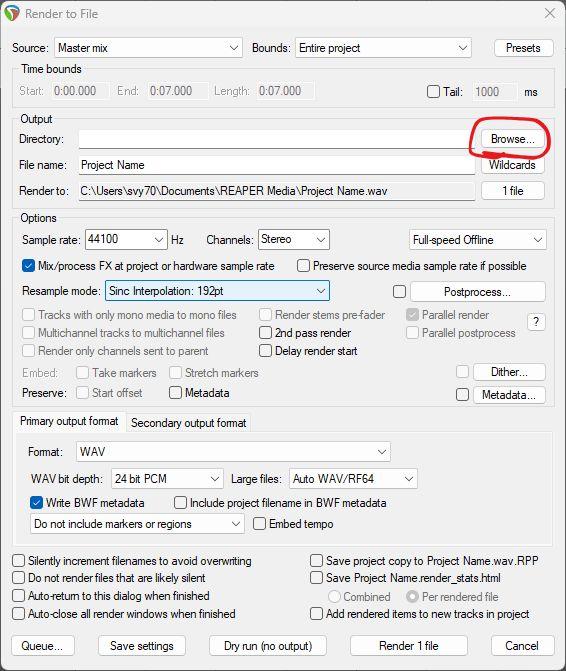](https://scil-wiki.su.edu/uploads/images/gallery/2026-09/untitled-design-5.jpg) [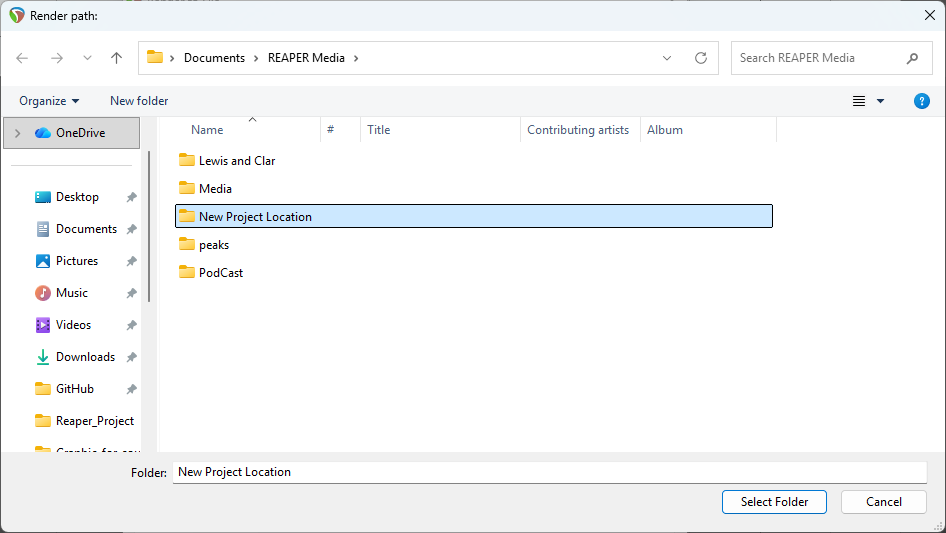](https://scil-wiki.su.edu/uploads/images/gallery/2026-09/screenshot-2026-09-02-101412.png) 17\. Make the Format WAV , WAV bit depth : 24 bit PCM, Sample Rate 48000 then click render [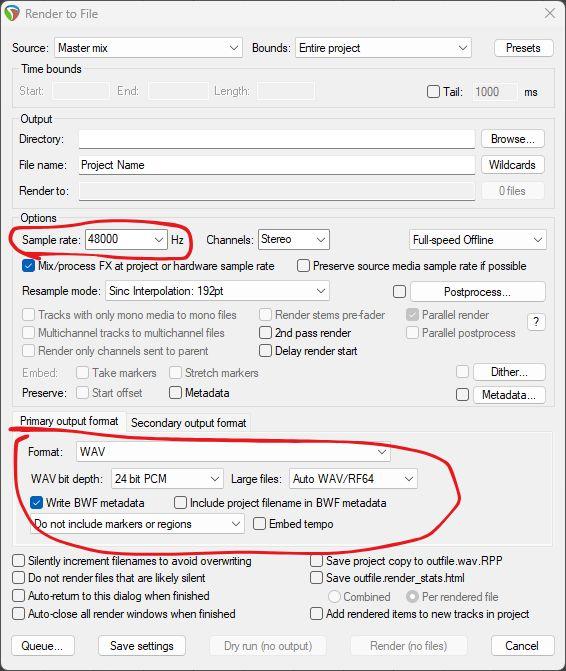](https://scil-wiki.su.edu/uploads/images/gallery/2026-09/untitled-design-7.jpg) [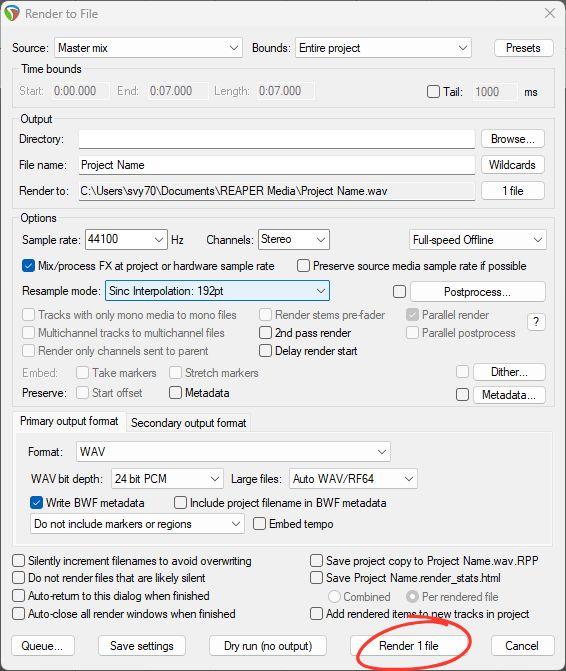](https://scil-wiki.su.edu/uploads/images/gallery/2026-09/untitled-design-8.jpg) 18\. Click the red record button on the channel up top [](https://scil-wiki.su.edu/uploads/images/gallery/2026-09/arm-the-channel.jpg) 19\. Once finished with recording pull all faders down then press 48vMake sure to pull faders down and turn the speakers all the way down using the knob on them before pressing 48v
[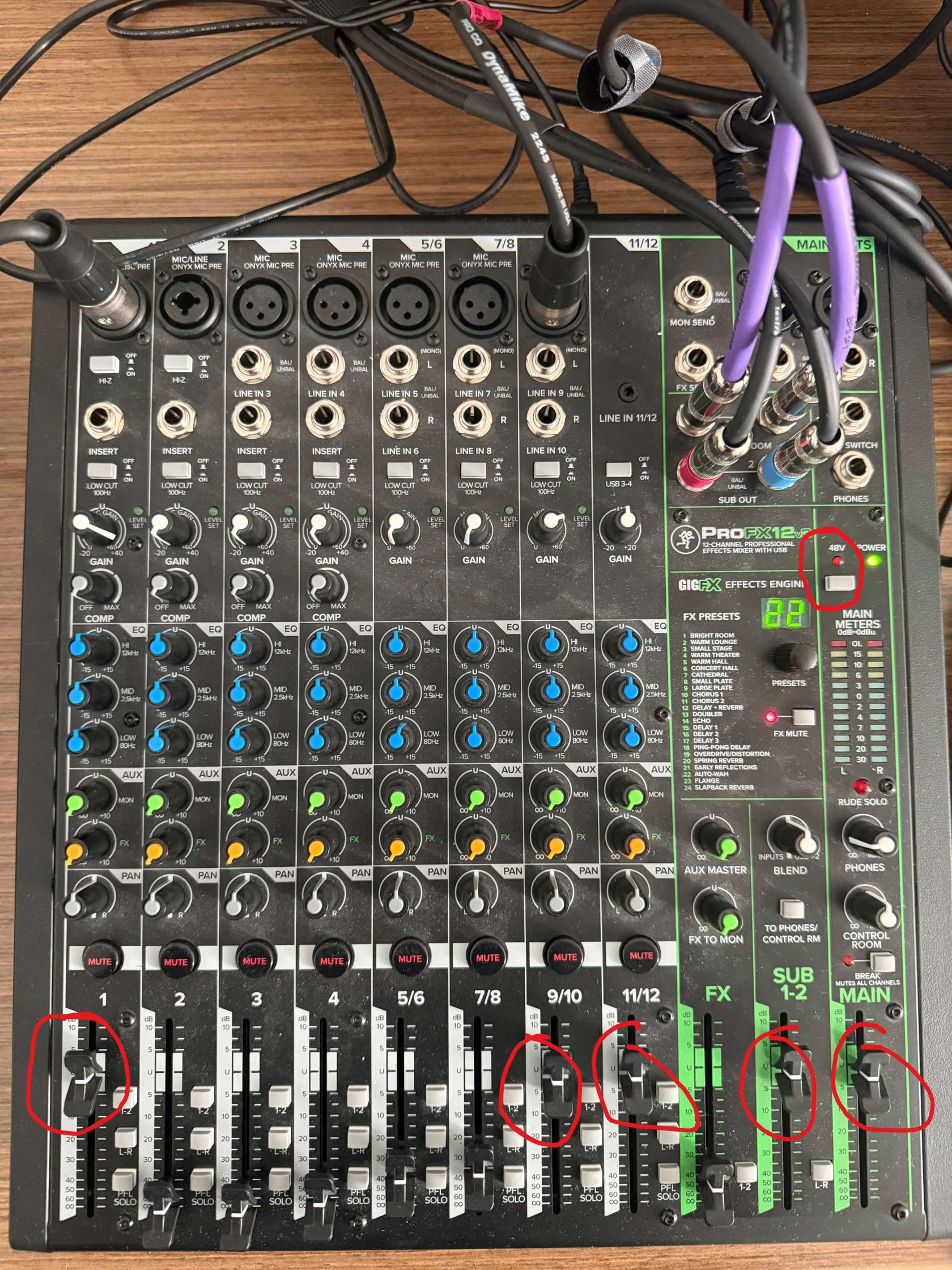](https://scil-wiki.su.edu/uploads/images/gallery/2026-09/untitled-design-9.jpg) 20\. Turn off the mixer from the switch on the back [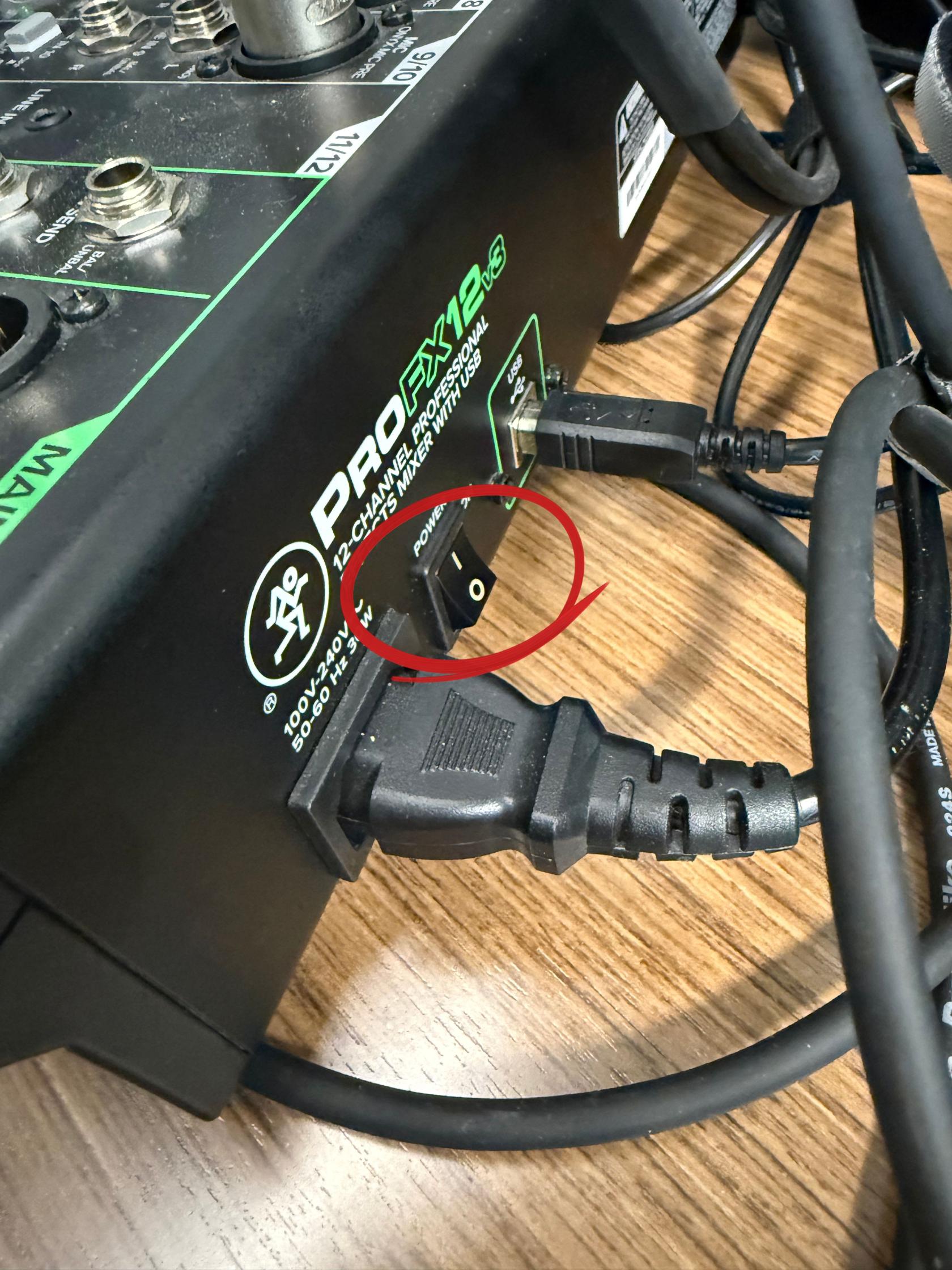](https://scil-wiki.su.edu/uploads/images/gallery/2026-09/power-switch.jpg) ## **Common Pitfalls** #### **Things to check if you can't hear audio** Make sure all cables are plugged in securely Make sure the cable connecting the mixer to the computer is plugged in securely Make sure that phantom power (48V) is enabledIF PHANTOM POWER IS NOT ENABLED MAKE SURE YOU TURN THE SPEAKERS ALL THE WAY DOWN BEFORE ENABLING IT
Make sure no MUTE buttons are enabled. (They are enabled is the button is glowing red) Make sure the Break Button (This button is right above the MAIN Fader) is not enabled (If the red light is on that means it is enabled) Make sure the USB 3-4 Button is enabled on Channel 11/12. ( This is above the Gain knob on Channel 11/12) Make sure the channel the microphone is going into has the fader up. Make sure the MAIN fader is up Make sure the L-R button to the right of the Fader on Channel 1 or any mics in the sound booth is enabled Make sure that PFL SOLO is only enabled on channel 11/12 (This makes it so that you are listening to what is being recorded in Reaper) **Things to check if the person in the booth can't hear audio.**BEFORE CHANGING ANY SETTINGS MAKE SURE YOU TELL YOUR TALENT TO TAKE THEIR HEADPHONES OFF
Make sure all cables are plugged in securely Make sure the cable connecting the mixer to the computer is plugged in securely Make sure the SUB 1-2 Fader is pushed up to U Make sure the 1-2 button is enabled on the channel you want them to hear (Channel 9/10 is for talkback and 11/12 is for PC audio.) Make sure the headphone amp inside the booth is turned up and plugged into power and into the wall Make sure the cables from the Headphones are fully connected into the headphone amp and the headphones themselves.