Making Stickers
Sticker Paper
Print your own Vinyl Stickers at Home Tutorial
Preparing
- Open Cricut Design studio, turn on the Cricut, and connect to your laptop using the USB cord.
-
Open a sticker project and adjust your design space to match the size of your sticker paper (8.5" x 11")
-
Upload your images to the design space, staying inside the cut lines. (Note: Put as many stickers as you can fit onto the page)
-
Hit the green "Make" button on the upper right corner.
- On the left side of the screen, there will be “mat” options. Make sure you select “on mat" (12”x12”) and the correct paper size (8.5" x 11")
- Hit the green "Continue" button in the lower right corner.
- Select the green "Send to Printer" button.
Printing
-
Save the page, and print it out on the bypass tray
-
To do this, go to printer settings and select “printer options” (on Mac, “Preferences” on Windows), then “Printer Feed”, and change “Auto” to “Bypass Tray.”
-
-
Put the sticker paper into the printer in the bypass tray
-
The bypass tray is a fold out “ledge” on the right side of the printer.
-
When sticking paper into the bypass tray, it should be flat, face down (so the side that will have the pictures printed onto it will need to be in contact with the bypass tray)
-
-
Go to the printer and select “Print” on the screen (should be accompanied by an image of a printer on the bottom left side of the screen)
-
Select “Job Status” in the bottom right corner of the screen
-
It should show you the printer with the bypass tray turned blue. If the bypass tray isn’t blue or it’s blinking, you need to open it before printing
-
-
Click the “start” button at the bottom right, NEXT to the screen (Big blue button with diamond shape and line inside)
-
It shouldn’t take more than 5-10 seconds for the paper to pop out. When it does, close the Bypass Tray and go back to Makerspace
-
Cutting
- Put the sticker sheet onto the mat. Be sure it's straight and lined up with the left side of the mat.
- Select sticker paper type.
- Load the mat into the Cricut using the feed button (flashing up and down arrows) on the Cricut.
- Press the go button (flashing arrow button) on the Cricut.
- The Cricut will read the black guidelines, then cut the stickers out.
-
Remove the mat using the feed button, and pull off the sheet. If cut correctly/”strongly,” sticker cut-outs should stick to the mat
-
Use the spatula to gently scrape the stickers off the mat
Vinyl Stickers
Prepping and Cutting Vinyl Tutorial
Preparing and Cutting
- Open Cricut Design studio, turn on the Cricut, and connect to your laptop using the USB cord.
-
Attach your vinyl to the mat or feed your vinyl sheet into the cricket if large enough. Be sure sure that the ends line up with the white wheels meant to hold it.
-
Start a new sticker project and adjust your design space to match the size of your material.
-
Upload your image to the design space and align it with your material. (Note: arrange your image close to the edge so you to use as little of the vinyl as you can to save material).
- Hit the "Make" button in the upper right corner.
- You will have a preview of your image arranged on your material. Select material size and whether you are using a mat or not.
- Select "Continue" in the lower right corner.
- Select the type of vinyl material you are using.
- Feed your material into the Cricut by pressing the feed button (up and down arrows).
- Press the go button (flashing arrow) on the Cricut.
Transfering Design
1. 2.
2.
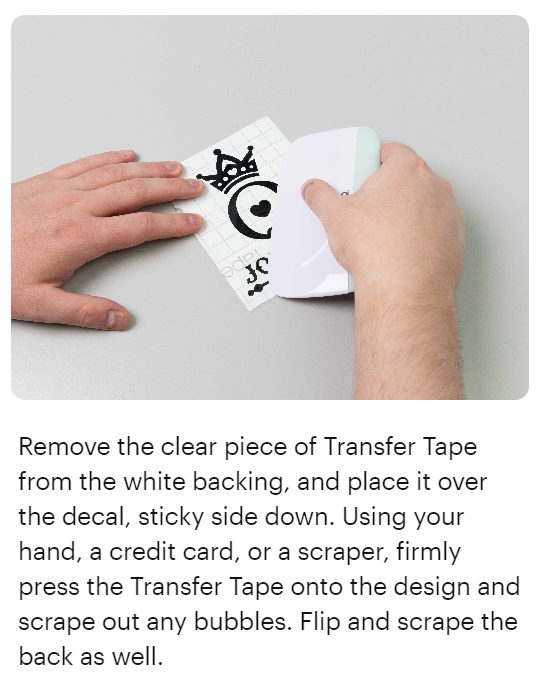
3. Cut out a piece of transfer tape (large enough to go on top of your vinyl design) and peel off the white part. Stick the clear, sticky part of the transfer tape onto your vinyl design, then use the scraper (rectangular equipment in the same location as the pens and weeder in the Cricut that’s flat but then “bulges” up) to press the tape against the design to make sure it sticks.
4. 
5. Peel off the transfer tape, and you’re done! (Note:If the vinyl keeps sticking to the transfer tape instead of your item, even after using the scraper, use your finger to hold the vinyl onto the item as you peel off the transfer tape.)
Designing Stickers
-
Design the sticker
-
Typically best to design it in a drawing app or somewhere else and upload it to the Cricut Design Space Canvas
-
-
Open an app like Adobe Photoshop and open a page in size 8.5”x11”, make sure it’s transparent
-
-
If you want them to have an outline, go to the bottom of the right side of the page and click the “fx” button
-
After, select “stroke” and then double check that the settings are right (outside instead of inside)
-
Adjust the size of the outline as needed
-
-