The tutorial below recommends to use **GLTF/GLB** as a preference if available. Importing **FBX** is acceptable too.
# Godot C# for Beginners # Getting Started with VR ### Prerequisites If you are new to Godot, I HIGHLY recommend checking out the resources here to get started to familiarize yourself with the engine or find a short mini series on YouTube. Godot offers C# as well as their own GDScript and if you are looking to use C#, I would familiarize yourself with the engine first. possibly doing a GDScript to C# conversion for practice.I recommend having a default "World" scene (Node3D) ready to go, with both a **WorldEnvironment** and **DirectionalLight3D** as children.
The SCiL lab staff is always happy to provide guidance on getting started! ### A Simple Rig To set up a basic VR rig, follow the official guide here: [https://docs.godotengine.org/en/stable/tutorials/xr/setting\_up\_xr.html](https://docs.godotengine.org/en/stable/tutorials/xr/setting_up_xr.html) ### A Better VR Rig Configuration I highly recommend updating your VR rig with the following from the official documentation. You will be better suited in the long run: [https://docs.godotengine.org/en/stable/tutorials/xr/a\_better\_xr\_start\_script.html](https://docs.godotengine.org/en/stable/tutorials/xr/a_better_xr_start_script.html) ### Deploying to Android Again, follow the documentation here: [https://docs.godotengine.org/en/stable/tutorials/xr/deploying\_to\_android.html](https://docs.godotengine.org/en/stable/tutorials/xr/deploying_to_android.html)Read through available options and always fix warnings as they appear!
### Caution Against Using Godot XR ToolsYou may find the following two articles: **Introduction to XR Tools** and **Basic XR Locomotion**. These articles are valid and are great for prototyping but I would caution against using them and consider designing your own implementation and use these articles for reference only.
In my experience, the **Unreal VR template** and **Godot XR Tools** provide resources to get started quickly but are often difficult/time consuming when overriding or creating custom functionality.
### Where to go from here? My suggestion is implement input for your hands/controllers. You can then begin with a basic grab interaction. I would then look at considering teleport for locomotion. You can always use smooth locomotion, but there are some considerations when implemented. # VR Settings in Godot Before getting started with settings, at the top, go to Project -> Project Settings and choose **Advanced Settings**. #### Project Settings - OpenXR Enabled: On - Reference Space: Local Floor - Physics -> Common -> Physics Ticks per Second: 72/80/90 (Set this to your desired headset FPS to avoid stuttering with physics) - Rendering -> Anti Aliasing -> Quality -> MSAA 3D: 4x (Slow) - Editor -> Manage Export Templates (installed) - Installed the OpenXR Vendors plugin: [https://docs.godotengine.org/en/stable/tutorials/xr/deploying\_to\_android.html#installing-the-vendors-plugin](https://docs.godotengine.org/en/stable/tutorials/xr/deploying_to_android.html#installing-the-vendors-plugin) - Project Settings -> Rendering -> Occlusion Culling -> **Use Occlusion Culling: On** (Must add an OccluderInstance3D to scene!) #### Nodes - **World Environment**: Disable Fog and any other effects. Set **Tonemap** to **Linear**. - **DirectionalLight3D** -> Light ->Bake Mode: Static - **DirectionalLight3D** -> Light ->Shadow: OFF - **LightmapGI** added to the scene. Click **Bake Lightmaps** to bake lighting - **OccluderInstance3D** added to the scene. All 3D models placed as children of this node. Click **Bake Occluders** #### Model Settings With a model selected in the **FileSystem** tab, set: - Meshes -> Light Baking to **Static Lightmaps** - Materials -> Extract -> **Extract Once** - Preset Button at top -> **Set as 'Default' for Scene** ### Android (Meta) Ensure everything above is installed. Android tools configured: [https://docs.godotengine.org/en/stable/tutorials/export/exporting\_for\_android.html#doc-exporting-for-android](https://docs.godotengine.org/en/stable/tutorials/export/exporting_for_android.html#doc-exporting-for-android)If you are in the SCiL lab, you can use the Unity's bundled Android SDK located: C:\\Program Files\\Unity\\Hub\\Editor\\*UNITY\_VERSION\_NUMBER*\\Editor\\Data\\PlaybackEngines\\AndroidPlayer
Project set to Mobile or Compatibility Project - > Install Android Build Template #### Project Settings - Rendering/Textures/VRAM Compression/Import ETC2 ASTC: On - XR/OpenXR/Color Space/Starting Color Space: REC709 #### Project/Export - Use Gradle Build: On - Min SDK: 34 - Target SDK: 34 - Package -> Unique Name: use a reverse URL, e.g. com.CompanyName.YourAppName - XR Features/XR Mode: OpenXR - Enable Meta Plugin: On - There may be more if submitting your app through production # VR Controller Input in Godot ### Preface For more information about C# in Godot: [https://docs.godotengine.org/en/stable/tutorials/scripting/c\_sharp/c\_sharp\_basics.html](https://docs.godotengine.org/en/stable/tutorials/scripting/c_sharp/c_sharp_basics.html) Getting up to speed with C# in Godot: [our wiki page](https://scil-wiki.su.edu/books/godot/page/godot-c-for-beginners "Godot C# for Beginners"). ### Getting Started Assuming you have followed the previous tutorial and confirmed VR is working with controller visuals (even cubes) and OpenXR, you can get started. By default, after installing OpenXR within Godot enables a default **OpenXR Action Map**. Typically, I leave these defaults alone. There is a good article in the documentation that reviews how to create your own custom inputs, but these work great. *The event structure on how you process this input is up to you! Below is an EXAMPLE but should be structured!* #### **1. Create subscription events for ButtonPressed and ButtonReleased.** Create a script on your XRController3D node (the VR controller) and the script should inherit from XRController3D. Inside the script, create two Godot methods: **EnterTree()** and **Exit Tree()**. Add **ButtonPressed** and **ButtonReleased** and subscribe to a new method. Here is the layout: C# ```c# public override void _EnterTree() { ButtonPressed += OnButtonPressed; ButtonReleased += OnButtonReleased; } ``` GDScript ```gdscript func _enter_tree() -> void: button_pressed.connect(on_button_pressed) button_released.connect(on_button_released) ``` Now, implement the two methods, **OnButtonPressed** and **OnButtonReleased**: C# ```c# void OnButtonPressed(string name) { } void OnButtonReleased(string name) { } ``` GDScript ``` func on_button_pressed(btn_name: String) -> void: pass func on_button_released(btn_name: String) -> void: pass ``` #### **2. Process events** You will notice on the methods created above that there is a parameter called string name. This string is what is received from your **OpenXR Action Map** (or anything else with a button). For me, I have added a switch statement to process these inputs and invoke methods: C# ```c# void OnButtonPressed(string name) { switch (name) { case "grip_click": OnGripPressed(); break; case "trigger_click": OnTriggerPressed(); break; case "ax_button": OnAXPressed(); break; case "by_button": OnBYPressed(); break; } } void OnButtonReleased(string name) { switch (name) { case "grip_click": OnGripReleased(); break; case "trigger_click": OnTriggerReleased(); break; case "ax_button": OnAXReleased(); break; case "by_button": OnBYReleased(); break; } } ``` GDScript ``` func on_button_pressed(btn_name: String) -> void: match btn_name: "grip_click": on_grip_pressed() "trigger_click": on_trigger_pressed() "ax_button": on_ax_pressed() "by_button": on_by_pressed() func on_button_released(btn_name: String) -> void: match btn_name: "grip_click": on_grip_released() "trigger_click": on_trigger_released() "ax_button": on_ax_released() "by_button": on_by_released() ``` *I'm not including every single method, but you can see that I now have a system to process input!* #### **3. Expand (with some Object Oriented Programming)!!** Obviously, this script would be a pain to copy for both hands and alter the names of the methods slightly. You can do this if you wish to keep it simple. **Object Oriented Programming (OOP):** For me, I created a parent script called something like XRHand. Then, I created two scripts called LeftHand and RightHandthat are children of XRHand. Using the methods above, I made them virtual so in my LeftHand script for example, I can configure special implementation. Here is the final script for XRHand: C# ```c# using Godot; using System; public partial class XRHand : XRController3D { public override void _EnterTree() { ButtonPressed += OnButtonPressed; ButtonReleased += OnButtonReleased; InputFloatChanged += OnInputFloatChanged; InputVector2Changed += OnInputVector2Changed; } public override void _ExitTree() { ButtonPressed -= OnButtonPressed; ButtonReleased -= OnButtonReleased; InputFloatChanged -= OnInputFloatChanged; InputVector2Changed -= OnInputVector2Changed; } void OnButtonPressed(string name) { switch (name) { case "grip_click": OnGripPressed(); break; case "trigger_click": OnTriggerPressed(); break; case "ax_button": OnAXPressed(); break; case "by_button": OnBYPressed(); break; } } void OnButtonReleased(string name) { switch (name) { case "grip_click": OnGripReleased(); break; case "trigger_click": OnTriggerReleased(); break; case "ax_button": OnAXReleased(); break; case "by_button": OnBYReleased(); break; } } void OnInputFloatChanged(string name, double value) { } void OnInputVector2Changed(string name, Vector2 value) { switch (name) { case "primary": OnThumbstickMoved(value); break; } } // Digital Input public virtual void OnGripPressed() { } public virtual void OnGripReleased() { } public virtual void OnTriggerPressed() { } public virtual void OnTriggerReleased() { } public virtual void OnAXPressed() { } public virtual void OnAXReleased() { } public virtual void OnBYPressed() { } public virtual void OnBYReleased() { } // Axial-1D Input // Axial-2D Input public virtual void OnThumbstickMoved(Vector2 value) { } // Signals } ``` GDScript ``` class_name XRHand extends XRController3D func _enter_tree() -> void: button_pressed.connect(on_button_pressed) button_released.connect(on_button_released) func on_button_pressed(btn_name: String) -> void: match btn_name: "grip_click": on_grip_pressed() "trigger_click": on_trigger_pressed() "ax_button": on_ax_pressed() "by_button": on_by_pressed() func on_button_released(btn_name: String) -> void: match btn_name: "grip_click": on_grip_released() "trigger_click": on_trigger_released() "ax_button": on_ax_released() "by_button": on_by_released() func on_grip_pressed(): pass func on_trigger_pressed(): pass func on_ax_pressed(): pass func on_by_pressed(): pass func on_grip_released(): pass func on_trigger_released(): pass func on_ax_released(): pass func on_by_released(): pass ``` And as for LeftHand or RightHand, I would just override a button that I would need: C# ```c# using Godot; using System; public partial class LeftHand : XRHand { public override void OnGripPressed() { GD.Print("Left grip released!"); } public override void OnGripReleased() { GD.Print("Left grip released!"); } } ``` GDScript ``` extends XRHand func on_grip_pressed(): print("Left grip pressed!") func on_grip_released(): print("Left grip released") ``` The LeftHand and RightHand would now go on their respective XRController3D nodes, in the scene. # Basic Grab ### Prerequisites: - Basic [familiarity ](https://scil-wiki.su.edu/books/godot/page/getting-started-with-godot "Getting Started with Godot")with nodes in Godot - [XRRig](https://scil-wiki.su.edu/books/godot/page/getting-started-with-vr "Simple XR Rig") - [Controller Input](https://scil-wiki.su.edu/books/godot/page/vr-controller-input-in-godot "VR Controller Input in Godot") - Ensure you have a ready LeftHand and RightHand script for input. ### ### Setup for XR Rig For each *XRController3D* node (VR hands), add an **Area3D** node as a child. You should get a warning about the Area node needing a collision shape, so add a new **CollisionShape3D** node as a child of the **Area3D** node. For my **Shape** type, I chose a new **SphereShape3D** and gave it a radius of **0.1m**. Do this for all XRController3D nodes if you are using pickup interactions. [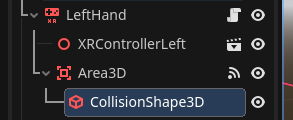](https://scil-wiki.su.edu/uploads/images/gallery/2025-04/screenshot-2025-04-28-102007.png) [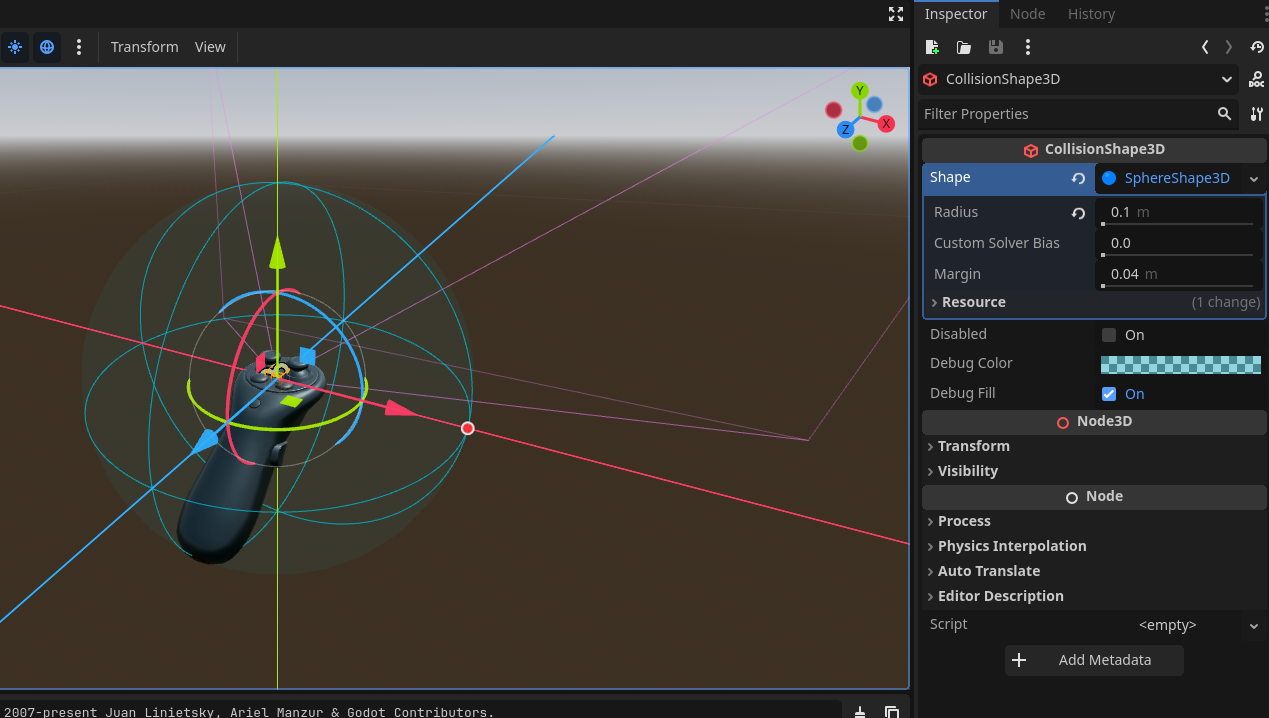](https://scil-wiki.su.edu/uploads/images/gallery/2025-04/screenshot-2025-04-28-102025.png) ### Setup basic grabbing In your "world" scene, add a **RigidBody3D** node to your scene and add a **CollisionShape3D** and **MeshInstance3D** node as children, as well as any setup needed for those nodes. In the **RigidBody3D** node, create a new script called **Grippable** and ensure the script is attached. Now, let's add some code: C# ```c# using Godot; using System; public partial class Grippable : RigidBody3D { Node3D parentNode; public override void _Ready() { parentNode = (Node3D)this.GetParent(); } public void PickUp(Node3D receivedController) { Freeze = true; Reparent(receivedController, true); } public void Drop(Vector3 receivedVelocity) { Reparent(parentNode); CallDeferred("RestorePhysics", receivedVelocity); } void RestorePhysics(Vector3 receivedVelocity) { Freeze = false; SetAxisVelocity(receivedVelocity); LinearVelocity = receivedVelocity; } } ``` GDScript ``` class_name Grippable extends RigidBody3D var parent_node: Node3D func _ready() -> void: parent_node = get_parent() func pick_up(received_controller: Node3D): freeze = true reparent(received_controller, true) func drop(received_velocity: Vector3): reparent(parent_node) call_deferred("restore_physics", received_velocity) func restore_physics(received_velocity: Vector3): freeze = false set_axis_velocity(received_velocity) linear_velocity = received_velocity ``` Let's review what's happening here: - The **parentNode** is a variable used to cache where we need to re-parent this object when it is dropped, which is usually back to the world. In our **\_Ready** method, we just get the current parent. - The **Pickup** method and its reference to the controller doing the interaction is done here. We **freeze** physics while we are holding this object and parent it to our controller. The **true** parameter in **Reparent** is passed to keep the global transform before parenting so the pickup looks like we are grabbing an intended point. - The **Drop** method will reparent the object back to the original parent. For Godot, we are going to restore physics using **CallDeferred**, which is used to delay the execution of a function until the current frame finishes and the engine is in a safe, idle state. This calls **RestorePhysics**. - **RestorePhysics** is the method called after **CallDeferred** is completed. Physics is restored by setting freeze to false and applying velocity so the object leaves our hand naturally. ### Add functionality to our hand (each) Assuming you have completed all necessary prerequisites, you should have a **LeftHand** and a **RightHand** with some possible functionality. Here is additional code to add to each hand: C# ```c# Vector3 velocity; Vector3 previousPosition; Area3D area; Grippable grippable; public override void _Ready() { area = GetNodePlease TEST IN VR and make sure we are on the same page before proceeding!
### Raycasting Our goal will be to teleport our entire object by pressing a button on our right controller (trigger in this case), aim an area in our level, and if that area is found to be a teleport area, releasing that button will move our player to that position. First, create a new script in your **FileSystem** window, choose your language, inherit from **Node3D**, leave **Template** unchecked, and set the path in an appropriate place, named **TeleportArea** (or **teleport\_area** for GDScript). **If you are using C#, a class will be created** for the script.**If you are using GDScript**, be sure to add class\_name TeleportArea at the top:
``` class_name TeleportArea extends Node3D ``` This class can be left empty for now, it will be useful later as any object in the level that holds this script will make the area a valid teleport area. Select your **RightHand** (XRController3D) and add a new child node called **Raycast3D**. You may rename it if you wish, but for now edit the following properties: - **Target Position:** x: 0.0, y: 0.00, **z: -100** (note the Z is in the NEGATIVE. This is the distance your teleport area will emit) [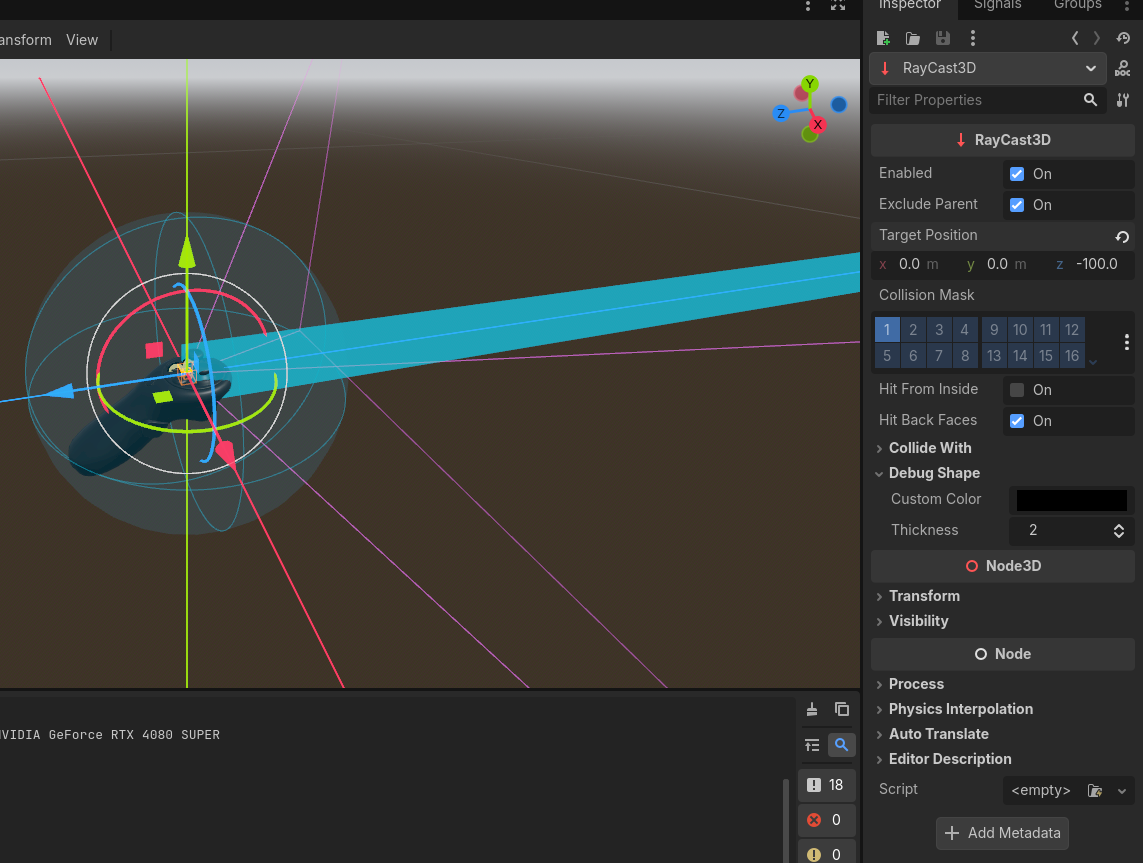](https://scil-wiki.su.edu/uploads/images/gallery/2026-03/lTlimage.png) Finally, in the **Debug** menu at the top of the editor, go to **Debug** and check **Visible Collision Shapes**. This allows you to see active collision shapes and raycasts during play. This is for TESTING purposes only! Uncheck this feature after you are satisfied. [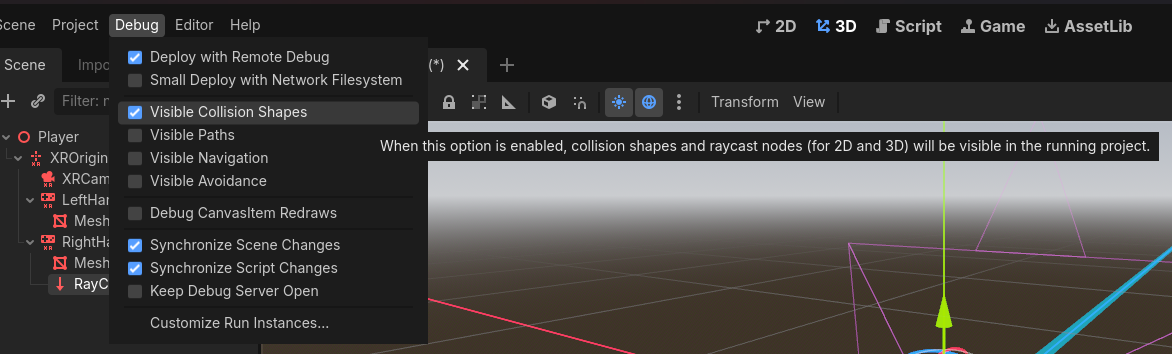](https://scil-wiki.su.edu/uploads/images/gallery/2025-12/C1Simage.png) If you hit play now, you should be able to see your Raycast3D emitting from your controller. I would suggest here placing a **CSGBox3D**, check **Use Collision**, set the **Size** to something meaningful, like **x: 5.0, y: 0.01, z: 5.0**, and assign the script **TeleportArea** to the **Script** entry. [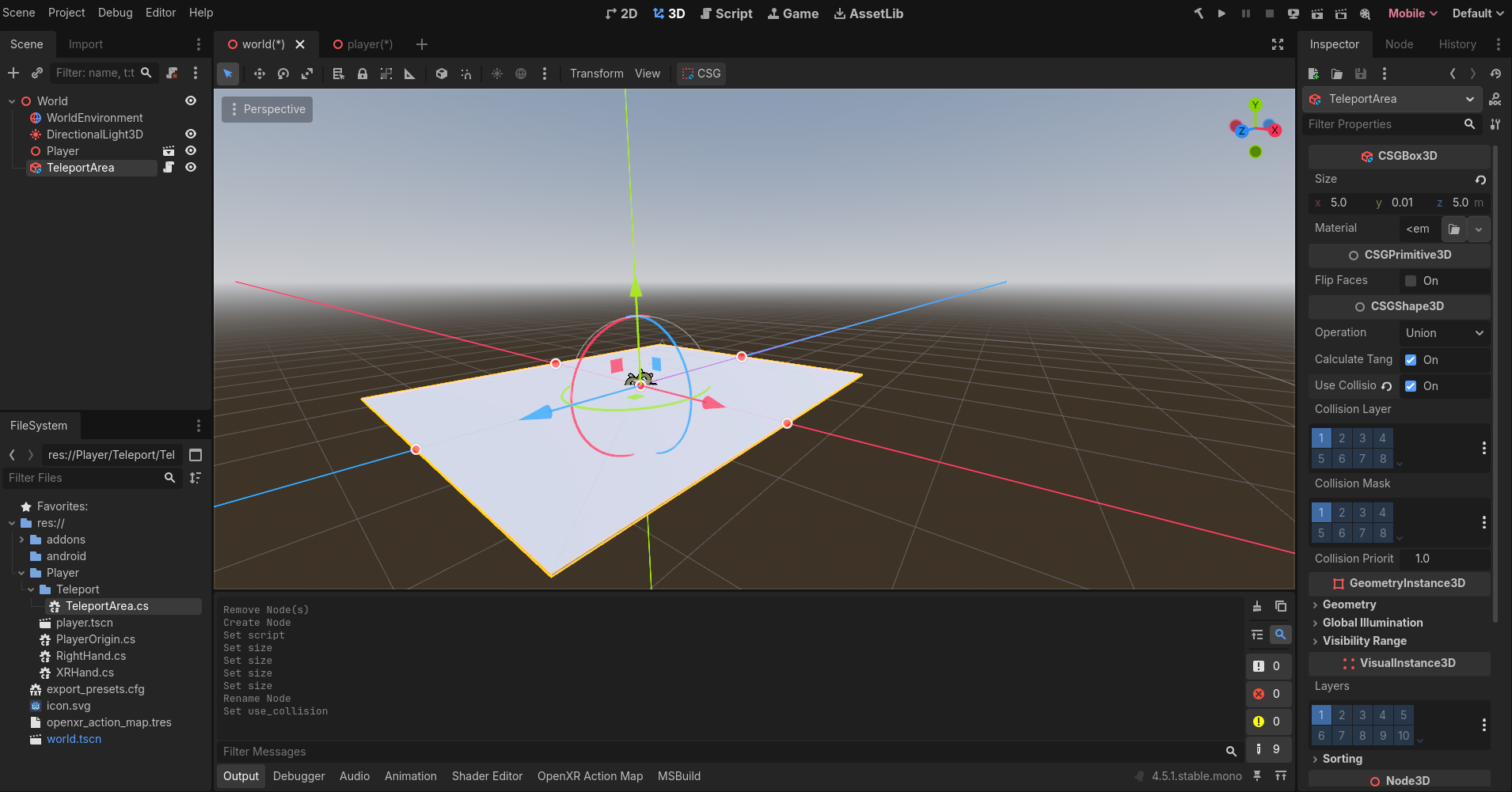](https://scil-wiki.su.edu/uploads/images/gallery/2025-12/WWiimage.png) *The inspector has Script set to TeleportArea.cs / teleport\_area.gd which was beyond the scrollbar.* Now we can start editing our RightHand script. ### Raycasting Code For our Right Hand class, we need some properties: C# ```c# [Export] Raycast3D raycast3D; [Export] Node3D playerRig; TeleportArea validTeleportArea; bool teleportButtonPressed; Vector3 teleportLocation; ``` GDScript ``` @export var raycast3D: RayCast3D @export var player_rig: Node3D var valid_teleport_area: TeleportArea var teleport_button_pressed: bool var teleport_location: Vector3 ``` The first two properties will allow us to assign these nodes in the editor's inspector. Raycast3D is the node attached to our hand and what we will use to access the hit data, and the other is the Player Rig. I typically will assign this to the root of my Player scene. The property **validTeleportArea** is what will be cached when our raycast detects an object that is the correct type. The other two properties will help us execute the teleport. Create a new **Process** method C# ```c# public override void _Process(double delta) {} ``` GDScript ``` func _process(delta: float) -> void: pass ``` and in here add the following code: C# ```c# if (!teleportButtonPressed) { return; } var target = rayCast3D.GetCollider(); if (target is TeleportArea area) { validTeleportArea = area; teleportLocation = rayCast3D.GetCollisionPoint(); } else { validTeleportArea = null; teleportLocation = Vector3.Zero; } ``` GDScript ``` if !teleport_button_pressed: return var target = raycast3D.get_collider() if target is TeleportArea: valid_teleport_area = target teleport_location = raycast3D.get_collision_point() else: valid_teleport_area = null teleport_location = Vector3.ZERO ``` - Line 1: let's ignore everything if we are not pressing our teleport button - Line 3: Create a variable called target that is collecting the collider that the raycast is hitting - Line 5: If our target is the type **TeleportArea** and not a regular collision, let's set our valid teleport area to what we are hitting and set the teleport location to the current POINT our raycast is hitting (the point on the collision). - Line 10: Reset everything if nothing is valid. Next, let's make our boolean **teleportButtonPressed** meaningful. Our process method will only run if our button is pressed (which saves performance) so let's design our teleport execution to activate when pressed (and held) and on releasing the button will commit the teleport execution. Add C# ```c# teleportButtonPressed = true; ``` GDScript ``` teleport_button_pressed = true ``` to our **OnTriggerPressed()** method. For **OnTriggerReleased()** method, add the following code: C# ```c# public override void OnTriggerReleased() { teleportButtonPressed = false; if (validTeleportArea != null) { playerRig.GlobalPosition = teleportLocation; } } ``` GDScript ``` func on_trigger_released(): teleport_button_pressed = false if valid_teleport_area != null: player_rig.global_position = teleport_location ``` Essentially, if our valid teleport area is, well, valid we will set our player's global position to be the teleport location point we cached earlier. Finally, on line 3, we always set our button pressed back to false to prevent the code above to continue running. ### Test! Save all your code. Return to the editor and click the build button. Be sure to assign **Raycast3D** and **PlayerRig** in the editor!! From here you should be able to teleport around. Our big issue currently is that we are using a Debug layer in our editor to show our raycast and without this debug there is no way to indicate to our player where they are looking to go. We will fix this in [Part 2](https://scil-wiki.su.edu/books/godot/page/teleport-part-2 "Teleport Part 2") along with the final code. [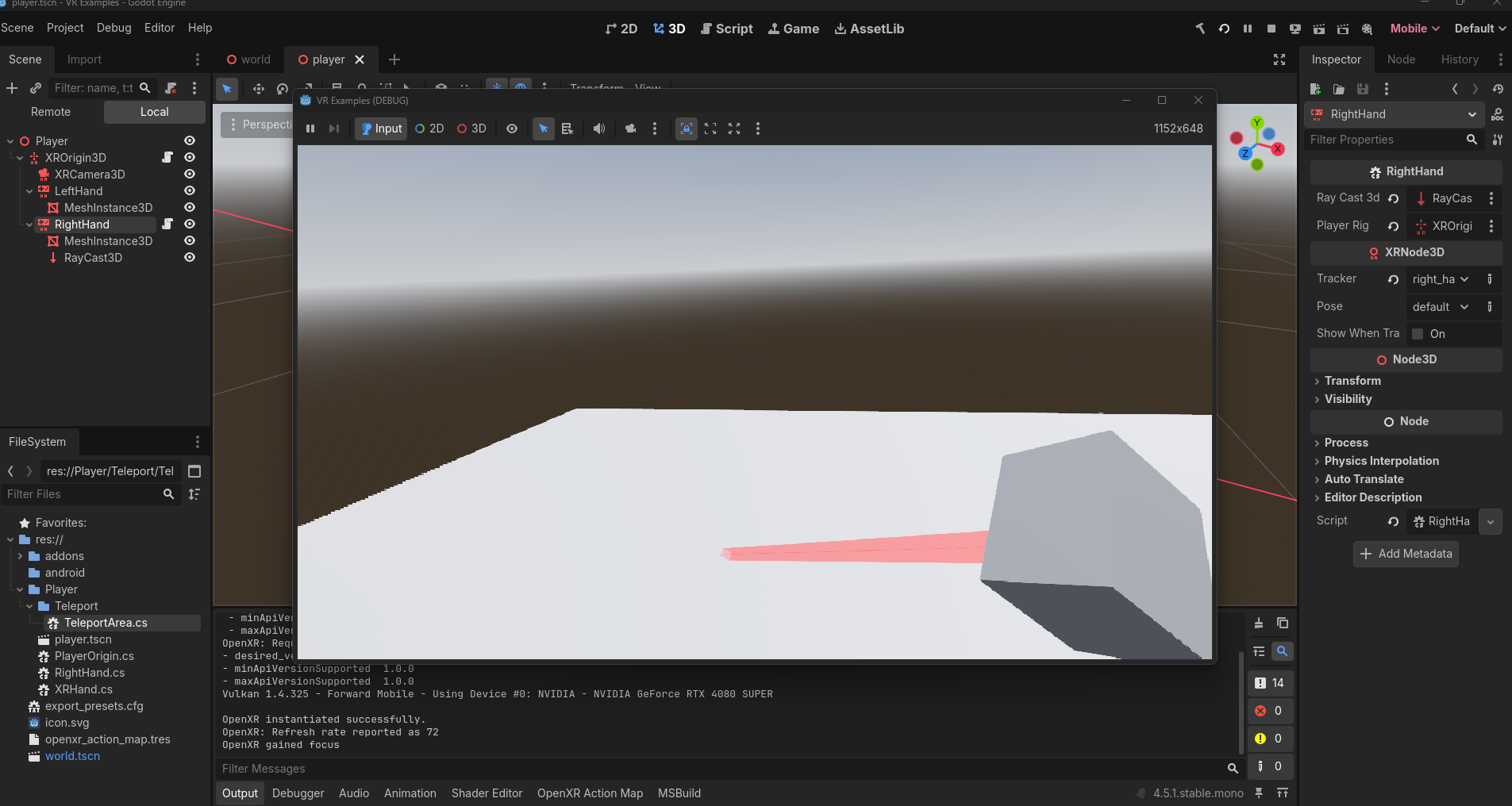](https://scil-wiki.su.edu/uploads/images/gallery/2025-12/Xfuimage.png) # Teleport Part 2 ### Setup Let's start part 2 with creating an indicator for the player to see when they activate teleporting with the controller button. Along the tabs near the top of the editor in the middle, click the **(+)** button to Add a new scene. Choose **Other Node**, choose **MeshInstance3D**, and press **Create**. For this tutorial, select a new **Mesh** by clicking the drop down arrow and choose **CylinderMesh**. Click on the actual Mesh image to load the mesh properties and use the following: - **Top Radius:** 0.35 - **Bottom Radius:** 0.4 - **Height:** 0.1 Rename **MeshInstance3D** to **TeleportIndicator**. Save the scene with your player scenes as **TeleportIndicator**. [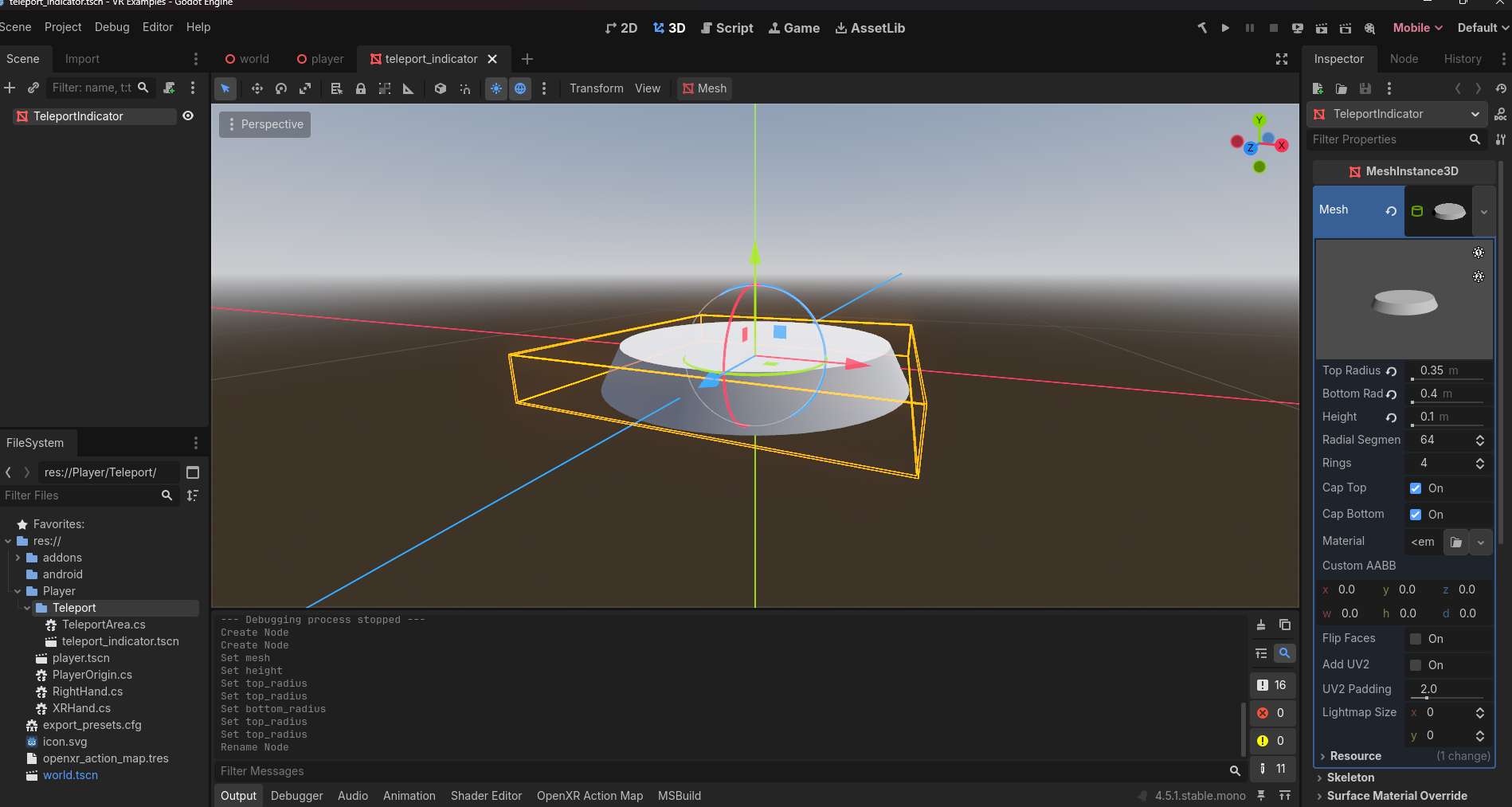](https://scil-wiki.su.edu/uploads/images/gallery/2025-12/AwFimage.png) Back in your Player scene, add **TeleportIndicator** as a child of your **XROrigin3D** node. Because we don't want this visible on load, in the Inspector, uncheck **On** for **Visible**. [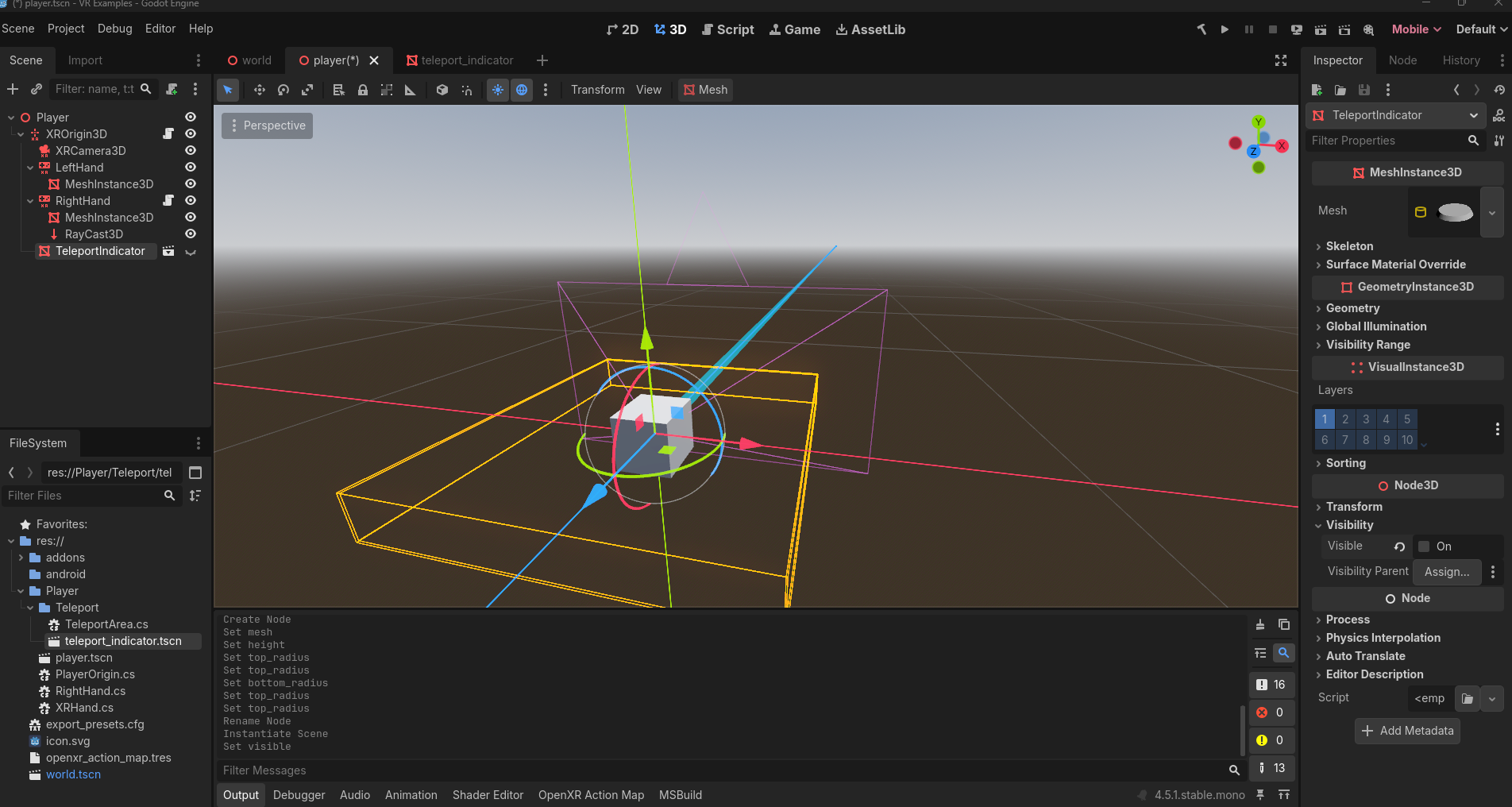](https://scil-wiki.su.edu/uploads/images/gallery/2025-12/4Uoimage.png) We are now ready to implement the functionality with code. ### Coding the Teleport Indicator Open up **RightHand.cs** if it not already opened. Begin by adding a new Export property: C# ```c# [Export] Node3D teleportDestIndicator; ``` GDScript ``` @export var teleport_dest_indicator: Node3D ``` Now move to your **\_Process** method. Inside the if statement where you are checking if the target is the type **TeleportArea** is true, add the following lines underneath where you set **teleportLocation**: C# ```c# teleportDestIndicator.Visible = true; teleportDestIndicator.GlobalPosition = teleportLocation; ``` GDScript ``` teleport_dest_indicator.visible = true teleport_dest_indicator.global_position = teleport_location ``` Since we have found a valid **teleportArea** as before, the **teleportIndicator** will become visible for the player and its position will be updated. Now add the following in the else statement, below where we set the **teleportLocation** to **Vector3.Zero**: C# ```c# teleportDestIndicator.Visible = false; teleportDestIndicator.GlobalPosition = Vector3.Zero; ``` GDScript ``` teleport_dest_indicator.visible = false teleport_dest_indicator.global_position = Vector3.ZERO ``` As before, we reset our **teleportIndicator** to not be visible because our location was invalid and for good measure we will reset its position to be all zeroes. The last thing to do is to make sure when we execute our teleport, the teleportIndicator node becomes not visible as well. Copy the following and paste inside your **OnTriggerReleased()** method, inside the if statement: C# ```c# teleportDestIndicator.Visible = false; ``` GDScript ``` teleport_dest_indicator.visible = false ``` ### Testing Save all your code. Save all your scenes. Click the **build icon** at the top as before if you are using C#. Be sure to UNCHECK **Visible Collision Shapes** in the **Debug** menu at the top. Remember to assign the **TeleportIndicator** node to your **RightHand** in your VR rig: [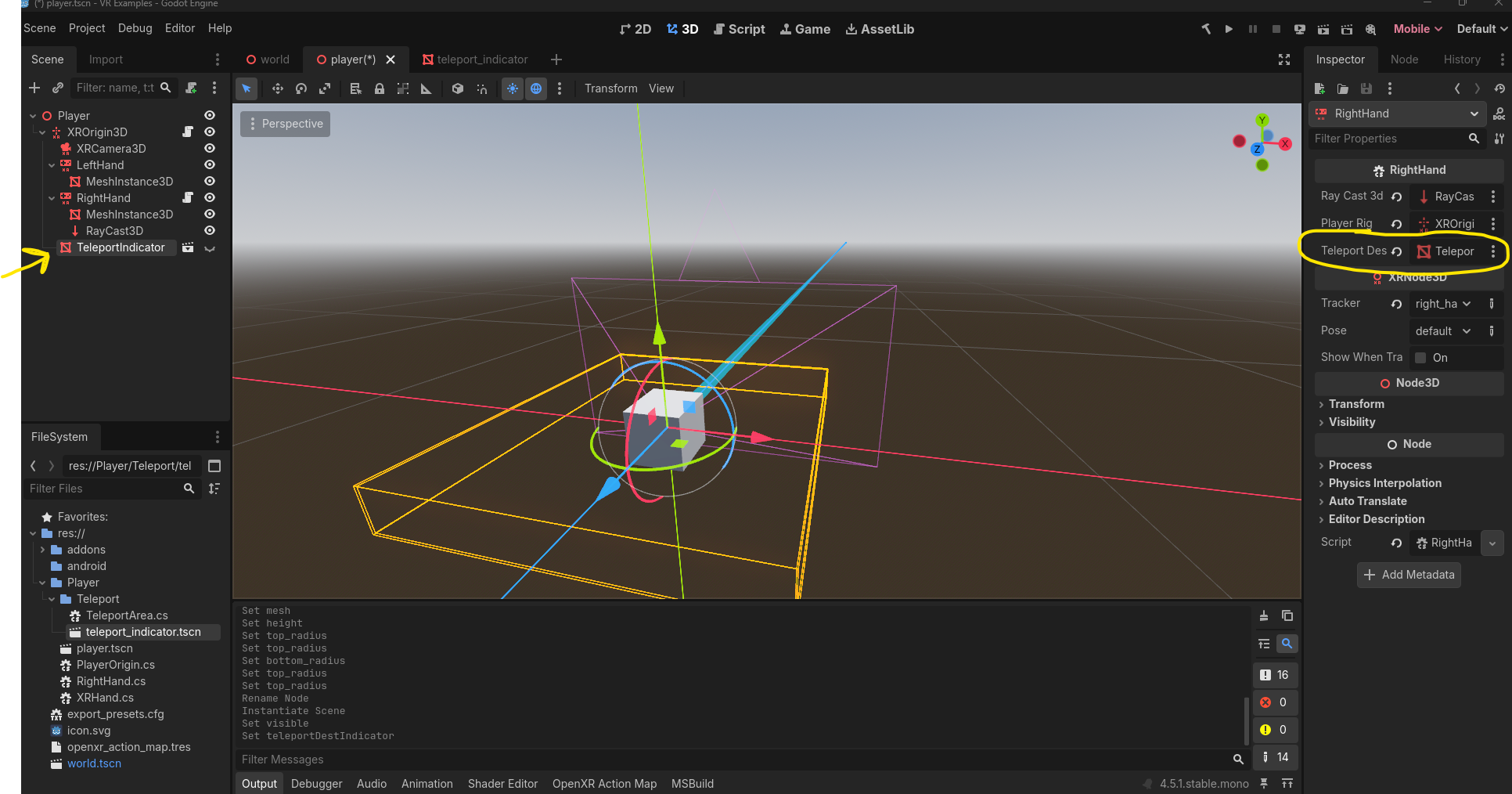](https://scil-wiki.su.edu/uploads/images/gallery/2025-12/ZEeimage.png) Hit play and test out your scene! ### Where to go from here From here, you may wish to change the material of the teleport indicator or even use a different mesh entirely. Since you have a class called **TeleportArea**, you can also send it events like **OnTeleportAreaFound** or **OnTeleportExecuted** if you want to make your project more event driven. Finally, adding audio effects are a nice touch. ### Final Code for RightHand.cs ```c# using Godot; using System; public partial class RightHand : XRHand { [Export] RayCast3D rayCast3D; [Export] Node3D playerRig; [Export] Node3D teleportDestIndicator; TeleportArea validTeleportArea; bool teleportButtonPressed; Vector3 teleportLocation; public override void OnTriggerPressed() { teleportButtonPressed = true; } public override void OnTriggerReleased() { teleportButtonPressed = false; if (validTeleportArea != null) { playerRig.GlobalPosition = teleportLocation; teleportDestIndicator.Visible = false; } } public override void _Process(double delta) { if (!teleportButtonPressed) { return; } var target = rayCast3D.GetCollider(); if (target is TeleportArea area) { validTeleportArea = area; teleportLocation = rayCast3D.GetCollisionPoint(); teleportDestIndicator.Visible = true; teleportDestIndicator.GlobalPosition = teleportLocation; } else { validTeleportArea = null; teleportLocation = Vector3.Zero; teleportDestIndicator.Visible = false; teleportDestIndicator.GlobalPosition = Vector3.Zero; } } } ``` ### Final Code for right\_hand.gd ``` extends XRHand @export var raycast3D: RayCast3D @export var player_rig: Node3D @export var teleport_dest_indicator: Node3D var valid_teleport_area: TeleportArea var teleport_button_pressed: bool var teleport_location: Vector3 func _process(delta: float) -> void: if !teleport_button_pressed: return var target = raycast3D.get_collider() if target is TeleportArea: valid_teleport_area = target teleport_location = raycast3D.get_collision_point() teleport_dest_indicator.visible = true teleport_dest_indicator.global_position = teleport_location else: valid_teleport_area = null teleport_location = Vector3.ZERO teleport_dest_indicator.visible = false teleport_dest_indicator.global_position = Vector3.ZERO func on_trigger_pressed(): teleport_button_pressed = true func on_trigger_released(): teleport_button_pressed = false if valid_teleport_area != null: player_rig.global_position = teleport_location teleport_dest_indicator.visible = false ``` Again, you may have additional code to in your RIghtHand script to support things like grabbing! # Common 3D Features This page consists of the culmination of the Brackeys video: How to make 3D Games in Godot. The video is not a tutorial, but a guide to common engine features like lighting, physics, materials, animations, and more. For convenience, video link and its times stamps are below: [How to make 3D Games in Godot (video)](https://www.youtube.com/watch?v=ke5KpqcoiIU) - [3:35](https://www.youtube.com/watch?v=ke5KpqcoiIU&t=215s) 3D Space - [6:13](https://www.youtube.com/watch?v=ke5KpqcoiIU&t=373s) Greyboxing - [9:31](https://www.youtube.com/watch?v=ke5KpqcoiIU&t=571s) Terrain - [10:01](https://www.youtube.com/watch?v=ke5KpqcoiIU&t=601s) Playing the Game - [11:11](https://www.youtube.com/watch?v=ke5KpqcoiIU&t=671s) Character Controller - [14:15](https://www.youtube.com/watch?v=ke5KpqcoiIU&t=855s) 3D Physics - [16:10](https://www.youtube.com/watch?v=ke5KpqcoiIU&t=970s) Graphics - [17:44](https://www.youtube.com/watch?v=ke5KpqcoiIU&t=1064s) 3D Assets in 1 min - [18:45](https://www.youtube.com/watch?v=ke5KpqcoiIU&t=1125s) Assets in Godot - [22:38](https://www.youtube.com/watch?v=ke5KpqcoiIU&t=1358s) StandardMaterial3D - [26:53](https://www.youtube.com/watch?v=ke5KpqcoiIU&t=1613s) Scene Workflows - [30:53](https://www.youtube.com/watch?v=ke5KpqcoiIU&t=1853s) Collision - [32:57](https://www.youtube.com/watch?v=ke5KpqcoiIU&t=1977s) Replace Greybox - [35:43](https://www.youtube.com/watch?v=ke5KpqcoiIU&t=2143s) Animated Characters - [38:33](https://www.youtube.com/watch?v=ke5KpqcoiIU&t=2313s) Speed up Workflow - [39:24](https://www.youtube.com/watch?v=ke5KpqcoiIU&t=2364s) Environment - [42:00](https://www.youtube.com/watch?v=ke5KpqcoiIU&t=2520s) Lighting - [45:38](https://www.youtube.com/watch?v=ke5KpqcoiIU&t=2738s) Tonemap - [47:18](https://www.youtube.com/watch?v=ke5KpqcoiIU&t=2838s) Camera - [48:45](https://www.youtube.com/watch?v=ke5KpqcoiIU&t=2925s) Render Quality