Photography
- Photography Basics
- Chapter 1: 5 Elements of Exposure
- Chapter 2: Elements of Exposure, ISO
- Chapter 3: Elements of Exposure, Aperture
- Chapter 4: Elements of Exposure, Shutter Speed
- Chapter 5: Elements of Exposure, Filtration
- Chapter 6: Elements of Exposure, External Lights
- Chapter 7: White Balance
- Chapter 8: Depth of Field
- Chapter 9: Lenses
- Photography Basics
- Canon EOS 5D Mark IV
- Chapter 1: How it Works
- Chapter 2: Camera Settings, The Mode Dial
- Chapter 3: Camera Settings, ISO
- Chapter 4: Camera Settings, Aperture & F-Stop
- Chapter 5: Camera Settings, Shutter Speed
- Chapter 6: Camera Settings, White Balance
- Basic Lighting Techniques & GVM Light Kit
Photography Basics
Chapter 1: 5 Elements of Exposure
The Exposure Triangle
- A photographer must understand the relationship between ISO (how sensitive the light sensor will be to light), f-stop/aperture (how much light is allowed to pass through the lens), and shutter speed (how rapidly the shutter closes, cutting off the incoming light).
- Any adjustment to one of these settings will impact the others. It is up to the photographer to set all three in balance, to achieve the desired depth of field, motion blur, and exposure.
The 5 Elements of Exposure
- ISO
- The International Organization for Standardization (ISO) established a numerical scale to rate how sensitive different kinds of film were to light. This scale was retained for digital cameras. When you change the ISO value on a DSLR, you can think of it as changing film to something more or less light sensitive to what is currently in the camera. A big advantage of a digital camera is that you can change the ISO from shot to shot, instead of only per roll of film.
- Higher ISO numbers are more light sensitive, meaning the camera will be able to take pictures in darker environments. However, higher ISO numbers also tend to produce grainier images.
- Examples:
- ISO 100: suitable for a bright, sunny day
- ISO 800: indoor spaces when not using a flash
- ISO 1600: dim or even dark environments
- Aperture
- Determines how much light is allowed to enter the camera to reach the imaging sensor and measured in F-Stop. This is controlled mechanically, by opening or closing the camera aperture. Different lenses have different apertures, handling different f-stop ranges. Aperture also determines the Depth of Field.
- Lower f-stop numbers indicate that the aperture is more open, allowing in more light. Lower f-stop numbers also narrow the depth of field, causing the area of focus to be relatively shallow, with foreground and background parts of the image being out of focus.
- Examples:
- f/1.2 - f/2.8 - lets in a lot of light; shallow depth of field
- f/4 - f/8 - useful in many scenarios; somewhat wider depth of field
- f/11 - f/32 - best for bright settings; wide depth of field
- The “depth of field” is the distance between the nearest and furthest in-focus objects in an image. A narrow depth of field will have a very narrow area in which objects will be in focus. A wide depth of field will put most elements of the image in focus. Turning the focus ring will adjust the position of the in-focus area, or focal point.
- Determines how much light is allowed to enter the camera to reach the imaging sensor and measured in F-Stop. This is controlled mechanically, by opening or closing the camera aperture. Different lenses have different apertures, handling different f-stop ranges. Aperture also determines the Depth of Field.
|
Shallow Depth of Field |
Aperture |
Wide Depth of Field |
|
Aperture = f/1.4 DOF = 0.8cm |
f/4.0 DOF = 2.2cm |
Aperture = f/22 DOF 12.4 |
- Shutter Speed
- The shutter speed, aka exposure time, is the time that the image sensor is exposed to light when capturing an image. The shutter is a mechanical window inside the camera that opens and closes to allow light into the sensor for a selected amount of time.
- A fast shutter speed, such as 1/1000 of a second, will allow light into the sensor extremely briefly. This will work in bright lighting conditions, but may not allow enough light to impact the sensor in dimmer light.
- An extremely slow shutter speed, for example ½ second, 1 second, or even more, will allow a lot of light into the sensor and can be useful in low light conditions. However, a lot can happen over a few seconds. Long exposure times may create “motion blur” for any moving object within the frame (or for the whole frame if the camera itself is moving). This may or may not be a desired artistic effect.
- The shutter speed, aka exposure time, is the time that the image sensor is exposed to light when capturing an image. The shutter is a mechanical window inside the camera that opens and closes to allow light into the sensor for a selected amount of time.
- Filtration
- Acts like sunglasses for the lens, helps reduce the intensity of the light entering the camera without changing the color.
- Examples: ND Filters, CPL filters, etc.
- Acts like sunglasses for the lens, helps reduce the intensity of the light entering the camera without changing the color.
- External Lights
- Physical light on set. Using external lights gives you more control of the shadows, contrast, brightness, which all affects the overall exposure.
Other Important Things to Note
- White Balance
-
What is determined by white light from the camera, what is measured as white. Higher temperatures are cooler (blue tint), lower temperatures are warmer (orange tint). Baseline is whatever you set it to, everything below the baseline is orange or warmer, everything above the baseline is bluer or cooler.
-
Measured in Kelvin (temperature)
-
Daylight = 5500-5600
-
Fluorescents/Camera Flash = 5000
-
Light bulbs = 3200
-
Candle Light = 2000
-
-
- Over- and Under-Exposed
- Overexposed images may look “too bright” because they were captured with settings to allow an overabundance of light into the sensor. An unwanted overexposure might happen because ISO was set too high, f-stop was set too low, or shutter speed was set too high.
- Underexposed images may look “too dark” because they were captured with settings to allow less than expected light into the sensor. An unwanted underexposure might happen because ISO was set too low, f-stop was set too high, or shutter speed was set too low.
Chapter 2: Elements of Exposure, ISO
ISO stands for the International Organization for Standardization (it is technically not an acronym). This organization established a numerical scale to rate how sensitive different kinds of film were to light (called a film's speed). The current standard dates to 1974.
The ISO film speed standard was retained for digital cameras, even though light sensitivity is now determined by the camera's computer software and light sensor hardware, rather than the chemical composition of film.
When you change the ISO value on a DSLR, you may think of it as swapping out a physical roll of film and replacing it with a new roll that is more sensitive or less sensitive to light.
One big advantage of a digital camera is that you can change the ISO with the press of a button and from shot to shot, instead of only when you change the roll of film.
Here are some important things to know about camera ISO:
Higher ISO numbers are more suitable for dark environments but make the image grainier.
Lower ISO numbers are more suitable for bright environments and the image will usually be less grainy.
ISO 100: Suitable for a bright, sunny day
ISO 800: Suitable for indoor spaces when not using a flash
ISO 1600+: Suitable for dim or dark environments (but the picture will be increasingly grainy looking)
In the diagram below, note how the higher ISO number produces a much lighter, but also much grainier image.

Chapter 3: Elements of Exposure, Aperture
The F-Stop setting determines how much light is allowed to enter a camera through the lens to reach the imaging sensor. F-stop is normally a setting of the lens that is attached to the camera, and is controlled mechanically, by opening or closing the lens aperture.
Different lenses have different apertures and so can handle different f-stop ranges.
The Canon EF 24-105mm f/4L IS II USM lens that is normally kept on the SCiL DSLR cameras has an adjustable f-stop rangefrom f/4 (wide open) to f/22 (nearly closed). It will retain the f-stop you set through its entire zoom range from 24mm to 105mm.
When the camera is set to video mode, you can set the f-stop on the Canon EOS 5D Mk IV using the large dial around the "set" button located at the lower right of the camera body.

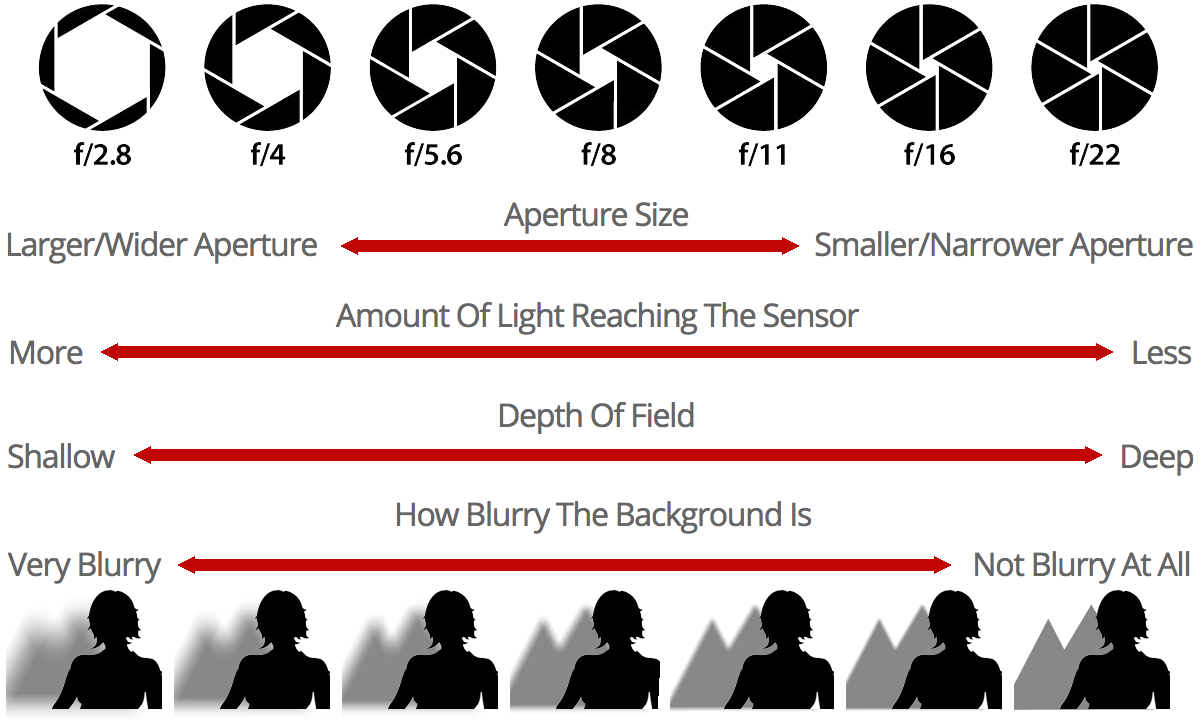
Lower f-stop numbers (like f/4) indicate that the aperture is more open, allowing in more light.
Higher f-stop numbers (like f/22) indicate that the aperture is more closed, allowing in less light.
F-stop settings influence the depth of field.
f/1.2 - f/2.8 - lets in a lot of light, with a correspondingly shallow depth of field.
f/4 - f/8 - useful in many scenarios, with a somewhat wider depth of field.
f/11 - f/32 - best for bright settings, with a wide depth of field.
In the chart below, see how different f-stop settings change the amount of light reaching the sensor and the depth of field:
Chapter 4: Elements of Exposure, Shutter Speed
The shutter speed, aka exposure time, is the time that the image sensor is exposed to light when capturing an image. The shutter is a mechanical window inside the camera that opens and closes to allow light into the sensor for a selected amount of time.
This video explains more about different types of camera shutter.
Shutter speed is not necessarily the same as frame rate, which determines how many exposures will be taken per second. For example, it is possible to have a frame rate of 24 frames per second (fps) but have a shutter speed (exposure time) of 1/1000 of a second instead of 1/24 of a second.
A fast shutter speed, such as 1/1000 of a second, will allow light into the sensor extremely briefly. This will work in bright lighting conditions but may not allow enough light to impact the sensor in dimmer light.
A slower shutter speed, such as 1/250 of a second, will allow more light into the sensor, and may work better in lower light conditions. However, a lot can happen over longer periods of time, so faster moving subjects or camera movement may result in a blurry look. This could be an intentional, artistic effect, or could simply ruin your shot or take.
Extremely slow shutter speeds (for example ½ second, 1 second, or more) will allow a LOT of light into the sensor and will almost certainly result in blur effects. However, these shutter speed settings could also be used to capture long exposure photos with their own unique aesthetic appeal.

In the image below, note how a 1/30 second shutter speed produces an image with less blur, while a 15 second exposure time adds considerable blur to the waterfall, resulting in an appealing, soft look.

Chapter 5: Elements of Exposure, Filtration
Filtration in photography involves placing glass, resin, or plastic filters over the lens to control light, color, and image quality. There are three important filters you should know:
- ND Filters
- Neutral Density (ND) Filters act as sunglasses for the lens, reducing light to allow a wider aperture or slower shutter speeds for smoother motion blur in videos without overexposing.
- Variable ND (VND) Filters are single filters that covers a range of light reduction, offering versatility for changing lighting conditions.
- Polarizer Filters
- Circular Polarizers (CPL) cut reflections on glass or water, darken skies, and increase contrast. These filters are good for landscape and urban scene photos/videos.
- Diffusion Filters
- Diffusion or Mist Filters soften digital images, reduce contrast, and can create a dreamlike haze around lights sources, often used to make digital footage look more filmic.
- UV/Haze Filters
- Primarily used to protect the lens from scratches, dust, and moisture. It can also slightly reduce haze.
Chapter 6: Elements of Exposure, External Lights
External lights (either natural or artificial) are the primary source when determining exposure, which then dictates how you setup your camera settings. Here are some key elements when going to shoot photos:
- Ambient Light (Natural/Available Light)
- The primary light in the scene, this could be sunlight, daylight, golden hour/blue hour. Camera settings should be set to match the intensity of the light.
- Flash/Strobe (Artificial)
- Used to fill shadows or to overpower the sun. Strobes are essential when the subkect is backlit to match or exceed the brightness of the ambient background.
- Quality of Light (Hard vs. Soft)
- Hard Light
- Can be direct sun or clear skies that create high contrast, intense highlights, and deep shadows. This can cause overexposure.
- Soft Light
- Can be overcast skies or diffused light, as well as golden hour. This provides gentle contrast, lower intensity, and better retention.
- Hard Light
- Positioning and Direction of Light:
- Key Light
- This is the main source of light in the scene.
- Fill Light
- Helps fill in some shadows.
- Back Light
- Not always necessary, but it helps separate people from the background.
- Key Light
Chapter 7: White Balance
Digital cameras require a certain amount of calibration to capture color information (RGB) properly. This calibration is called white balance, because the camera is being given the information it needs to identify white areas of the image and reproduce them correctly.
The image below shows the same scene white balanced to different color temperatures:

You can (and should) confirm or set the white balance on the Canon EOS 5D MkIV camera before capturing images or video. You can do this by pressing the WB button on the top right of the camera chassis. A menu will appear (it looks slightly different depending on whether you are shooting in image or video mode), and you can use the large dial on the right side of the camera chassis to select the white balance mode. The available white balance options are:
- AWB (auto white balance): the camera will seek an appropriate white balance for the current lighting conditions
- Daylight: the camera will set an appropriate white balance for sunny daylight conditions
- Shade: the camera will set an appropriate white balance for shady daylight conditions
- Cloudy: the camera will set an appropriate white balance for cloudy/overcast conditions
- Tungsten Light: the camera will set an appropriate white balance for tungsten light (~3200K, a warm, orange light)
- Fluorescent Light: the camera will set an appropriate white balance for fluorescent light, such as in an office building
- Flash: the camera will set an appropriate white balance for the color temperature of the camera's built-in flash
- Custom: you can take a photo of a white surface under desired light conditions and then use it to set the white balance
- Color Temperature: you can manually set the white balance to be appropriate for different color temperatures
Which setting should you use? It will depend on what you are trying to accomplish, but the most usual settings would be:
- AWB if you do not want to control the white balance for yourself
- Daylight, shade, or cloudy if you are shooting outdoors under natural light
- Color temperature if you are shooting in the studio and know the color temperature of your lighting conditions
You should check and confirm your white balance setting before you begin a photo or video shoot. Typically, you will want to leave the white balance setting alone once you set it to your preferred selection.
Chapter 8: Depth of Field
The depth of field is the distance between the nearest and furthest in-focus objects in an image. A narrow depth of field will have a very narrow area in which objects will be in focus. A wide (or large) depth of field will put most elements of the image in focus.
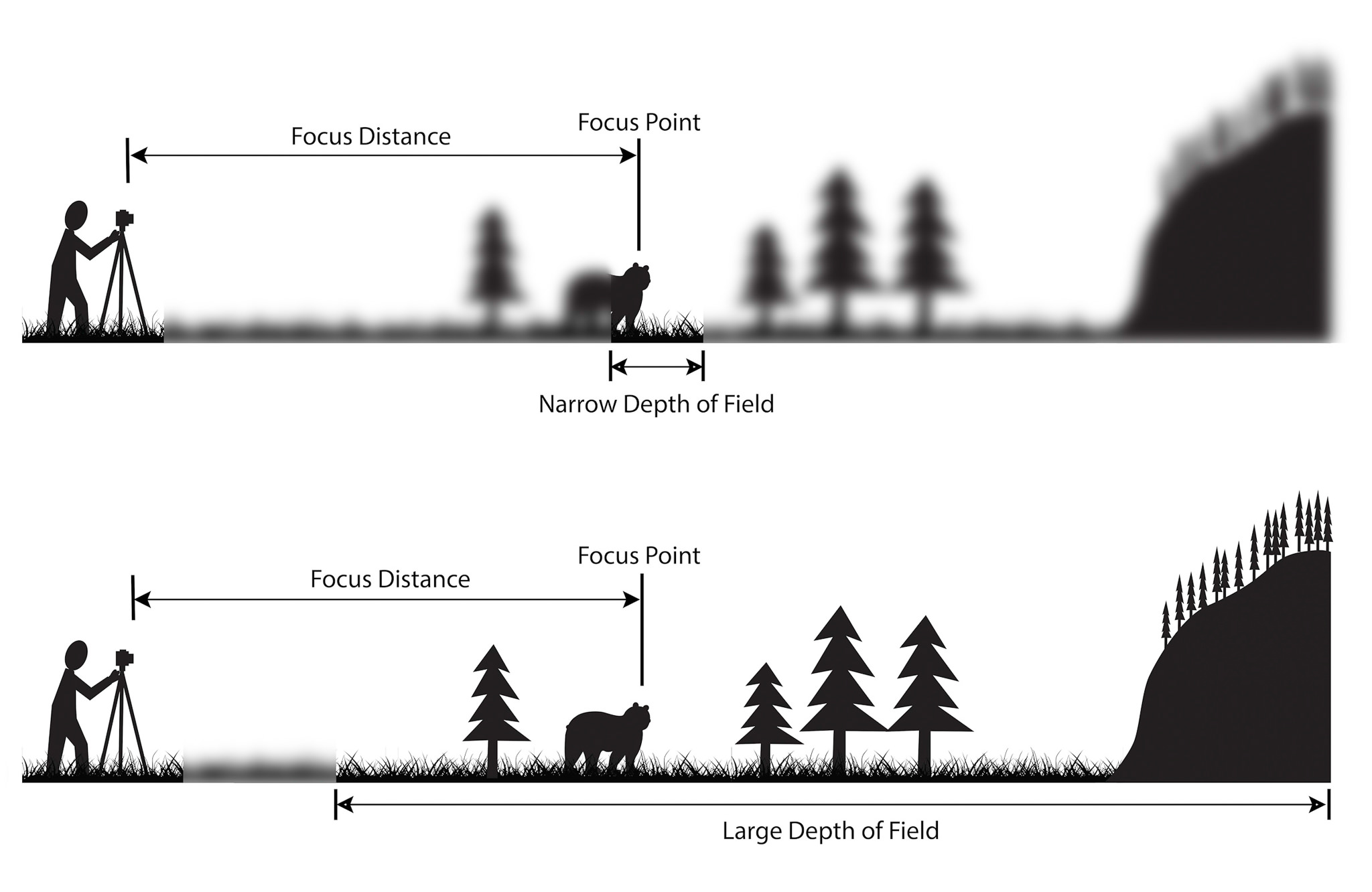
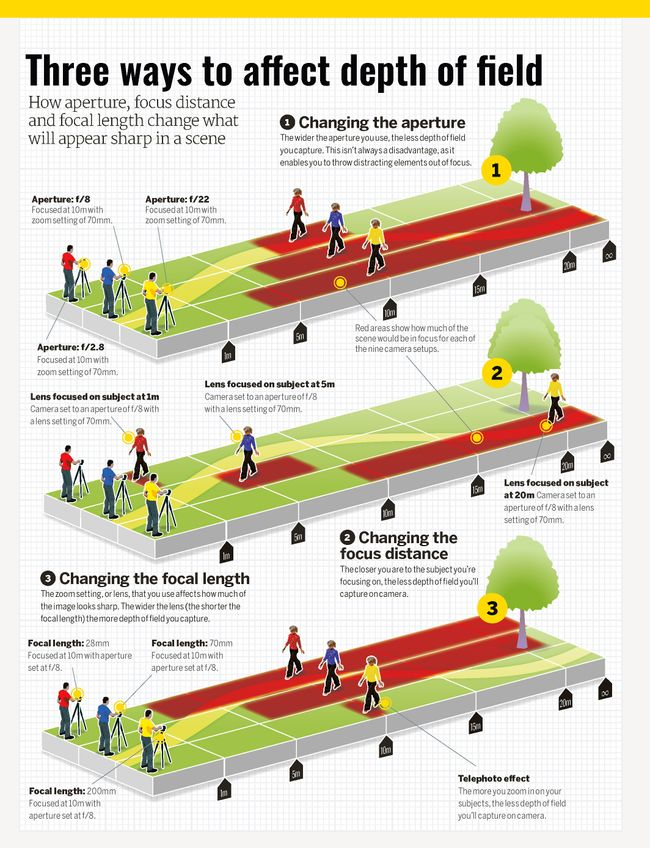
Depth of field is influenced by several camera settings including aperture (f-stop) and the lens focal length.
Lower f-stop settings (f/1.2 - f/2.8) have shallow depths of field.
Higher f-stop settings (f/11 - f/32) have wider depths of field.
Longer focal lengths (like the 105mm setting on the Canon EF 24-105mm lens) will have a shallow depth of field.
Shorter focal lengths (like the 24mm setting on the Canon EF 24-105mm lens) will have a wider depth of field.
Turning the focus ring on the lens will adjust the position of the in-focus area, or focal point.
|
|
|
|
| Shallow Depth of Field Aperture = f/1.4. DOF = 0.8 cm |
Medium Depth of Field Aperture = f/4.0. DOF = 2.2 cm |
Wide Depth of Field Aperture = f/22. DOF = 12.4 cm |


The camera's distance to the subject can also influence depth of field.
The depth of field will be wider when the camera is focused on more distant subjects.
The depth of field will be shallower when the camera is focused on closer subjects.
Chapter 9: Lenses
Focal Length is the measurement of the lens in mm. There are two types of lenses; Prime and Zoom, and three categories; Telephoto, 50 (Normal), and Wide.
- Prime lenses
- Have only one focal length
- Zoom lenses
- Have multiple focal lengths (multifocal)
Three Catepgories
- Telephoto
- 50 (normal)
- Wide
Going up in focal length narrows the field of view (FOV), while going down in focal length widens the FOV.
- Examples:
- 200mm telephoto -> 85mm -> 50 (normal) -> 40mm -> 35mm -> 28mm -> 18mm wide -> 12mm fisheye -> 8mm.
- Trade offs: for wide angles, it can cause distortion, so the subjects in the frame look farther apart. For telephoto, it can narrow the FOV, making it harder to frame shots & require a higher shutter speed to avoid camera shake.
Photography Basics
The Exposure Triangle
- A photographer must understand the relationship between ISO (how sensitive the light sensor will be to light), f-stop/aperture (how much light is allowed to pass through the lens), and shutter speed (how rapidly the shutter closes, cutting off the incoming light).
- Any adjustment to one of these settings will impact the others. It is up to the photographer to set all three in balance, to achieve the desired depth of field, motion blur, and exposure.
The 5 Elements of Exposure
- ISO
- The International Organization for Standardization (ISO) established a numerical scale to rate how sensitive different kinds of film were to light. This scale was retained for digital cameras. When you change the ISO value on a DSLR, you can think of it as changing film to something more or less light sensitive to what is currently in the camera. A big advantage of a digital camera is that you can change the ISO from shot to shot, instead of only per roll of film.
- Higher ISO numbers are more light sensitive, meaning the camera will be able to take pictures in darker environments. However, higher ISO numbers also tend to produce grainier images.
- Examples:
- ISO 100: suitable for a bright, sunny day
- ISO 800: indoor spaces when not using a flash
- ISO 1600: dim or even dark environments
- Aperture
- Determines how much light is allowed to enter the camera to reach the imaging sensor and measured in F-Stop. This is controlled mechanically, by opening or closing the camera aperture. Different lenses have different apertures, handling different f-stop ranges. Aperture also determines the Depth of Field.
- Lower f-stop numbers indicate that the aperture is more open, allowing in more light. Lower f-stop numbers also narrow the depth of field, causing the area of focus to be relatively shallow, with foreground and background parts of the image being out of focus.
- Examples:
- f/1.2 - f/2.8 - lets in a lot of light; shallow depth of field
- f/4 - f/8 - useful in many scenarios; somewhat wider depth of field
- f/11 - f/32 - best for bright settings; wide depth of field
- The “depth of field” is the distance between the nearest and furthest in-focus objects in an image. A narrow depth of field will have a very narrow area in which objects will be in focus. A wide depth of field will put most elements of the image in focus. Turning the focus ring will adjust the position of the in-focus area, or focal point.
- Determines how much light is allowed to enter the camera to reach the imaging sensor and measured in F-Stop. This is controlled mechanically, by opening or closing the camera aperture. Different lenses have different apertures, handling different f-stop ranges. Aperture also determines the Depth of Field.
|
Shallow Depth of Field |
Aperture |
Wide Depth of Field |
|
Aperture = f/1.4 DOF = 0.8cm |
f/4.0 DOF = 2.2cm |
Aperture = f/22 DOF 12.4 |
- Shutter Speed
- The shutter speed, aka exposure time, is the time that the image sensor is exposed to light when capturing an image. The shutter is a mechanical window inside the camera that opens and closes to allow light into the sensor for a selected amount of time.
- A fast shutter speed, such as 1/1000 of a second, will allow light into the sensor extremely briefly. This will work in bright lighting conditions, but may not allow enough light to impact the sensor in dimmer light.
- An extremely slow shutter speed, for example ½ second, 1 second, or even more, will allow a lot of light into the sensor and can be useful in low light conditions. However, a lot can happen over a few seconds. Long exposure times may create “motion blur” for any moving object within the frame (or for the whole frame if the camera itself is moving). This may or may not be a desired artistic effect.
- The shutter speed, aka exposure time, is the time that the image sensor is exposed to light when capturing an image. The shutter is a mechanical window inside the camera that opens and closes to allow light into the sensor for a selected amount of time.
- Filtration
- Acts like sunglasses for the lens, helps reduce the intensity of the light entering the camera without changing the color.
- Examples: ND Filters, CPL filters, etc.
- Acts like sunglasses for the lens, helps reduce the intensity of the light entering the camera without changing the color.
- External Lights
- Physical light on set. Using external lights gives you more control of the shadows, contrast, brightness, which all affects the overall exposure.
Other Important Things to Note
- White Balance
-
What is determined by white light from the camera, what is measured as white. Higher temperatures are cooler (blue tint), lower temperatures are warmer (orange tint). Baseline is whatever you set it to, everything below the baseline is orange or warmer, everything above the baseline is bluer or cooler.
-
Measured in Kelvin (temperature)
-
Daylight = 5500-5600
-
Fluorescents/Camera Flash = 5000
-
Light bulbs = 3200
-
Candle Light = 2000
-
-
- Over- and Under-Exposed
- Overexposed images may look “too bright” because they were captured with settings to allow an overabundance of light into the sensor. An unwanted overexposure might happen because ISO was set too high, f-stop was set too low, or shutter speed was set too high.
- Underexposed images may look “too dark” because they were captured with settings to allow less than expected light into the sensor. An unwanted underexposure might happen because ISO was set too low, f-stop was set too high, or shutter speed was set too low.
- Lenses
- Focal Length is the measurement of the lens in mm.
- Prime lenses have only one focal length.
- Zoom lenses have multiple focal lengths (multifocal).
- There are three categories; telephoto, 50 (normal), and wide. Going up in focal length narrows the field of view (FOV), while going down in focal length widens the FOV.
- Examples:
- 200mm telephoto -> 85mm -> 50 (normal) -> 40mm -> 35mm -> 28mm -> 18mm wide -> 12mm fisheye -> 8mm.
- Trade offs: for wide angles, it can cause distortion, so the subjects in the frame look farther apart. For telephoto, it can narrow the FOV, making it harder to frame shots & require a higher shutter speed to avoid camera shake.
- Focal Length is the measurement of the lens in mm.
Canon EOS 5D Mark IV
Chapter 1: How it Works
The cameras owned by SCiL are “digital single-lens reflex” (DSLR) types, specifically the Canon EOS 5D MK IV.
Helpful manuals and guides for this camera are available online.
Important! This equipment is expensive, so you must treat it with care.
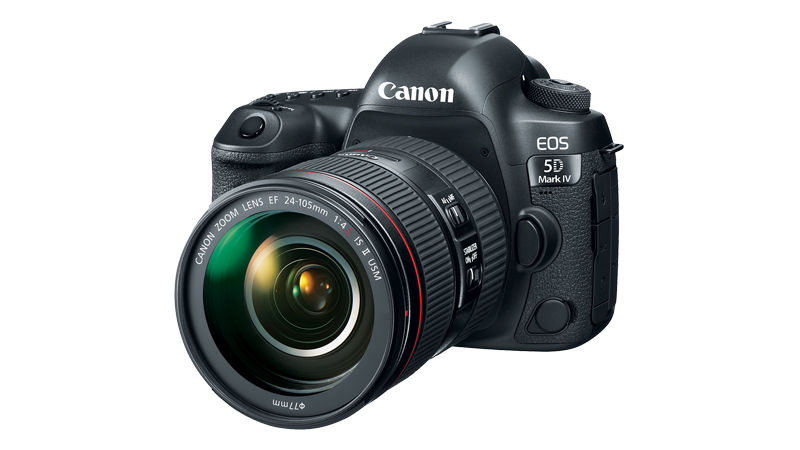
DSLR cameras tend to look a lot like older film cameras of the SLR type. Let's break this acronym down:
Digital - the camera produces images digitally instead of on film
Single-Lens - there is one path for light to enter the camera
Reflex - the light entering is split via mirror to both imaging chip and viewfinder
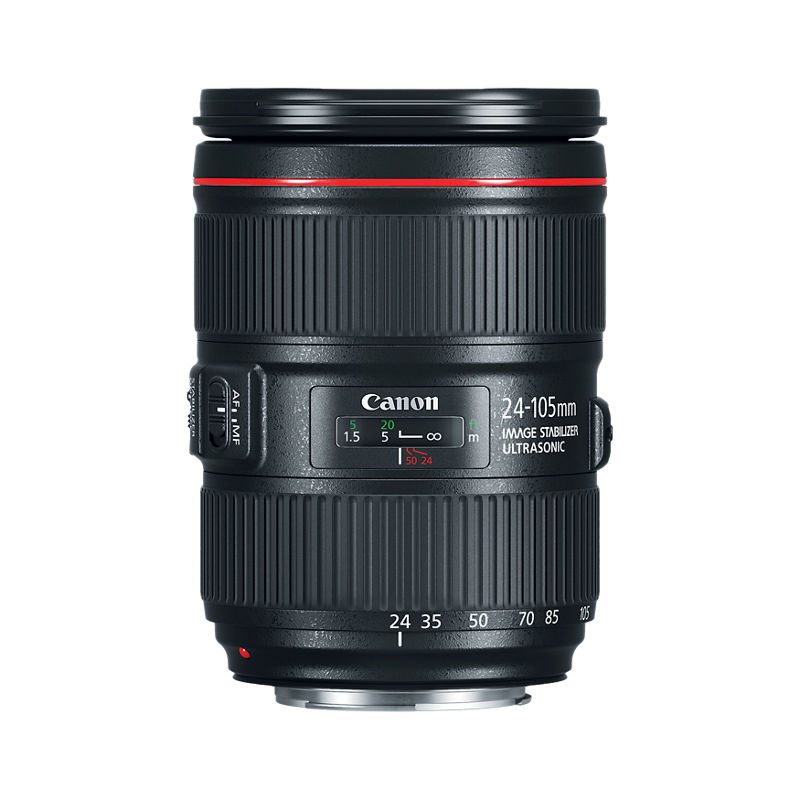
SLR cameras, whether digital or film, are notable for allowing simple switching of different lenses to accomplish various photographic techniques. Both SCiL camera kits come with a Canon 24-105mm lens. A selection of other lenses is available as needed.
Helpful manuals and information about this lens are available online.
CCD vs. CMOS
Digital cameras usually use one of two types of image sensor, either a charge-coupled device (CCD) or a complementary metal-oxide semiconductor (CMOS).
CCDs used to be the more common technology, but newer cameras outside of specialized applications tend to use CMOS because they operate more quickly, allowing DSLR cameras to shoot video in addition to stills.
The EOS 5D MK IV uses a CMOS sensor.
Chapter 2: Camera Settings, The Mode Dial
SCiL's Canon EOS 5D Mark IV DSLR has a mode dial, located on the upper left of the camera chassis. The mode dial allows you to choose which mode the camera will operate in. The available modes are:
- C1, C2, and C3: user defined presets
- B: Bulb mode (the shutter remains open as long as the shutter button is held down)
- M: Manual mode (photographer controls all settings)
- Av: Aperture Priority mode (set the aperture/f-stop; other settings are set automatically)
- Tv: Shutter Priority mode (set the shutter speed; other settings are set automatically)
- P: Program AE mode (aperture and shutter are set automatically based on brightness)
- [A+]: Scene Intelligent Auto mode (fully automatic mode)
Which mode should you use? That will depend on what you are trying to accomplish. However, some modes are more commonly used than others. The modes you are most likely to use are:
- M (manual mode). Usually, professional photographers and filmmakers will usually prefer to have complete control over the camera and all of its settings. This is the recommended mode for a serious photographer or filmmaker.
As a matter of convenience, it can sometimes speed up your workflow to use partially automated settings:
- Av (aperture priority). Sometimes it may be convenient to set the aperture/f-stop and allow the camera to automatically handle other settings. This may be useful when, for example, you want to control depth of field using aperture but do not have special requirements for ISO or shutter speed.
- Tv (shutter priority). Sometimes it may be convenient to set the shutter speed and allow the camera to handle other settings. This may be useful when, for example, you would like to achieve specialized shutter effects (like a long exposure) and would like the camera to automatically assign other settings to achieve a good exposure.
- P (automated shutter and aperture). Sometimes, especially when shooting casually, you may find fully automatic settings help you to capture images and video quickly when the camera handles most settings for itself. This is not the recommended mode for capturing imagery or videos for immersive media productions.
Chapter 3: Camera Settings, ISO
ISO
- The International Organization for Standardization (ISO) established a numerical scale to rate how sensitive different kinds of film were to light. This scale was retained for digital cameras. When you change the ISO value on a DSLR, you can think of it as changing film to something more or less light sensitive to what is currently in the camera. A big advantage of a digital camera is that you can change the ISO from shot to shot, instead of only per roll of film.
- Higher ISO numbers are more light sensitive, meaning the camera will be able to take pictures in darker environments. However, higher ISO numbers also tend to produce grainier images.
- Examples:
- ISO 100: suitable for a bright, sunny day
- ISO 800: indoor spaces when not using a flash
- ISO 1600: dim or even dark environments
This short video shows how to set ISO on the Canon EOS 5D Mk IV.
For a more in depth explanation, visit Chapter 2: Elements of Exposure, ISO
Chapter 4: Camera Settings, Aperture & F-Stop
- Determines how much light is allowed to enter the camera to reach the imaging sensor and measured in F-Stop. This is controlled mechanically, by opening or closing the camera aperture. Different lenses have different apertures, handling different f-stop ranges. Aperture also determines the Depth of Field.
- Lower f-stop numbers indicate that the aperture is more open, allowing in more light. Lower f-stop numbers also narrow the depth of field, causing the area of focus to be relatively shallow, with foreground and background parts of the image being out of focus.
- Examples:
- f/1.2 - f/2.8 - lets in a lot of light; shallow depth of field
- f/4 - f/8 - useful in many scenarios; somewhat wider depth of field
- f/11 - f/32 - best for bright settings; wide depth of field
- The “depth of field” is the distance between the nearest and furthest in-focus objects in an image. A narrow depth of field will have a very narrow area in which objects will be in focus. A wide depth of field will put most elements of the image in focus. Turning the focus ring will adjust the position of the in-focus area, or focal point.
|
Shallow Depth of Field |
Aperture |
Wide Depth of Field |
|
Aperture = f/1.4 DOF = 0.8cm |
f/4.0 DOF = 2.2cm |
Aperture = f/22 DOF 12.4 |
The Canon EF 24-105mm f/4L IS II USM lens that is normally kept on the SCiL DSLR cameras has an adjustable f-stop rangefrom f/4 (wide open) to f/22 (nearly closed). It will retain the f-stop you set through its entire zoom range from 24mm to 105mm.
When the camera is set to video mode, you can set the f-stop on the Canon EOS 5D Mk IV using the large dial around the "set" button located at the lower right of the camera body.
For a more in depth explanation, visit Chapter 3: Elements of Exposure, Aperture
Chapter 5: Camera Settings, Shutter Speed
- The shutter speed, aka exposure time, is the time that the image sensor is exposed to light when capturing an image. The shutter is a mechanical window inside the camera that opens and closes to allow light into the sensor for a selected amount of time.
- A fast shutter speed, such as 1/1000 of a second, will allow light into the sensor extremely briefly. This will work in bright lighting conditions, but may not allow enough light to impact the sensor in dimmer light.
- An extremely slow shutter speed, for example ½ second, 1 second, or even more, will allow a lot of light into the sensor and can be useful in low light conditions. However, a lot can happen over a few seconds. Long exposure times may create “motion blur” for any moving object within the frame (or for the whole frame if the camera itself is moving). This may or may not be a desired artistic effect.
The Canon EOS 5D Mk IV shutter speed is set using the small dial located on the top right side of the camera. You will notice that this setting has different limits when shooting in video mode vs. still image mode.
When shooting in video mode, you will usually want to leave the shutter speed setting around 30-60. Faster exposure times are possible if you set your ISO and aperture accordingly but will tend to introduce "flicker" into your video.
For a more in depth explanation, visit Chapter 4: Elements of Exposure, Shutter Speed
Chapter 6: Camera Settings, White Balance
In video mode, the display screen on the camera will show you a preview of the color result from different white balance settings. In still image mode, you can take a test picture to see the effects of your white balance setting (the test picture will briefly appear on the display screen after you take the picture).
What is determined by white light from the camera, what is measured as white. Higher temperatures are cooler (blue tint), lower temperatures are warmer (orange tint). Baseline is whatever you set it to, everything below the baseline is orange or warmer, everything above the baseline is bluer or cooler.
Measured in Kelvin (temperature)
- Daylight = 5500-5600
- Fluorescents/Camera Flash = 5000
- Light bulbs = 3200
- Candle Light = 2000
For a more in depth explanation, visit Chapter 7: White Balance
Basic Lighting Techniques & GVM Light Kit
Basic Lighting Techniques
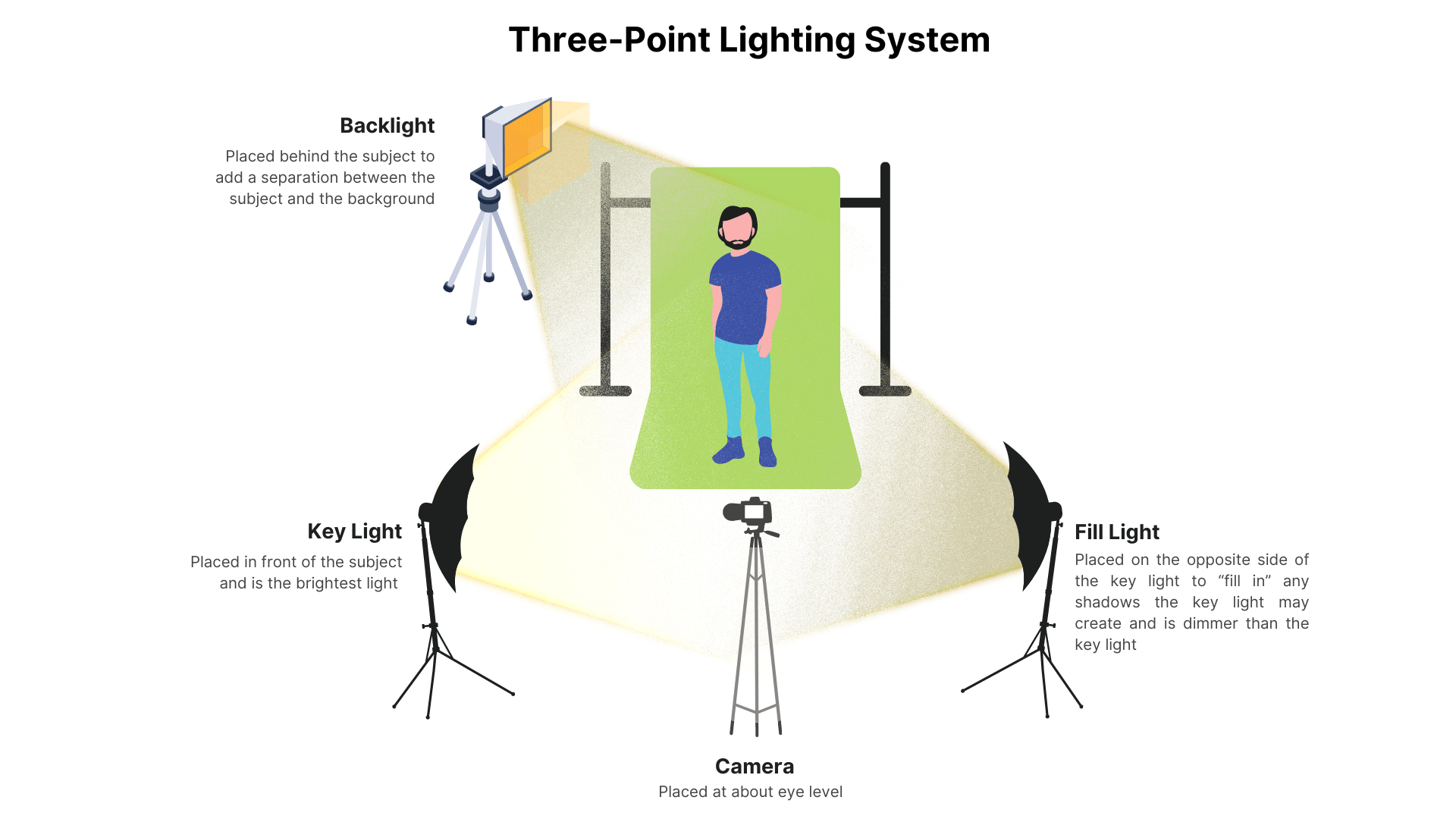
3 Point Lighting
- Key light: main source of light in the scene
- Fill light: helps fill in some of the shadows
- Back light: not always necessary, but it separates people from the background
On Camera Flash
- It reminds you that the camera is there
- Can be useful outside on a sunny day
GVM Light Kit
The GVM, Great Video Maker, light kit provides adjustable lighting for photography and videography purposes. Adjustable settings include brightness, warmth, hue, and saturation.
Parts:
- Light panels (3)
- Stands (3)
- Power adapters (2)
Stand Setup:
Loosen and tighten the knobs to open and adjust the stand. Keep the light panel closed while attaching to the stand. Use the knob at the top to attach the light panel, tighten to hold in place.
Light Panel Setup:
Open the barn doors on the front of the light panel. Plug in the power adapter to power the light panel. You can also use batteries. If you are using the power adapter, turn on by switching the on/off button to the right (I). If you are using batteries, switch the on/off button to the left (II).
Adjustments for Lighting Settings:
Make sure the panel is on 'ROTATE' mode. If it isn't, use the 'MODE' button to change the mode. There is also an app to adjust the light, although it is recommended to use the buttons on the panel. The following directions are for 'ROTATE' mode only.
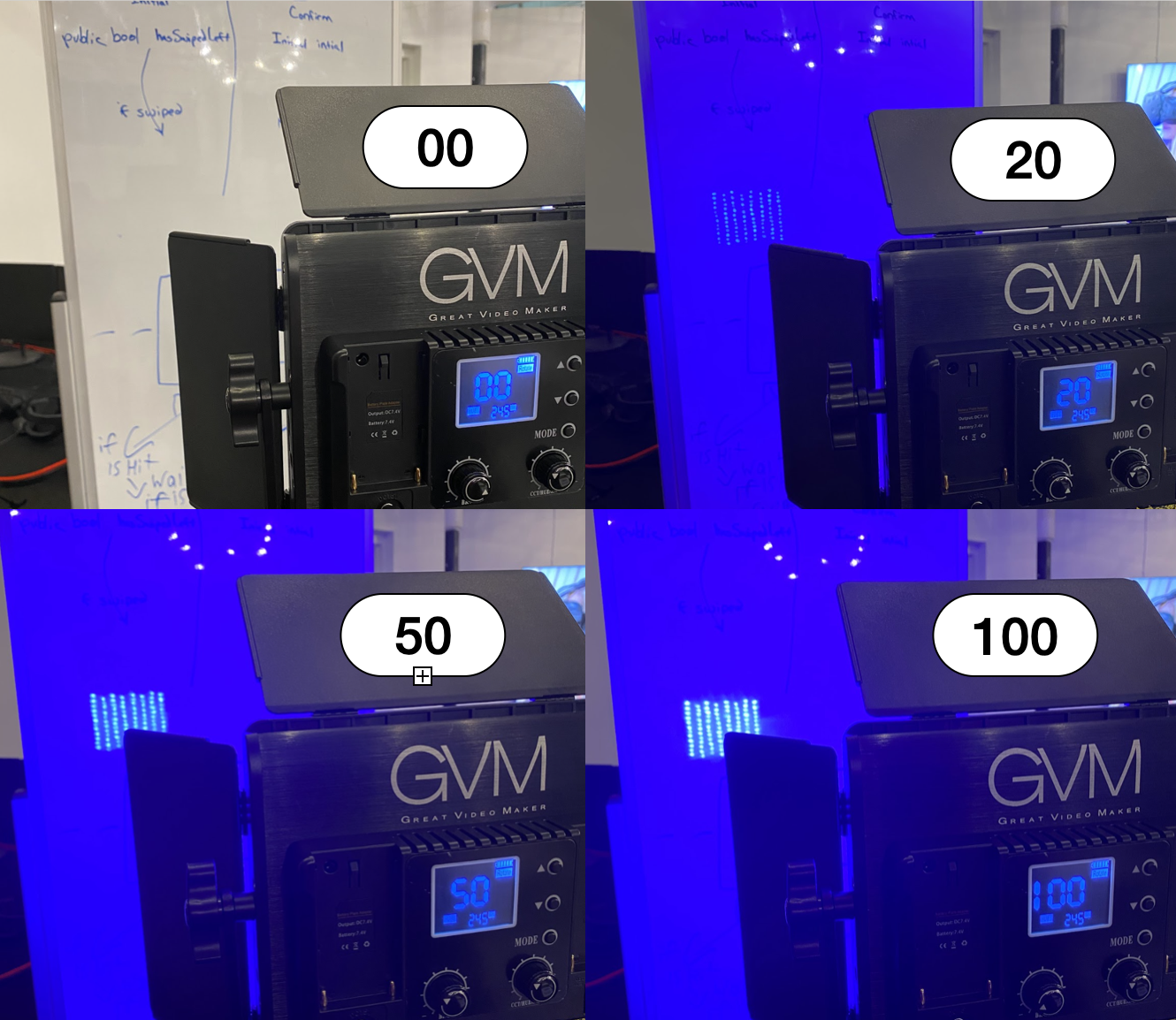
Brightness:
Use the left dial to adjust.
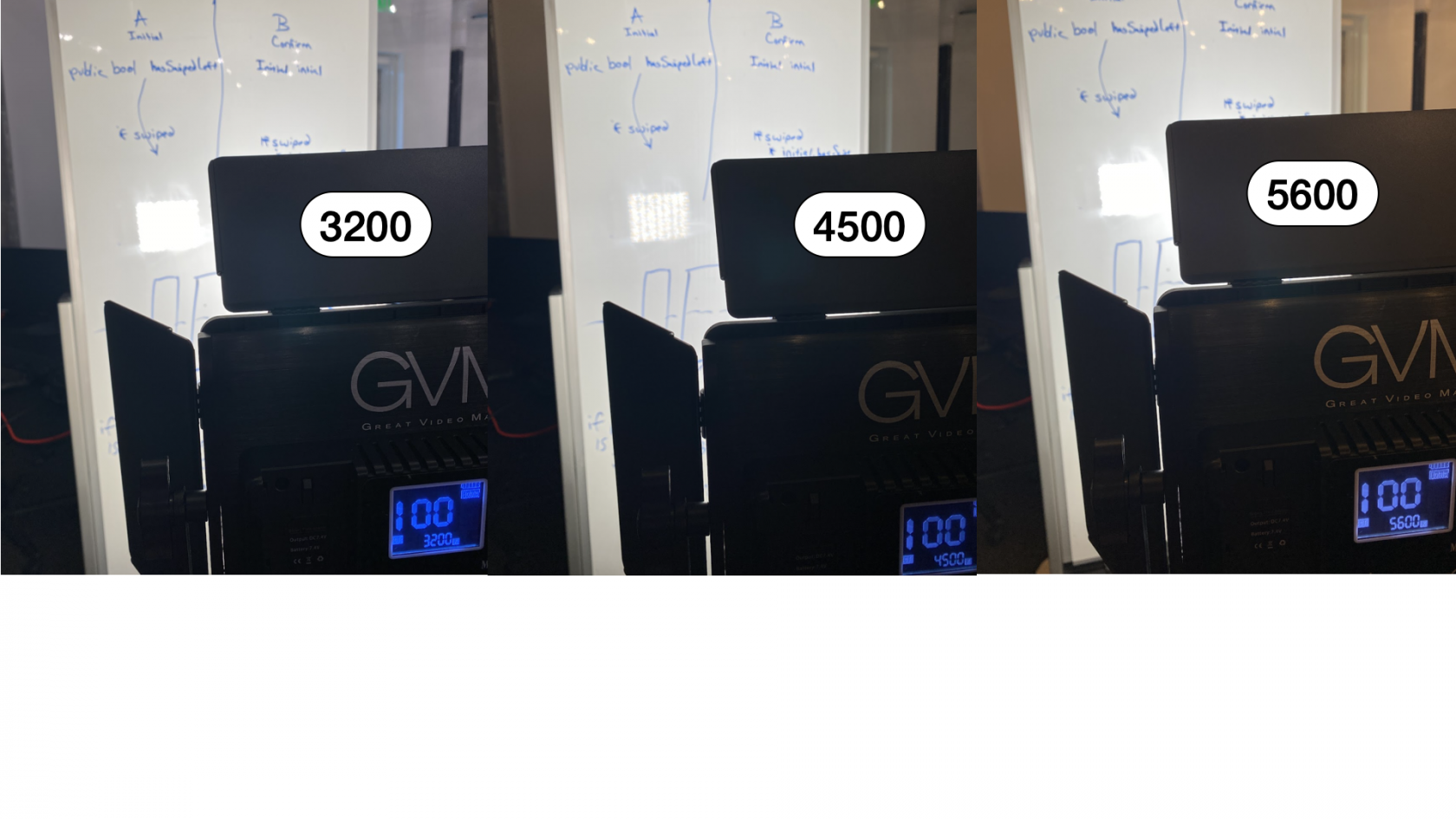
Warmth:
Use the right dial to adjust. The screen should display 'CCT' to adjust the warmth of the light using a value of Kelvin (K). If not, press the right dial until it displays 'CCT'.
Hue:
Use the right dial to adjust. The screen should display 'HUE' to adjust the color of the light. If not, press the right dial until it displays 'HUE'.
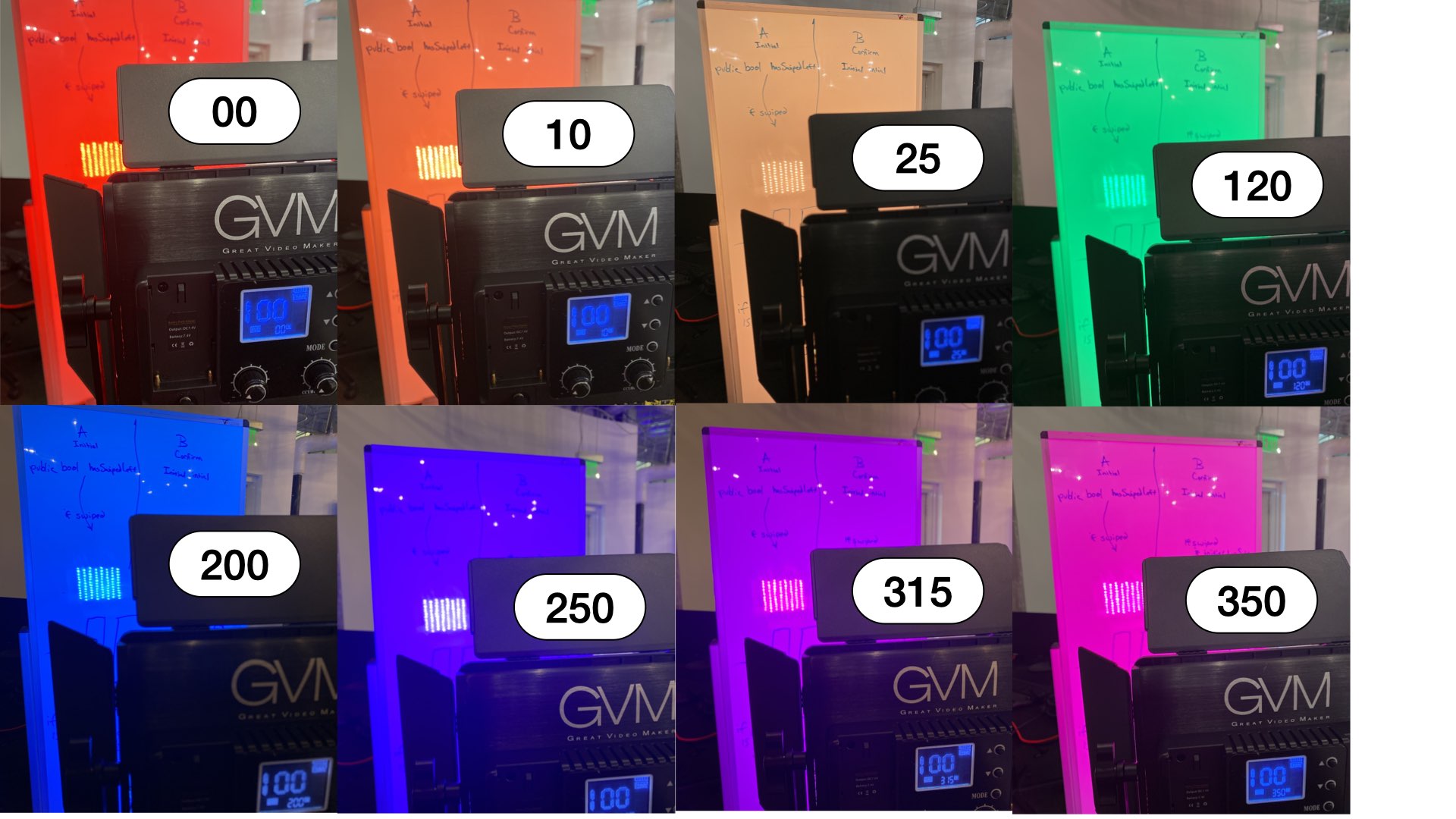
Saturation:
Use the right dial to adjust. The screen should display 'SAT' to adjust the color of the light. If not, press the right dial until it displays 'SAT'.

Light Panel and Stand Pack-Up:
Turn off by switching the on/off button to the middle (O). Unplug the power adapter to power the light panel. Close the barn doors on the front of the light panel. Detach the light panel from the stand by loosening the knob at the top of the stand. Use the knobs to adjust the stand back to its initial state.