Do not copy and paste above, set the actual folders using the \*\*\* icon
[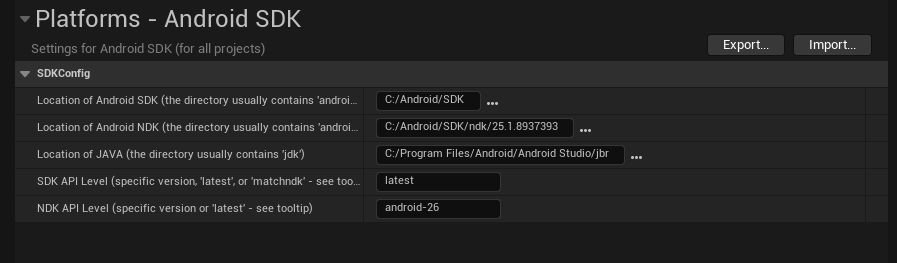](https://scil-wiki.su.edu/uploads/images/gallery/2025-10/screenshot-2025-10-10-135734.png) *This screenshot is **just** a sample. Again, set the actual folders listed above.* ### Building (in the SCiL lab)**DO NOT** run **Install Sdk** per the Unreal documentation on the SCiL workstations. They are configured differently.
Typically, Unreal would be configured according to the documentation if you are building at home. But for the SCiL lab, Android SDKs have been configured for all users of the workstation. Go to **Platforms** -> **Android** -> **Package Project** You will get a warning popup about SDK Not Setup. Click **Continue**. [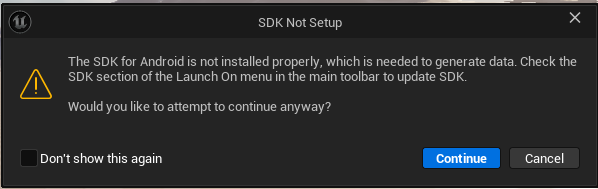](https://scil-wiki.su.edu/uploads/images/gallery/2025-10/screenshot-2025-10-10-140040.png) Select a **folder** (it is recommended to use a folder called **Builds** that is in the root of the project). This location will save for the next time you build too. You can then load your APK and OOB files to a headset via **Meta Quest Developer Hub**. Common things to check if the project did not build: - Ensure the SDK locations listed above are properly placed. - Sometimes Gradle (the building tool) will fail because an instance is already running. Try the build again. If it persists, restart the computer (this removes the processes that may be running, especially if other users are using the machine and have logged out). ### Building (not in lab) For the individuals who wish to build at home, ensure Android SDK for Unreal is setup according to this documentation: [https://dev.epicgames.com/documentation/en-us/unreal-engine/set-up-android-sdk-ndk-and-android-studio-using-turnkey-for-unreal-engine](https://dev.epicgames.com/documentation/en-us/unreal-engine/set-up-android-sdk-ndk-and-android-studio-using-turnkey-for-unreal-engine) ### Manual Project Configuration Configure project according to other pages in WIKI, including [VR Settings for Unreal Engine 4/5](https://scil-wiki.su.edu/books/unreal-engine/page/vr-settings-for-unreal-engine-45 "VR Settings for Unreal Engine 4/5") Additionally, under **Project Settings/Android**, check the following: - Under APK Packaging, select Configure Now/Accept SDK License *(you may need to do this on the build workstation)* - Support Vulkan - Support OpenGL ES3.2 OFF (IMPORTANT) - Advanced APK Packaging/Package for Meta Quest Devices ### Additional Configurations Additional settings may be required depending on the standalone/deployment platform (such as AppLab or Oculus store)