**Basic Teleport** is *optional*, but it is important you have gone through the guide at least once to familiarize yourself with deeper blueprinting as well as setting up and handling controller input.
### Grab Motion Controllers *Starting here, you should have at least an XRRig setup within a pawn, the input system setup within the pawn (even if you have no input mappings), and the pawn is placed in the level. If not, you should revisit the Prerequisites above.* Begin by creating two new Input Action files in your Input folder called **GrabLeft\_IA** and **GrabRight\_IA**. Next, open your **Input Mapping Context** file and add these two new mappings, mapping **Oculus Touch -> Oculus Touch (L or R) Grip**. Finally, in your pawn, right click and add the two new EnhancedInputAction events for these inputs.I like to add **Print String** nodes *temporarily* that connect to **Started** and **Completed** to check to make sure my controllers are working before preceding.
*If you take a moment and look at your motion controller components in your pawn, you'll notice you can make a lot of edits in the Details panel, but you can't create new functionality. We want our motion controllers to work like before but with the ability to pickup and drop objects.* In your Player folder, right click and select **New Blueprint Class** and under the **All Classes** dropdown, search for **MotionControllerComponent**, click on **MotionControllerComponent** and click **Select**. Name it **Grab\_MotionController**. While we are here, do the same again but this time search and select **StaticMeshActor**. Name this new blueprint **Grabbable**. *This blueprint, Grabbable, will serve as a special static mesh that can be picked up and dropped later.* Next, we will add these new grab components to our pawn. In your player pawn, drag the **Grab\_MotionController** blueprint onto your **CameraOffset** component. Rename what you dropped to **Grab\_MotionController\_L**. Do this again but then name the other **Grab\_MotionController\_R**. Finally, select **Right** for your **Motion Source** in the **Grab\_MotionController\_R**. From here, you now in theory have 4 (or more) motion controllers! Move both the **XRDeviceVisualization** components to the new grab controllers. The old motion controller components can be safely deleted. As one final setup, select each of the **XRDeviceVisualizations** and turn off collisions by going to **Collision/Collision Presets** and selecting **NoCollision** in the **Details** panel. Your new rig should look like this (maybe with an extra motion controller for teleport): [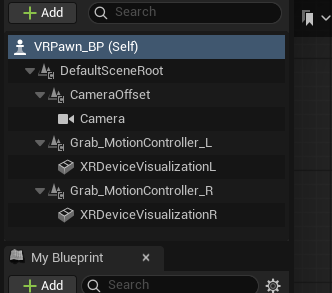](https://scil-wiki.su.edu/uploads/images/gallery/2025-08/MWCscreenshot-2025-08-26-144321.png) ### Create Pickup and Drop Events Open up your **Grab\_MotionController** blueprint. Right click somewhere and create a new **Custom Event** and call it **Pickup**. Do this again and call the other event **Drop**. *When we call this Pickup event we want the following to happen: Create an invisible sphere to check which objects are nearby. If one of the objects is a Grabbable type, we want to save what we hit for when we drop, turn off physics for that object, and then attach it to our hand.* Dragging off the white pin in **Pickup**, create a new node called **Sphere Trace By Channel**. For the start and end yellow pins, right click and create a **Get World Location** node and connect its **Return Value** to both **Start** and **End**. Finally, give the **Radius** something like **7.0**. Coming off of the sphere trace by channel node, create a **Branch** that connects the **Return Value** and branch's red connection pin. For the blue **Out Hit** pin, drag off that pin and choose **Break Hit Result**. Finally, in the **Break Hit Result**, drag off **Hit Actor** and choose **Cast To Grabbable** and connect the **True** pin from the branch to this new node. [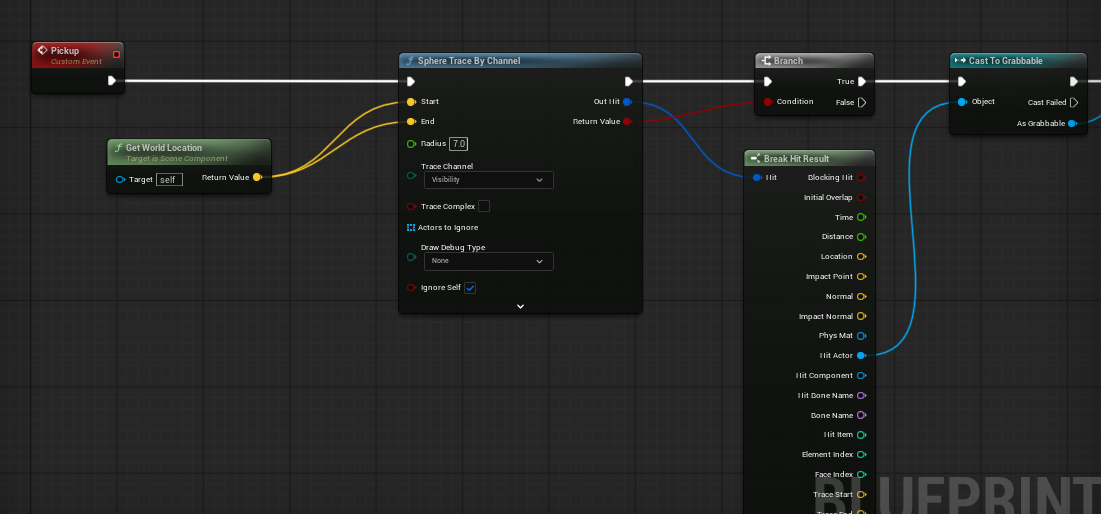](https://scil-wiki.su.edu/uploads/images/gallery/2025-08/screenshot-2025-08-26-145412.png) Next, for the blue pin **As Grabbable**, drag off and select **Promote to Variable** and name it **CurrentGrabbable**. This will be useful when we go to drop this object. Be sure to create the connection pins to this new variable from **Cast to Grabbable**. Coming off the right blue pin for **Current Grabbable**, drag off of the pin and select **Set Simulate Physics**. You'll notice we are referencing the **Static Mesh Component** here. **Uncheck Simulate**. Again, off of the right pin in **Current Grabbable**, drag off and select **Attach Actor To Component**. In this new node, under **Parent**, drag off and choose **Self**. From here, it is a personal preference, but I like to start with **Location Rule** and **Rotation Rule** set as **Snap to Target** and **Scale Rule** set to **Keep World**. Feel free to rearrange your nodes so that it looks pretty: [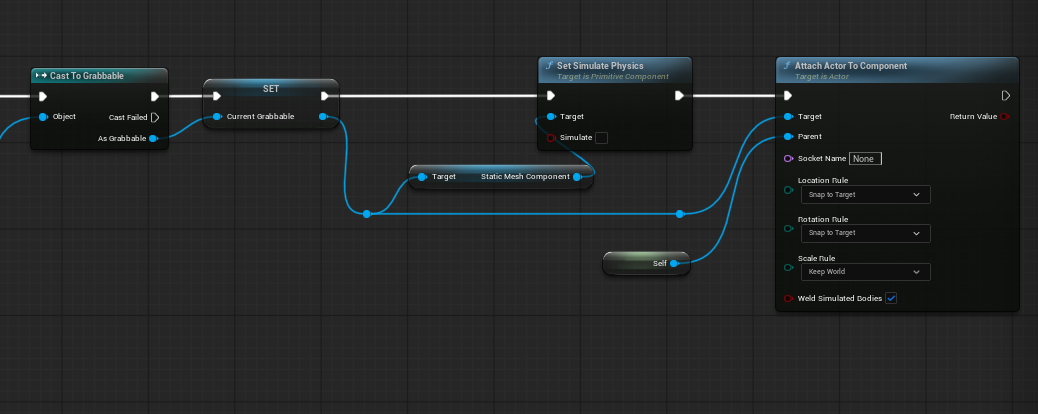](https://scil-wiki.su.edu/uploads/images/gallery/2025-08/screenshot-2025-08-26-150022.png) Now, move to your Drop event. You should have a variable created on the left sided called **CurrentGrabbable**. drag this into the **EventGraph** and choose **Get**... if asked. With this node added, drag off and select **Is Valid** (should be a white ? mark). Connect **Drop** to the Exec pins. Drag off the **Current Grabbable** node again and select **Detach From Actor** and connect this node to the **Is Valid** pin. For Location, Rotation and Scale choose **Keep World**. Again, drag off of **Current Grabbable** and choose **Set Simulate Physics** and connect this new node to **Detach From Actor**. Be sure to **check Simulate**! Finally, from the variables menu to the left again, drag **CurrentGrabbable** onto the **EventGraph** again and this time choose **Set**... You don't need to do anything here, just connect **Set Simulate Physics** to this new node. *This new node serves as a way to reset the variable after you drop the object.* Feel free to rearrange these nodes to look pretty: [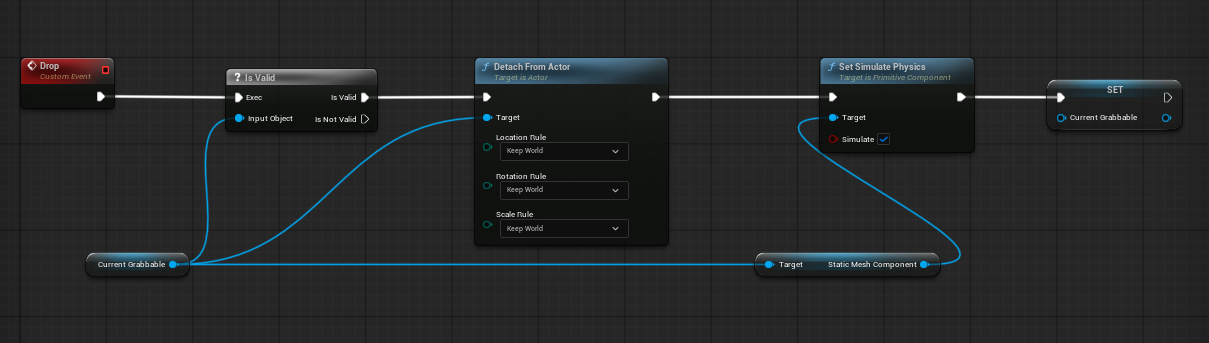](https://scil-wiki.su.edu/uploads/images/gallery/2025-08/screenshot-2025-08-26-150731.png) ### Connect Pickup and Drop to Controllers Switch back to your pawn. For both the Left grab event, drag the **Grab\_MotionController\_L** onto your graph near this event. Coming off the new node, select **Pickup** and drag off the node again and choose **Drop**. Now connect the **Pickup** to the **Started** pin and **Drop** to the **Completed** pin. Repeat for the Right. [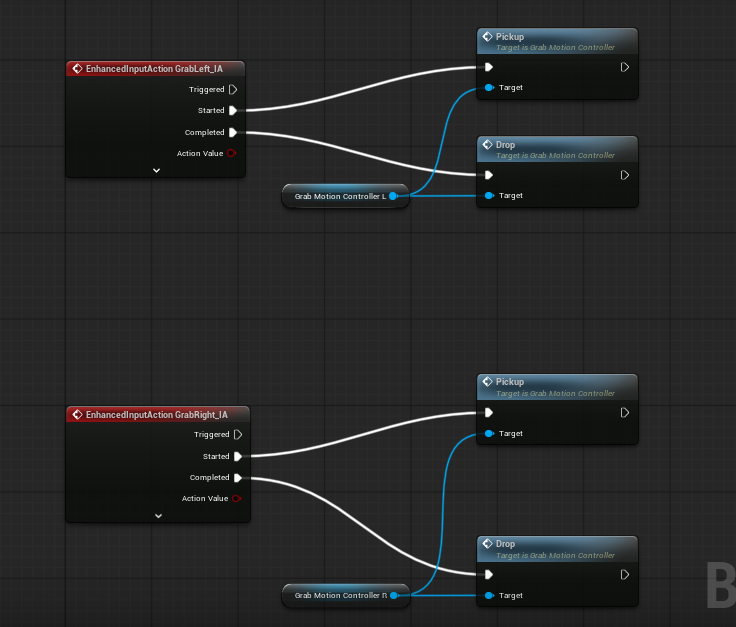](https://scil-wiki.su.edu/uploads/images/gallery/2025-08/screenshot-2025-08-26-151106.png) *There is an arrow at the bottom of the red events to collapse unused pins!* ### Add a grabbable object to the map Now for the exciting part! From your content drawer, drag the **Grabbable** blueprint into your **map**. Choose a mesh for the **Static Mesh** (such as a cube), and click **Simulate Physics**. Feel free to rename the actor as you see fit. *Because Grabbable is a blueprint, or a template, Simulate Physics is NOT selectable until there is a static mesh assigned.* #### From here, be sure to **TEST **in VR before adding more objects. If you run into issues, carefully review above and check the screenshots for connections too. ### It is still broken! Assuming you **painstakingly went through every single detail of this guide** and still find things are not working, check the following: - Is a 3D mesh actually assigned to the Static Mesh? - Did you select Simulate Physics to on when the game starts? Simulate Physics as OFF will NOT detect the grab! - Does the 3D mesh have proper collisions? Open the 3D model in your Content Drawer (teal band asset). Sometimes you need just a simple collision, convex-collision, or (rarely) switch the mesh to 'Use Complex as Simple'. ### Where do we go from here? There is a reason this guide is called Picking up objects (Basic) because you'll notice some limitations. One, for example is that you cannot do a two handed grab. There is also not a quick way to lock rotation or translation values for things like doors, drawers, or levers. For a better interaction system, there is the [VR Expansion Plugin](https://scil-wiki.su.edu/books/unreal-engine/chapter/vr-expansion-plugin "VR Expansion Plugin").