
Basic Quest Navigation
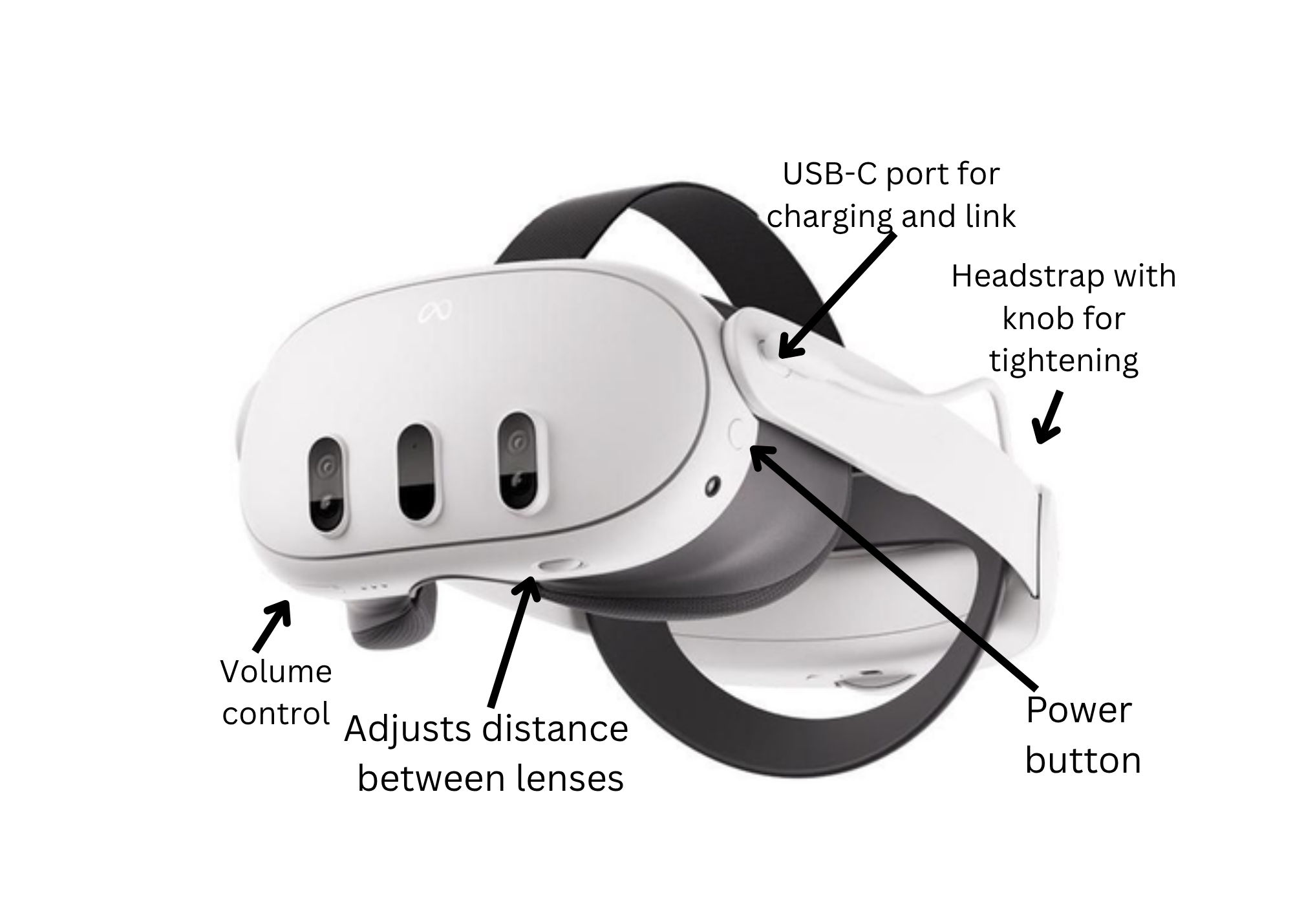
Main Menu
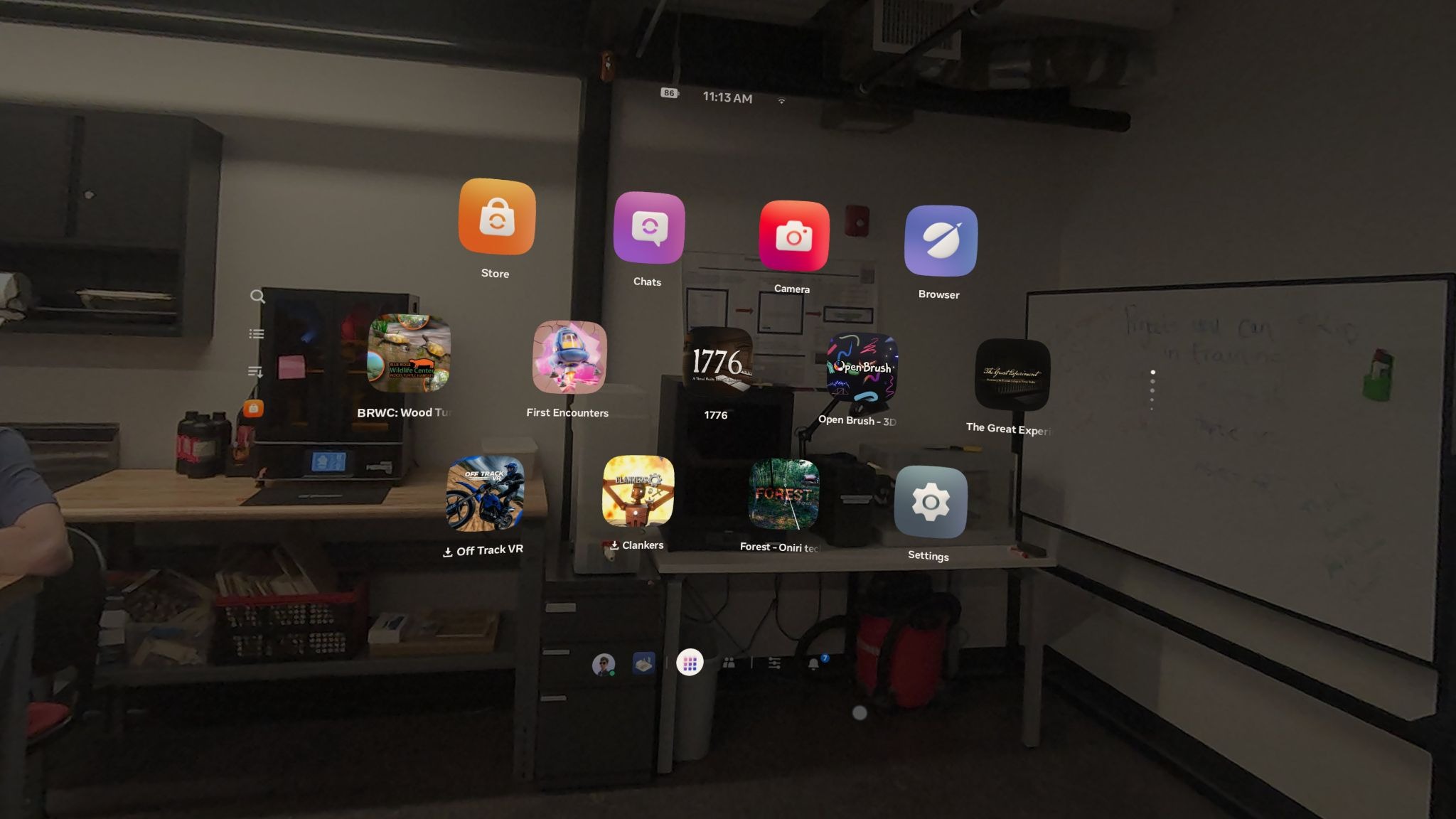
Main Menu Options:
-
You (Your Account)
-
More Options (enable pass through or the loft)
-
Active App (if a program is currently active)
-
App library
-
Friends
-
Quick Controls
-
Notifications
App Library
The app library icon is a 3x3 grid. Clicking it will bring up the App Library. This will display all the apps in the app store. Tapping the Meta button will also open up the App Library. The app menu is on the left hand side,with four different options.
-
All
-
Horizon +
-
Unknown Sources
-
Downloads
Unknown Sources is the folder where you can find all student and unpublished SCiL projects.
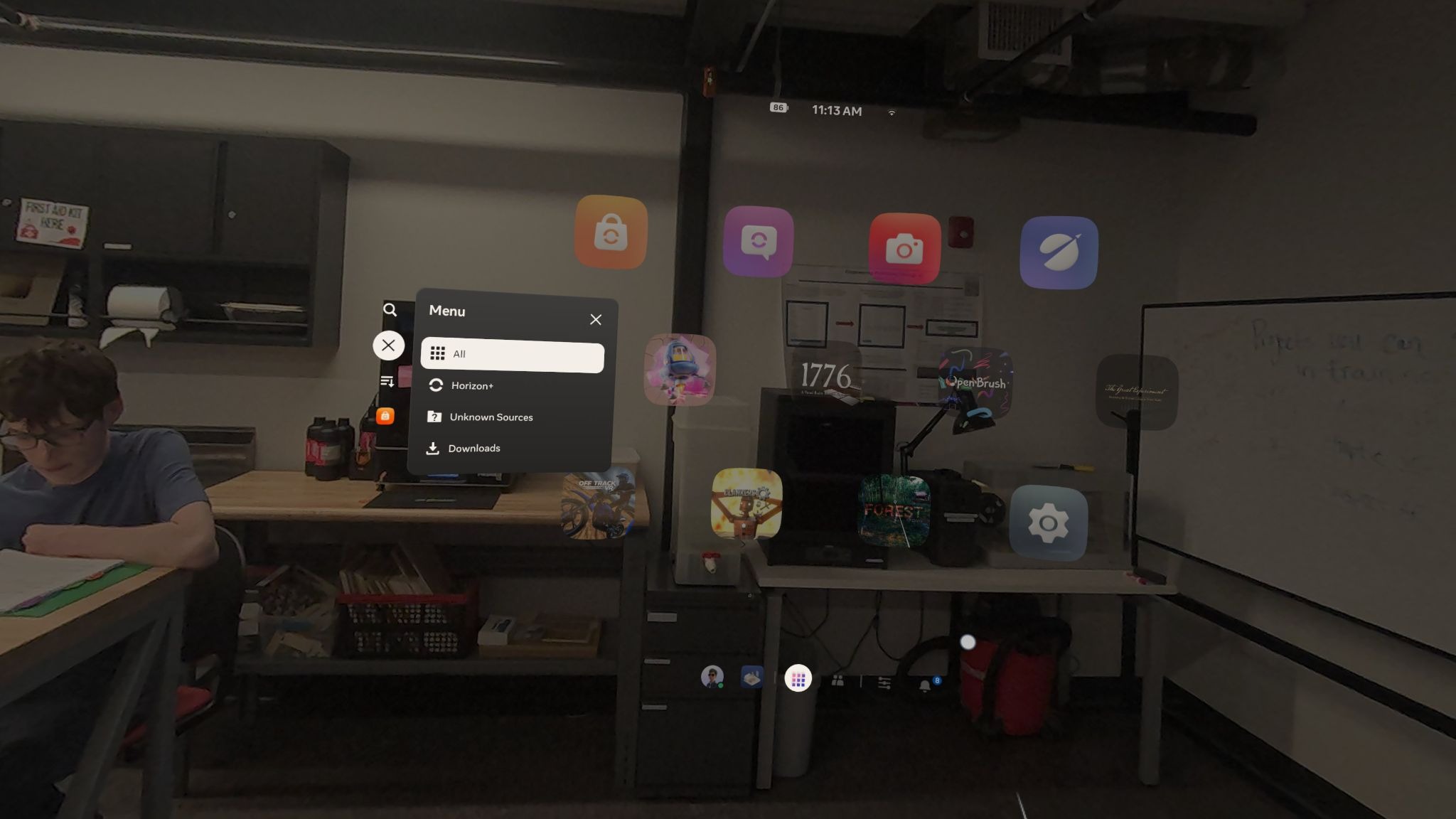
Sort By - As you have the App Library open, on the left hand side, the third from the top icon (the icon with the three lines and an arrow facing down) will give a menu of different ways to sort the App Library (Recently used, A - Z, Z - A, and Installed).
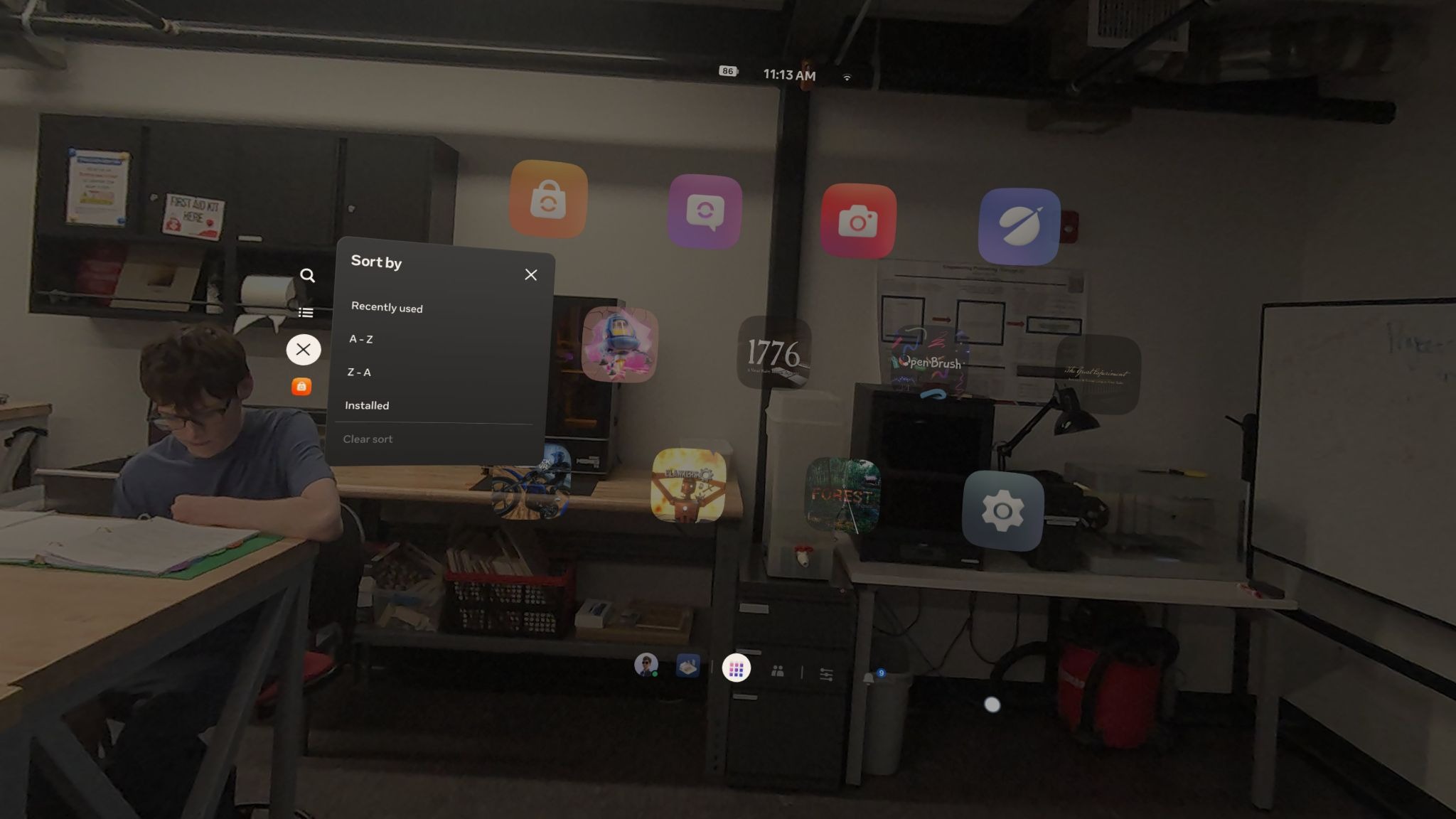
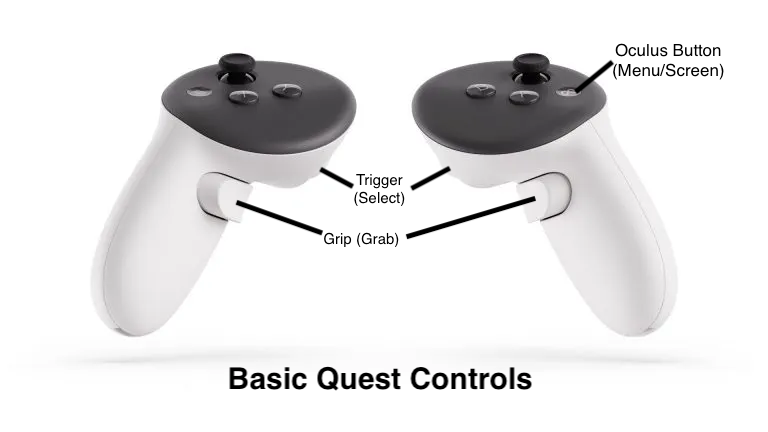
Closing open apps - Hit the Oculus button on the controller, and an option that says “quit app” should pop up. Select the “quit app” option to close the app. Open apps will appear in your main menu bar.
360 Videos
Open the DeoVR App in the App Library, then look towards the bottom. There should be a bar with different icons. Select the folder icon. This should open a list of folders; select the folder labeled “Movies”. All 360 videos are in this folder. After selecting a 360 video, click the trigger button to have the video progress bar pop up. In the bottom left corner of the bar, there should be a TV screen that says “Flat”. Select the TV and choose the “360” option from the list that pops up
Quick Controls
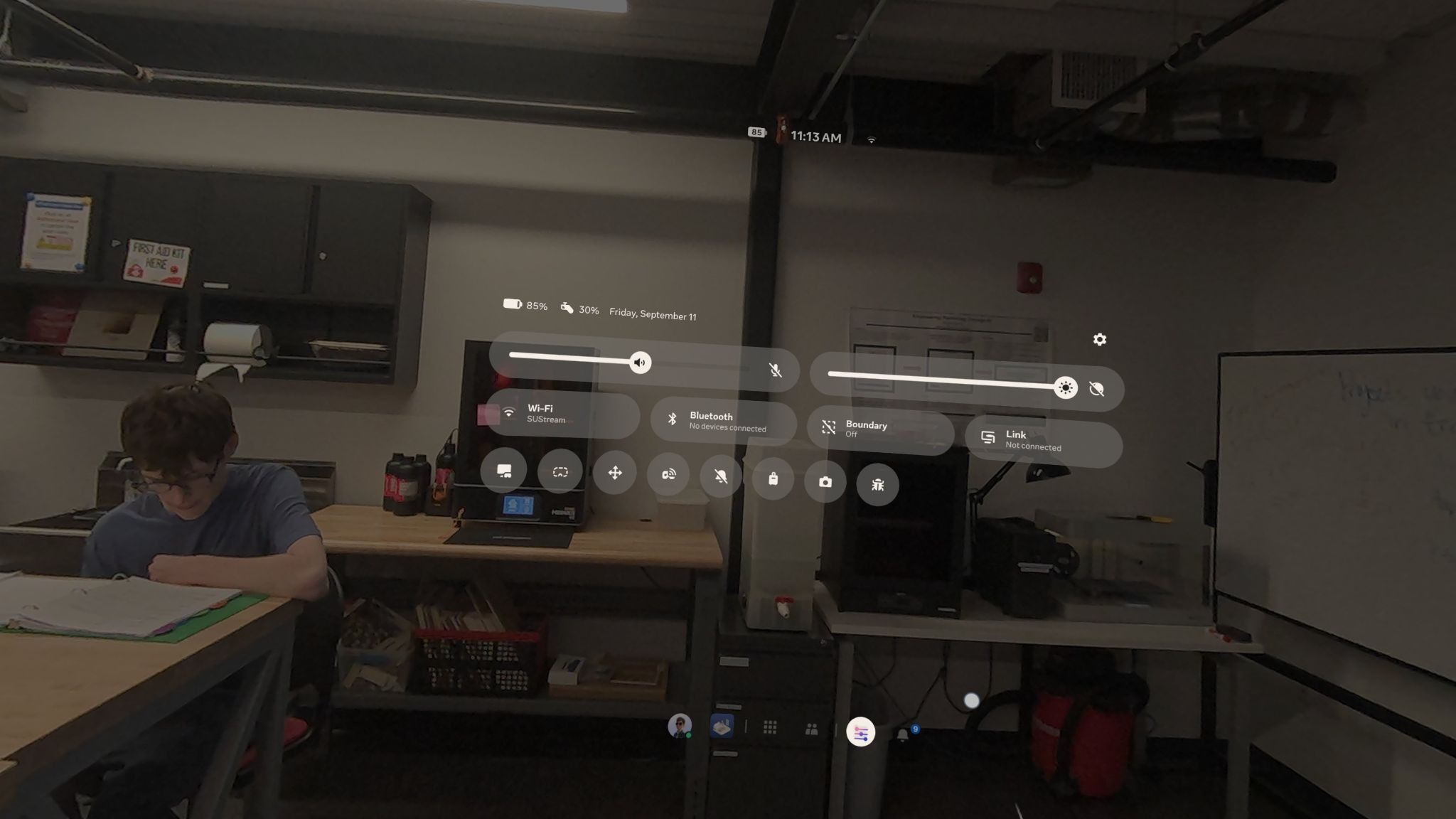
Quick controls can be found on the main menu, the icon second from the right (the icon with the three sliding bars). This is where you can find how much charge is on the headset and the controls have. Options in Quick Controls includes:
-
Volume
-
Brightness
-
Wi-Fi
-
Bluetooth
-
Boundary
-
Link
-
Casting
-
Virtual display
-
See your surrounding
-
Reset view
-
Do not disturb
-
Travel mode
-
Camera
-
Report and issue
Boundary/Playspace
Follow the step-by-step instructions to create your boundary.
-
Create a new boundary based on the experience you will be showing/using. You will use stationary boundaries for most experiences.
- Be sure the floor level is correct
- DO NOT confirm unless you can clearly see the boundary underneath you
-
To reset your boundary: Return to settings and select “boundary.” It should ask if you want to reset your boundary, select yes
-
To reset your center: Hold onto the Oculus button on the controller until the white line circling around is done. This is also how to reset your stationary boundary