
Basic Quest Navigation
Setting your playspace:
-
Turn on the Quest headset with the button on the side until the light next to it turns white
-
Follow the step-by-step instructions to create your boundary
-
Create a new boundary based on the experience you will be showing
-
Be sure the floor level is correct
-
DO NOT confirm a previous boundary unless you can clearly see the boundary underneath you
-
-
To reset your boundary: Go to settings and select "boundary." It should ask if you want to reset your boundary, select yes.
-
To reset your "center": Hold onto the Meta button on the controller until the white line that's circling it is complete
Quest Controls (Main Menu)
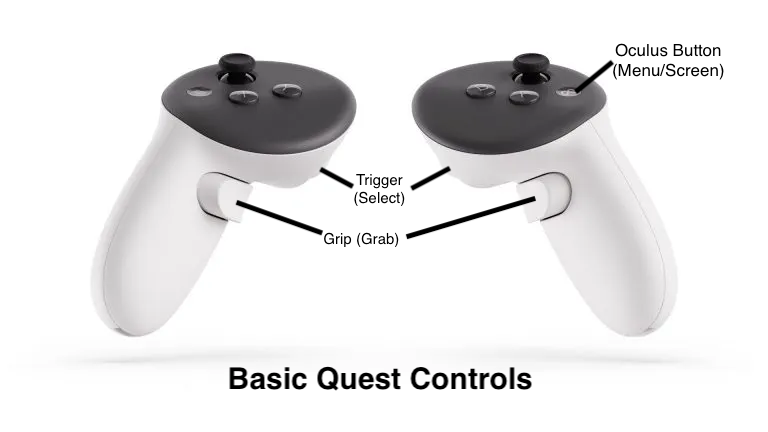
Below is an image of the controls and their names, as well as what they do in the main menu
Navigating inside the headset:
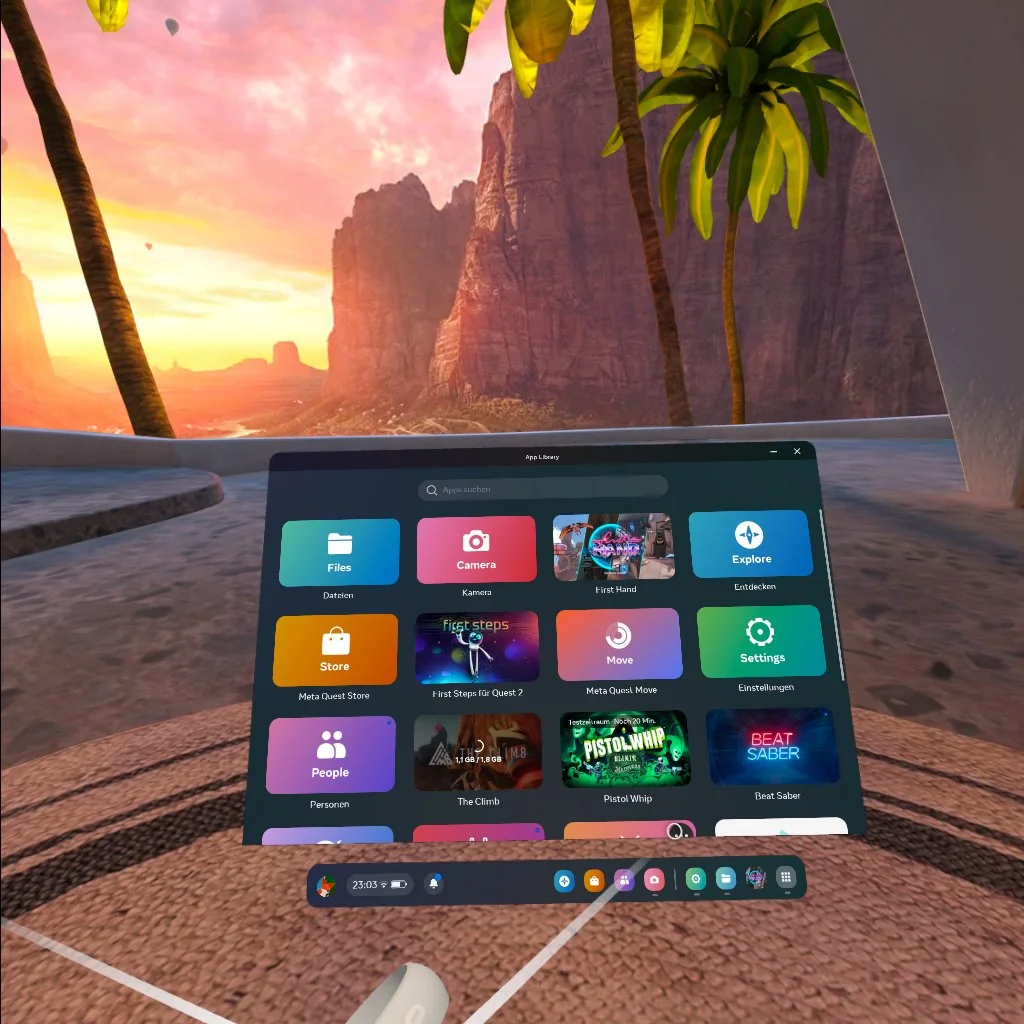
The bar at the bottom of the screen in front of you

-
App Library
Lists all the apps downloaded on the headset. If you're looking for apps that are SCiL/student-specific, go to unknown sources by clicking the drop-down menu at the top of the screen and selecting unknown sources.
-
Closing open apps
Quest 3s: Hit the meta button on the controller, and an option (in blue) that says “quit app” should pop up. Select the “quit app” option to close the app.
Finding/watching 360 videos
Quest 3s: Open the DeoVR App in the App Library, then look towards the bottom. There should be a bar with different icons; select the folder icon. This should open a list of folders, select the folder labeled “Movies”. All 360 videos are in this folder. After selecting a 360 video, click the trigger button to have the video progress bar pop up. In the bottom left corner of the bar, there should be a TV screen that says “Flat”. Select the TV and choose the “360” option from the list that pops up.