Headset Casting
Getting Set-Up:
-
Have a headset, USB-C cable, and a Windows or Apple computer with Meta Quest Developer or Sidequest downloaded (all workstations should have one of these two apps)
-
Connect the USB-C cable to the computer if not already connected
-
Connect the headset to the USB-C cable
Streaming From Computer:
-
If you’re streaming an app that’s on the computer, open the Meta Quest Developer app
-
On the left-hand side, there’s a bar. Select “Device Manager”
-
Make sure it says “Connected” at the top of the page in green
-
If it’s not connected and orange, go into the headset and select “Always allow on this computer”
-
-
Scroll down to the bottom, where there’s a list of headset commands
-
First button says “cast,” select it
- Another option for casting is from Sidequest, so open the Sidequest app
Streaming From Headset:
-
If you’re streaming an app that’s on the headset, open a web browser on a computer
-
Search oculus.com/casting
-
If first time, you’ll need to log in. Use the meta quest email and password
-
-
Then, follow the instructions provided on the screen to cast to the headset
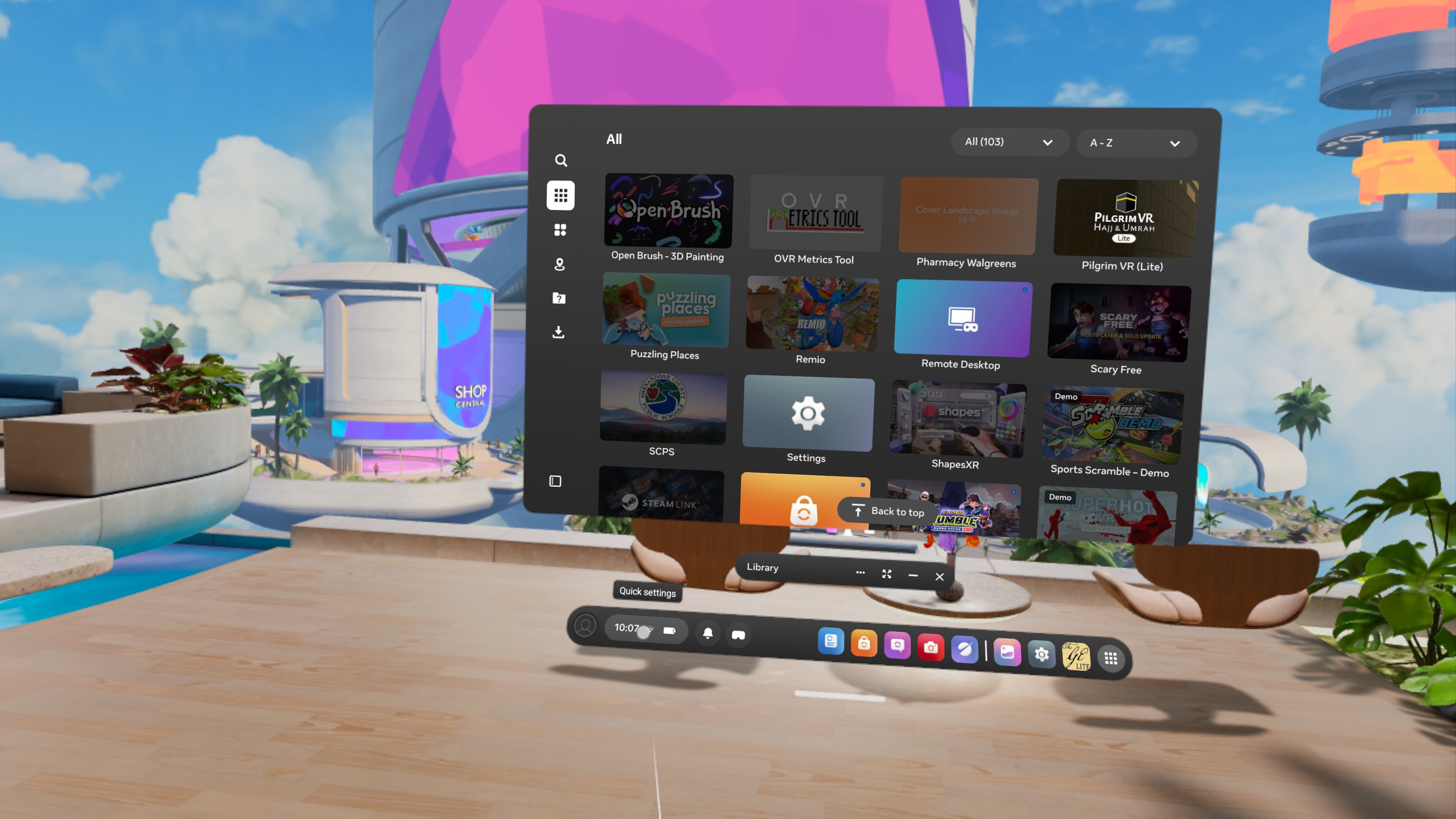
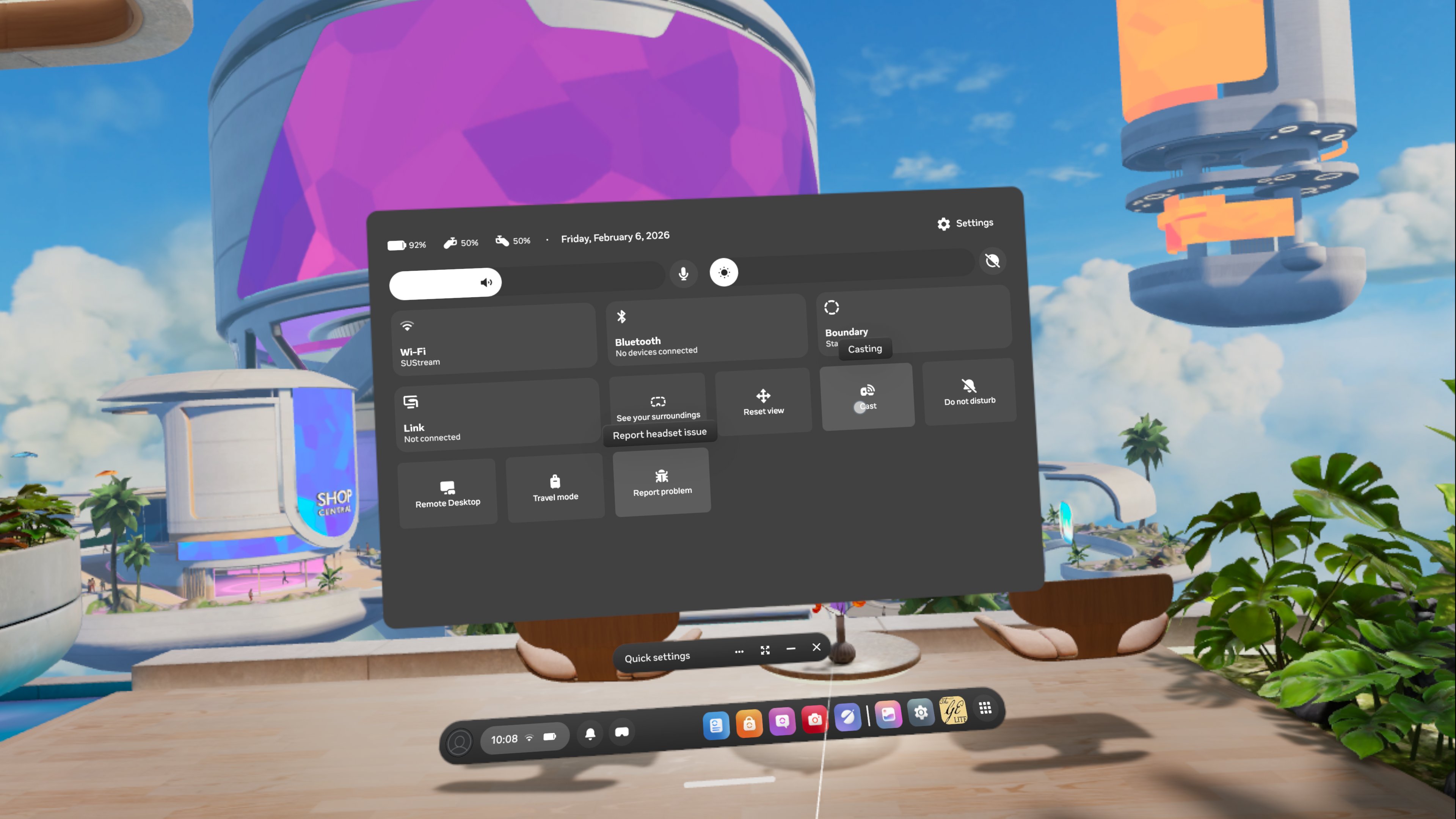
- Another option is to go to settings in the headset
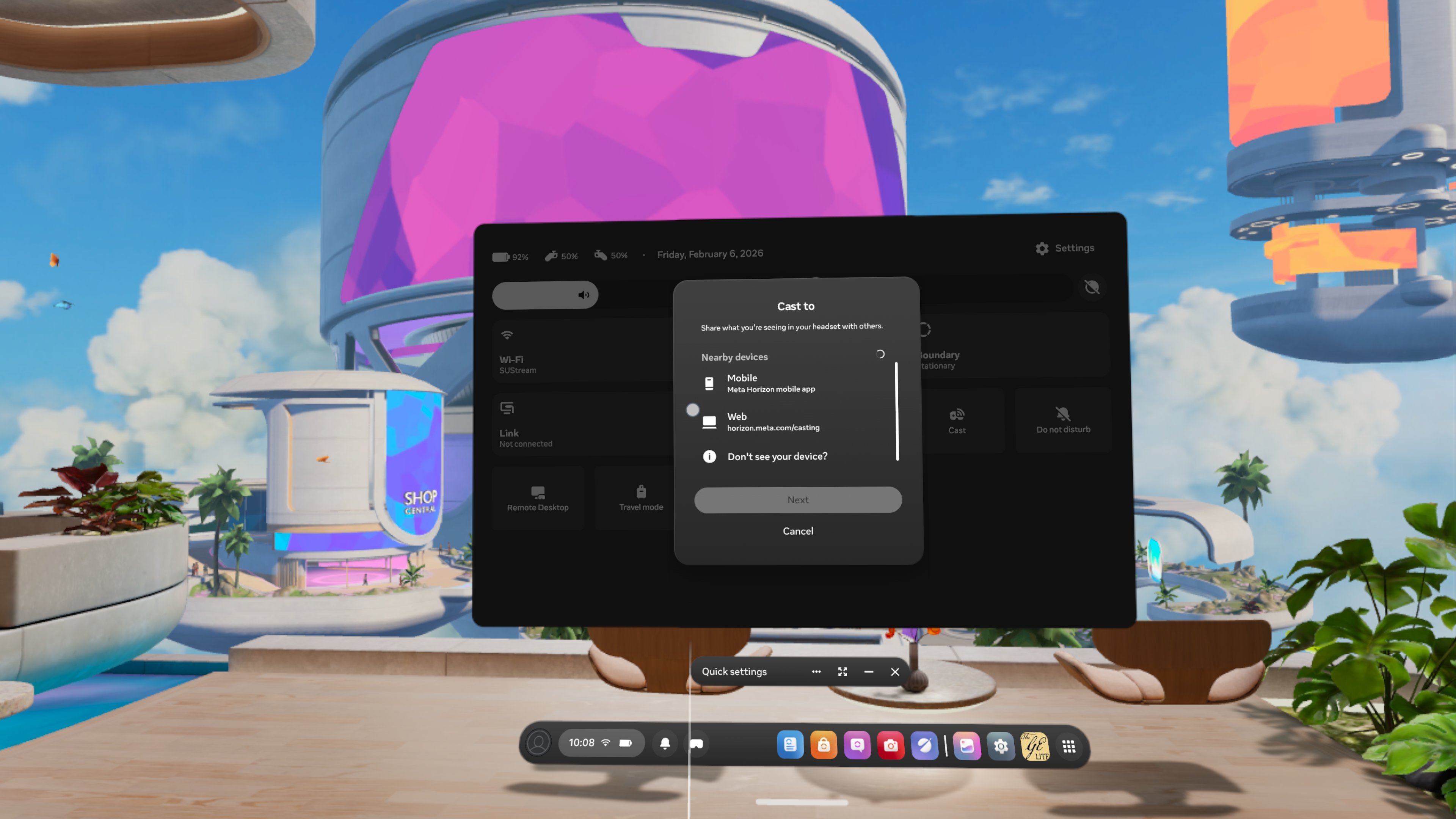
- Select Cast
- Select "Web" then "Next"
Streaming From iPad:
-
Open the Meta Horizon app on iPad
-
This is a black app with a white circle split in half
-
-
Then, in the headset, go to settings
-
Find the cast button and click it
-
Select “mobile” then “Next”
-